


Colour Television
OWNER’S MANUAL
Please read this manual carefully before operating your set.
Retain it for future reference.
Record model number and serial number of the set.
See the label attached on the back cover and quote this
information to your dealer when you require service.
Model number :
Serial number :

Contents
Installation 3
Location and function of controls 4
Remote control handset
Battery installation
Front panel
Basic operation 7
On and off / Programme selection
Volume adjustment / Mute function / Quick view
On screen language selection
On screen menus 8
Menu selection
Setting up TV stations 9
Auto programme tuning
Manual programme tuning
Fine Tuning
Programme edit
Calling the programme table
Picture adjustment 14
Picture adjustment / Eye (option) / Picture format
Sound adjustment 15
Sound adjustment
Stereo / Dual reception
NICAM reception
Sound output selection
Other functions 17
TV and AV modes / Auto AV switching
Child lock / Auto sleep / AVL (Auto volume leveler)
VM (Velocity Modulation) / Tilt (option)
Sleep timer
Teletext (option) 19
Switch on / off
SIMPLE text
TOP text (option)
FASTEXT mode
Special teletext functions
Connection of external equipment 22
Aerial socket
Euro scart sockets
Audio / Video in sockets
S-video / Audio in sockets (S-AV)
Headphone socket
Troubleshooting check list Back cover
2

Installation
3
Power
This set operates on an AC mains supply, the voltage is as indicat-
ed on the label on the back cover. Never apply DC power to the set.
In the event of thunderstorms or powercuts, please pull out the aer-
ial and mains plugs.
Warning
To prevent fire or shock hazard, do not expose the set to rain or
moisture.
Service
Never remove the back cover of the set as this can expose you to
very high voltage and other hazards. If the set does not operate
properly, unplug it and call your dealer.
Aerial
Connect the aerial cable to the socket marked +75 Ω on the back
cover. For the best reception an outdoor aerial should be used.
Location
Position your set so that no bright light or sunlight falls directly onto
the screen. Care should be taken not to expose the set to any
unnecessary vibration, moisture, dust or heat. Also ensure that the
set is placed in a position to allow a free flow of air. Do not cover
the ventilation openings on the back cover.
TV/AV
PSM
TEXT MENU
1 2 3
4 5 6
7 8 9
0
OK
PR
PR
VOL VOL
Q.VIEW
MIX TIME REVEAL
SIZE HOLD UPDATE INDEX
ARC
SLEEP
PR.LIST
SSM/
MODE
M
T
X
T
EYE SP/LP ON/OFF
CH REW PLAY FF
CH P/STILL STOP REC
DASS
Location and function of controls
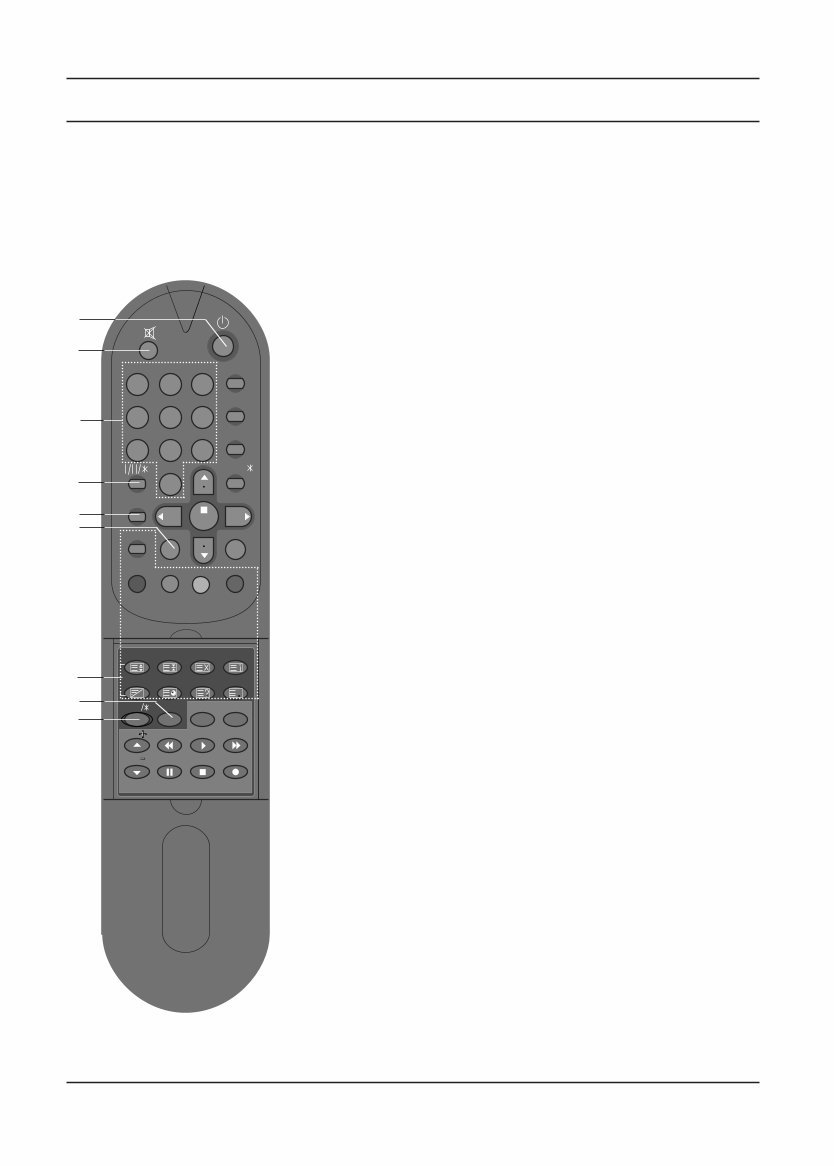
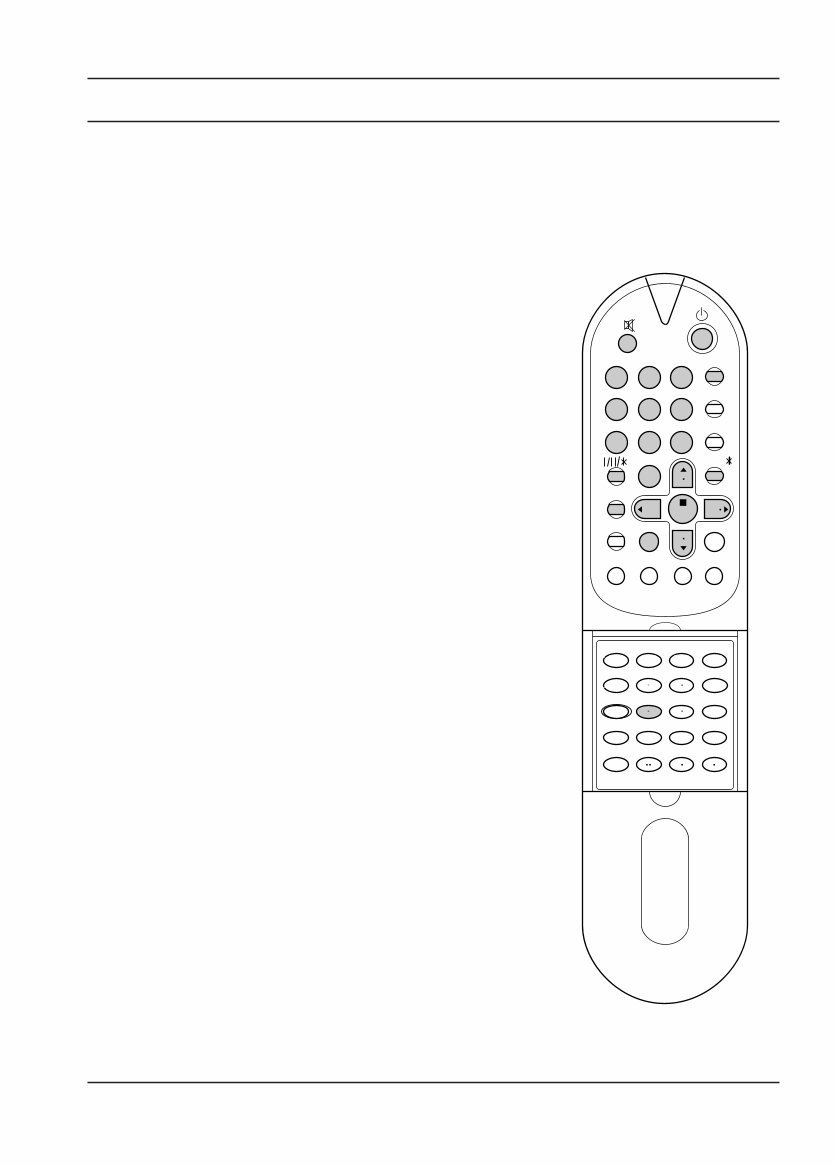
All the functions can be controlled with the remote control handset.
Some functions can also be adjusted with the buttons on the front
panel of the set.
Remote control handset
Before you use the remote control handset, please install the bat-
teries. See the next page.
1. POWER (
r
)
switches the set on from standby or off to standby.
2. MUTE (
W
)
switches the sound on or off.
3. NUMBER BUTTONS
switches the set on from standby or directly select a number.
4. DUAL (I/II/
*
)
selects the language during dual language broadcast.
selects mono sound during stereo broadcast.
5. DASS (Digital Audio Surround System)
selects DASS sounds.
6. MENU
selects a menu.
7. TELETEXT BUTTONS (option)
These buttons are used for teletext.
For further details, see the ‘Teletext’ section.
8. Q. VIEW
returns to the previously viewed programme.
9. EYE (option)
switches the eye function on or off.
4
1
2
3
4
5
7
9
6
8
Location and function of controls
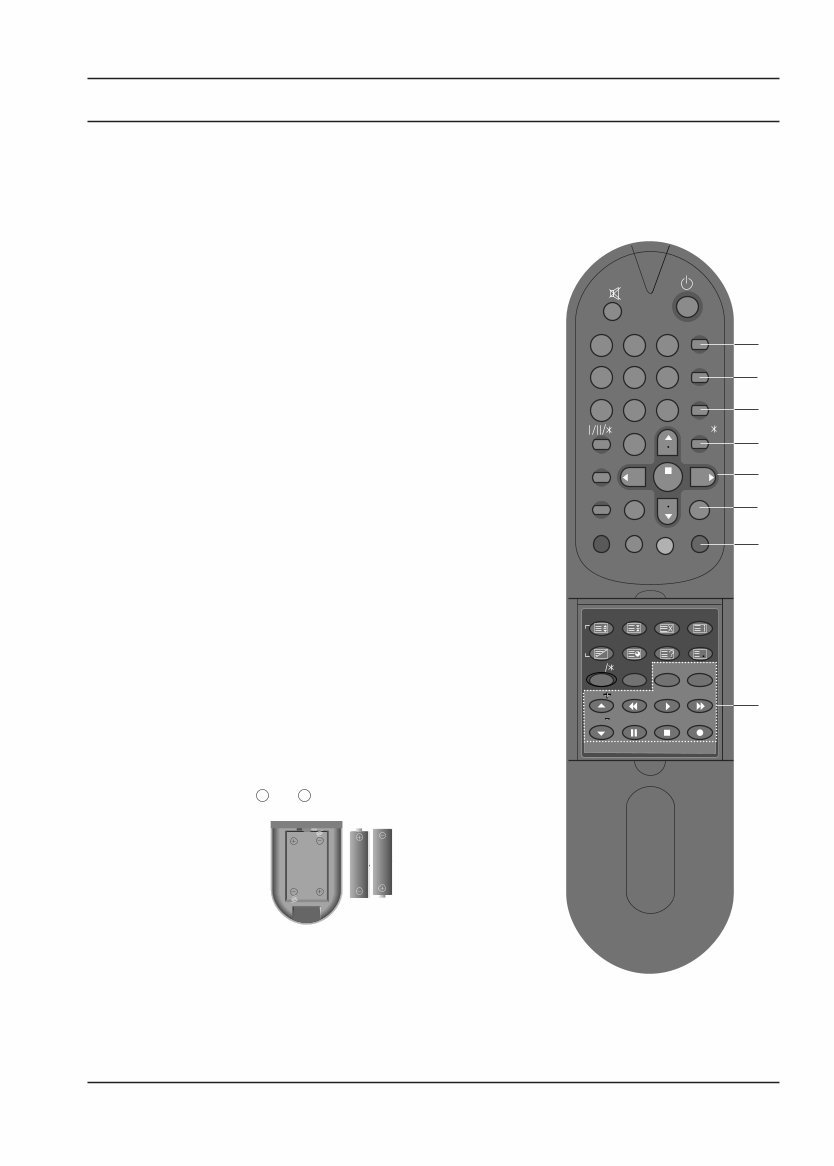
10. TV/AV
selects TV or AV mode.
clears the menu from the screen.
switches the set on from standby.
11. ARC (Aspect Ratio Control)
changes the picture format.
12. PSM (Picture Status Memory)
recalls your preferred picture setting.
13. SSM/
*
(Sound Status Memory)
recalls your preferred sound setting.
14. D / E (Programme Up/Down)
selects a programme or a menu item.
switches the set on from standby.
F / G (Volume Up/Down)
adjusts the volume.
adjusts menu settings.
OK
accepts your selection or displays the current mode.
15. SLEEP
sets the sleep timer.
16. PR. LIST
displays the programme table.
17. VCR BUTTONS
control a LG video cassette recorder.
Note : The PR. LIST button is used as teletext colour button in tele-
text mode.
Battery installation
The remote control handset is powered by two AA type batteries.
Gently pull down the cover of the remote control handset until the
battery compartment is exposed. Install two batteries as indicated
by the polarity symbols ( and ) marked inside the compartment.
Note : To avoid damage from possible battery leakage, remove the
batteries if you do not plan to use the remote control handset for an
extended period of time.
5
TV/AV
PSM
TEXT MENU
1 2 3
4 5 6
7 8 9
0
OK
PR
PR
VOL VOL
Q.VIEW
MIX TIME REVEAL
SIZE HOLD UPDATE INDEX
ARC
SLEEP
PR.LIST
SSM/
MODE
M
T
X
T
EYE SP/LP ON/OFF
CH REW PLAY FF
CH P/STILL STOP REC
DASS
10
11
12
13
16
15
14
17
+ -
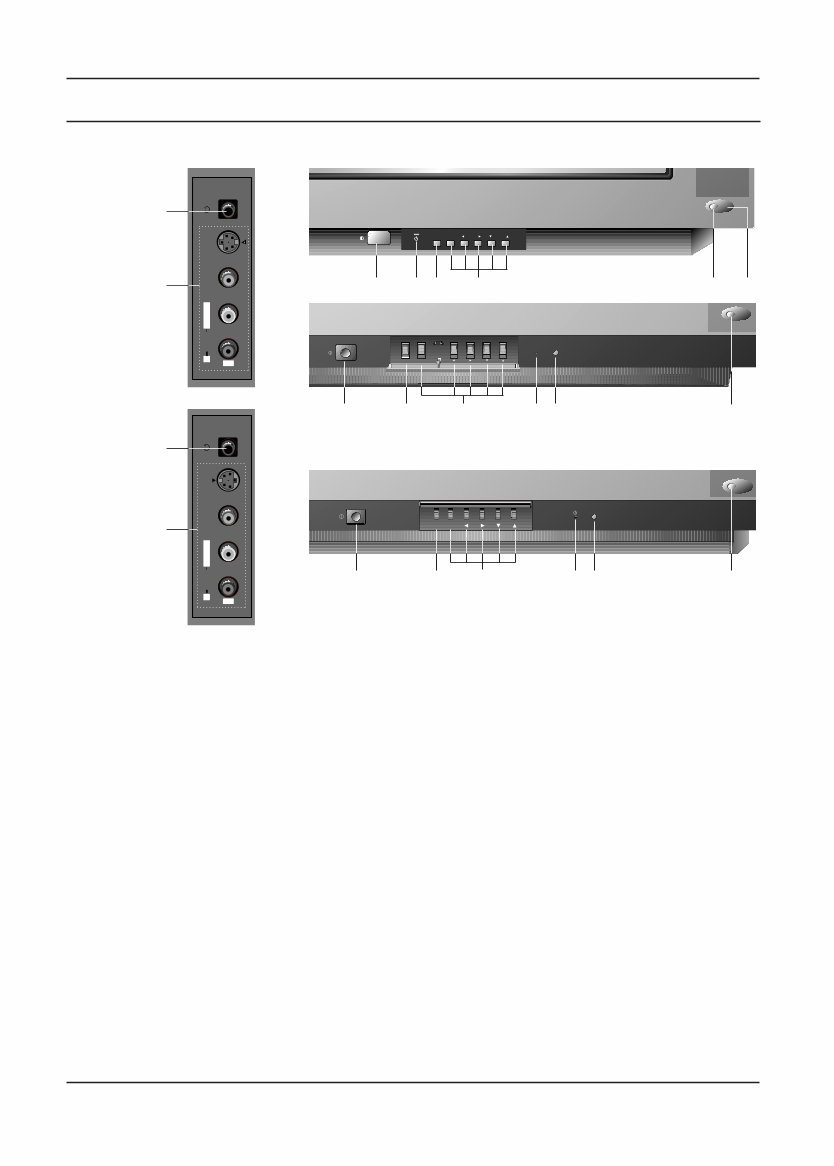
1. MAIN POWER (POWER v)
switches the set on or off.
2. POWER/STANDBY INDICATOR
illuminates brightly when the set is in standby
mode.
dims when the set is switched on.
3. MENU
selects a menu.
4. OK
accepts your selection or displays the current
mode.
F / G (Volume Up/Down)
adjusts the volume.
adjusts menu settings.
D / E (Programme Up/Down)
selects a programme or a menu item.
switches the set on from standby.
5. EYE (option)
adjusts picture according to the surrounding
conditions.
6. REMOTE CONTROL SENSOR
7. AUDIO/VIDEO IN SOCKETS (AV3)
Connect the audio/video out sockets of exter-
nal equipment to these sockets.
S-VIDEO/AUDIO IN SOCKETS (S-AV)
Connect the video out socket of an S-VIDEO
VCR to the S-VIDEO socket.
Connect the audio out sockets of the S-
VIDEO VCR to the audio sockets as in AV3.
8. HEADPHONE SOCKET
Connect the headphone plug to this socket.
Location and function of controls
6
Side panel
S-VIDEO
VIDEO L/MONO R AUDIO
AV3
7
8
S-VIDEO
VIDEO L/MONO R AUDIO
AV3
7
8
POWER MENU OK VOL PR
1 2 3 4 6 5
1 3
MENU O K VOL PR
STAND BY
POWER
2 6 4 5
POWER
MENU OK VOL PR
2 6 4 5
Front panel
1 3
Basic operation
On and off
1. Press the main power button to switch the set on.
2. If the set is in standby mode, press the
r
(power), D / E, TV/AV
or NUMBER buttons on the remote control handset to switch it
on fully.
3. Press the
r
(power) button on the remote control handset.
The set reverts to standby mode.
4. Press the main power button again to switch the set off.
Note : If, while the set is switched on, the mains plug is discon-
nected the set will switch to standby or power on when the mains
plug is replaced in the mains power socket.
Programme selection
You can select a programme number with the D / E or NUMBER
buttons.
Volume adjustment
Press the F / G button to adjust the volume.
Mute function
Press the
W
button. The sound is switched off and the display
W
appears.
You can cancel it by pressing the
W
, F / G, SSM/
*
, I/II/
*
or DASS
button.
Quick view
Press the Q.VIEW button to view the last programme you were
watching.
On screen language selection
The menu can be displayed on the screen in desired language.
First select your language.
1. Press the MENU button to select the Station menu.
2. Press the D / E button to select Language.
3. Press the OK button.
4. Press the D / E or F / G button to select your desired lan-
guage.
5. Press the OK button.
All the on screen displays will appear in the selected language.
6. Press the TV/AV button to return to normal TV viewing.
7
TV/AV
PSM
TEXT MENU
1 2 3
4 5 6
7 8 9
0
OK
PR
PR
VOL
MIX REVEAL
SIZE HOLD UPDATE INDEX
ARC
SLEEP
PR.LIST
SSM/
MODE
M
T
X
T
Q.VIEW EYE SP/LP ON/OFF
CH+ REW PLAY FF
CH- P/STILL STOP REC
VOL
DASS
On screen menus
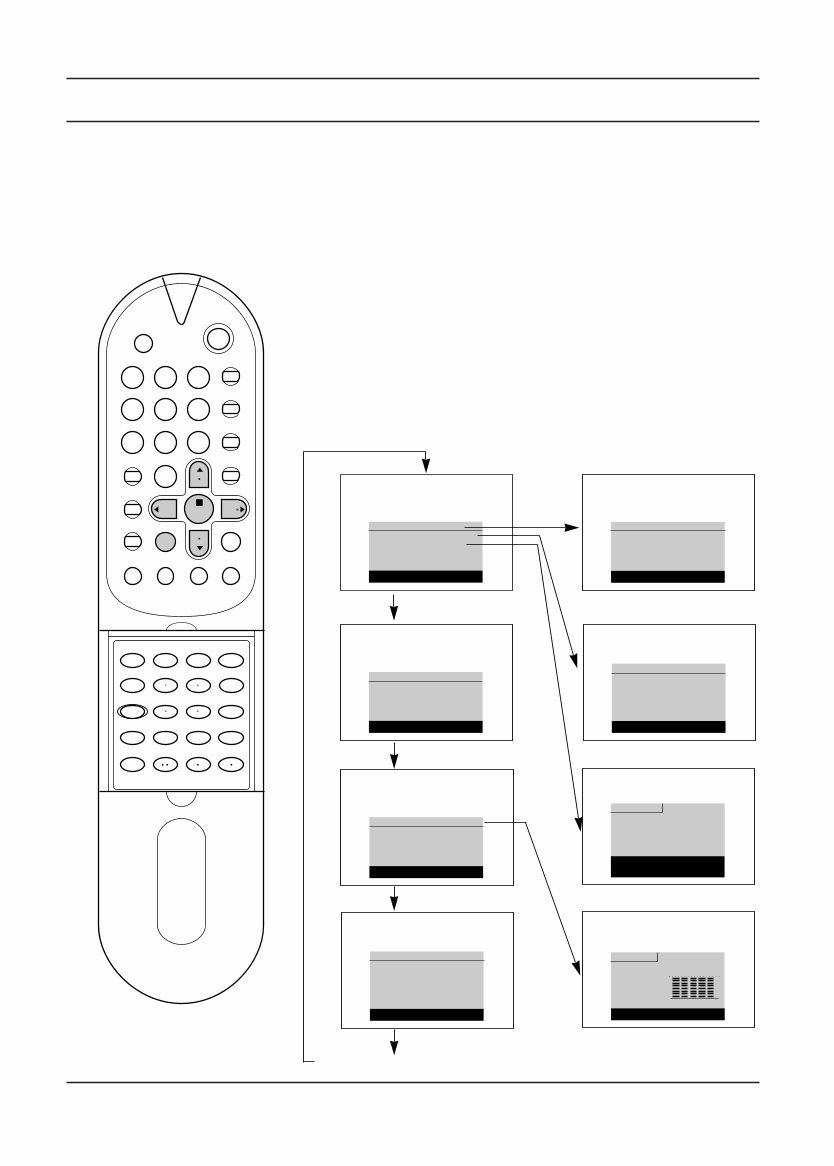
The dialogue between you and your set takes place on screen with
an operator menu. The buttons required for the operating steps are
also displayed.
Menu selection
1. Repeatedly press the MENU button to display each menu.
2. Press the D / E button to select a menu item.
The selected menu item changes from green to purple.
3. Press the F / G button to change the setting of a menu item or
OK button to display the sub menu.
Note :
a. In the AV mode, the Station menu is not displayed.
b. In the teletext mode, menus are not displayed.
c. In SECAM-L models, the Normal/Turbo search will not dis-
play, only the Start will display in the Auto programme menu.
d. In some models, the Super woofer will display in the Sound
menu. Only a set with Airo-dome speaker can perform this func-
tion.
8
PSM
TEXT MENU
OK
PR
PR
VOL
MIX TIME REVEAL
SIZE HOLD UPDATE INDEX
ARC
SLEEP
PR.LIST
MODE
M
T
X
T
Q.VIEW EYE SP/LP ON/OFF
CH+ REW PLAY FF
CH- P/STILL STOP REC
VOL
DASS
Station menu
Picture menu
Sound menu
Special menu
TV programme
AutoOprogramme
ManualOprogramme
ProgrammeOedit
Language
()OOKOMENUOTV®AV
System BG
Channel V®UHF020
Fine {{{
Search
NameOOOOOOOOOC020
Storage 1
()O}{OOKOMENUOTV®AV
‚OContrast 80
ΩOBrightnessOO50
·OColour OOOOOO50
≥OSharpnessOOO50
()O}{OOKOMENUOTV®AV
OEqualizer Flat
OBalance 0
ODASS Off
§Volume 20
()O}{OOKOMENUOTV®AV
Input TV
ChildOlock Off
AutoOsleep Off
AVL Off
VM Off
Tilt 00
()O}{OOKOMENUOTV®AV
0 ARD 5 ARD1
1 FTZ 6 FDZ1
2 C12 7 C12
3 S4 8 S44
4 CH_5 9 CH_5
}{O
•
DeleteO
•
Copy
()O
•
Move OOO
•
Skip
FlatOOOO+10
Music
MovieOOO_0
Speech
UserOOOO_10
OOOOOOOO 0.1O0.5O1.5O5.0O10OkHz
()OMENUOTV®AV
System BG
StorageOfrom 1
NormalOsearch
TurboOsearch
()O}{OOMENUOTV®AV
Setting up TV stations
Up to 100 TV stations can be stored in this set by programme numbers
(0 to 99). Once you have preset the stations, you will be able to use
the D / E or NUMBER buttons to scan the stations you programmed.
Stations can be tuned using automatic or manual modes.
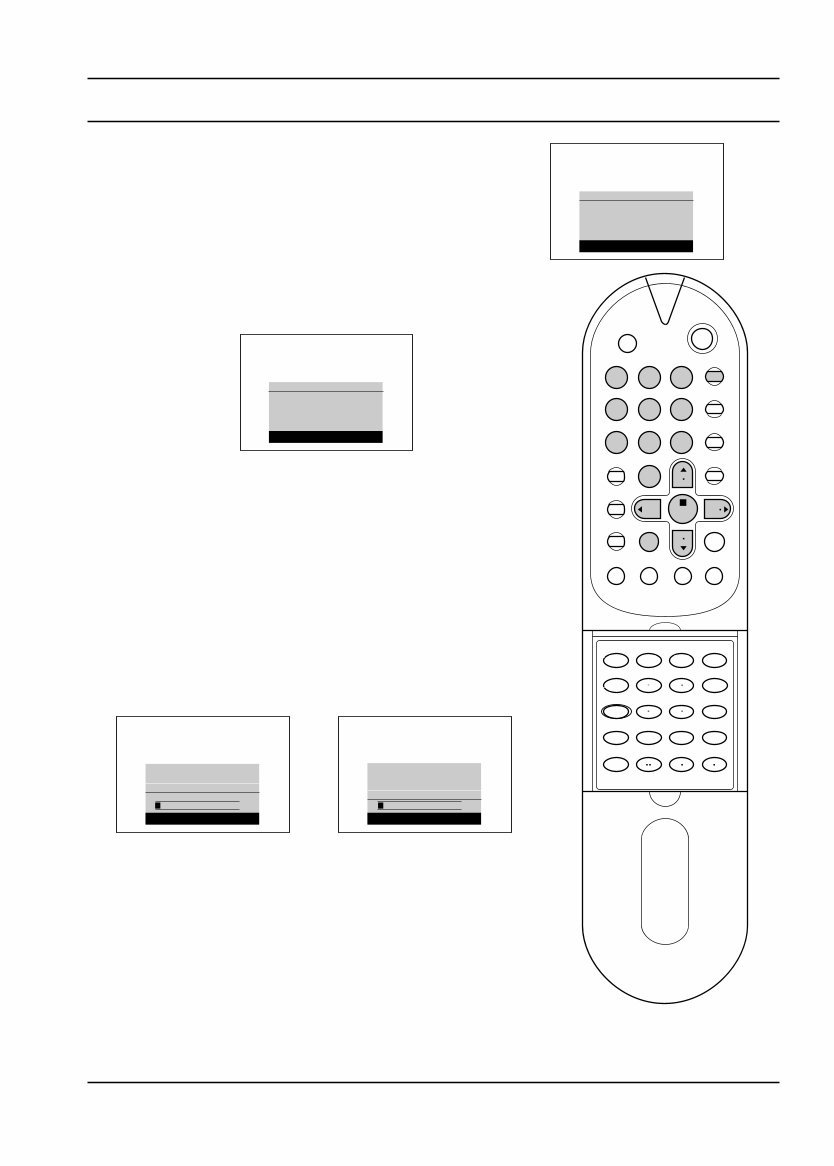
Auto programme tuning
All stations that can be received are stored by this method. It is rec-
ommended that you use auto programme during installation of this
set.
1. Repeatedly press the MENU button to select the Station menu.
2. Press the D / E button to select Auto programme.
3. Press the OK button to display the Auto programme menu.
4. Press the D / E button to select System. Select a TV system
with the F / G button ;
L : SECAM L/L’ (France : SECAM-L models only)
BG : PAL B/G, SECAM B/G (Europe/East Europe)
I : PAL I/II (U.K./Ireland)
DK : PAL D/K, SECAM D/K (East Europe)
5. Press the D / E button to select Storage from.
6. Select the beginning programme number with the F / G button
or NUMBER buttons. Any number under 10 is entered with a
numeric ‘0’ in front of it, i.e. ‘05’ for 5.
7. Press the D / E button to select Normal or Turbo search.
Option: In SECAM-L models, Only can select Start.
Note :
a. Turbo search is further faster than Normal search and in some
models, these searches will automatically store all receivable stations.
b. If the programmed station has poor quality sound, select the system
again in the Manual programme menu.
8. Press the OK button to begin auto programming.
All receivable stations are stored. The station name is stored for
stations which broadcast VPS (Video Programme Service),
PDC (Programme Delivery Control) or TELETEXT data. If no
station name can be assigned to a station, the channel number
is assigned and stored as C (V/UHF 01-69) or S (Cable 01-47),
followed by a number.
To stop auto programming, press the MENU button.
When auto programming is completed, the Programme edit
menu appears on the screen. See the ‘Programme edit’ section
to edit the stored programme.
9. Press the TV/AV button to return to normal TV viewing.
9
TV/AV
PSM
TEXT MENU
1 2 3
4 5 6
7 8 9
0
OK
PR
PR
VOL
MIX TIME REVEAL
SIZE HOLD UPDATE INDEX
ARC
SLEEP
PR.LIST
MODE
M
T
X
T
Q.VIEW EYE SP/LP ON/OFF
CH+ REW PLAY FF
CH- P/STILL STOP REC
VOL
DASS
Station
Menu
AutoOprogramme
ManualOprogramme
ProgrammeOedit
Language
()OOKOMENUOTV®AV
System BG
StorageOfrom 1
NormalOsearch
TurboOsearch
()O}{OOMENUOTV®AV
System BG
StorageOfrom 1
NormalOsearchOCO15
TurboOsearch
2OOOOOOOOOOOOOO2%
MENU
System BG
Storage Ofrom 1
NormalOsearch
TurboOsearchO CO38
2OOOOOOOOOOOOOO2%
MENU
(Normal search) (Turbo search)
Setting up TV stations
Manual programme tuning
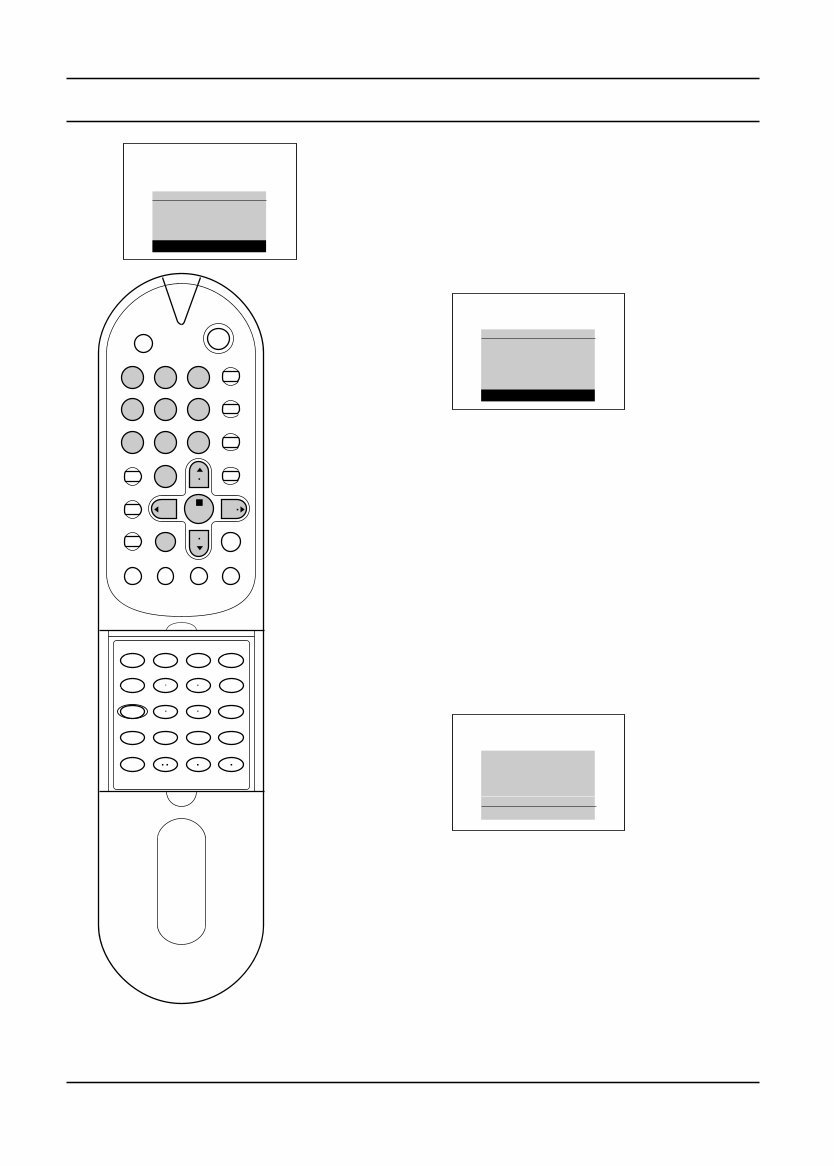
Manual programme lets you manually tune and arrange the stations
in whatever order you desire. Also you can assign a station name with
five characters to each programme number.
1. Repeatedly press the MENU button to select the Station menu.
2. Press the D / E button to select Manual programme.
3. Press the OK button to display the Manual programme menu.
4. Press the D / E button to select System. Select a TV system
with the F / G button ;
L : SECAM L/L’ (France : SECAM-L models only)
BG : PAL B/G, SECAM B/G (Europe/East Europe)
I : PAL I/II (U.K./Ireland)
DK : PAL D/K, SECAM D/K (East Europe)
5. Press the D / E button to select Channel. Press the F / G but-
ton to select V/UHF or Cable as required.
If possible, select the channel number (1 to 69) directly with the
number buttons. Any number under 10 is entered with a numeric
‘0’ in front of it, i.e. ‘05’ for 5.
6. Press the D / E button to select Search. Press the F / G button
to commence searching. If a station is found the search will stop.
7. If this station is the one required, press the D / E button to select
Storage. Select the desired programme number (0 to 99) with
the F / G button or NUMBER buttons. Any number under 10 is
entered with a numeric ‘0’ in front of it, i.e. ‘05’ for 5.
8. Press the OK button to store it. The display Stored will appear.
9. To store another station, repeat steps 4 to 8.
Assigning a station name
1. Repeat the ‘Manual programme tuning’ steps 1 to 3.
2. Press the D / E button to select Name.
3. Press the G button. You can use a blank, +, -, the numeric 0 to 9
and the alphabet A to Z.
With the F button you can select in the opposite direction.
4. Select the next position by pressing the OK button and then take
your choice of the second character, and so on.
5. Repeat the ‘Manual programme tuning’ steps 7 to 8.
10
PSM
TEXT MENU
1 2 3
4 5 6
7 8 9
0
OK
PR
PR
VOL
MIX TIME REVEAL
SIZE HOLD UPDATE INDEX
ARC
SLEEP
PR.LIST
MODE
M
T
X
T
Q.VIEW EYE SP/LP ON/OFF
CH+ REW PLAY FF
CH- P/STILL STOP REC
VOL
DASS
Station
Menu
AutoOprogramme
ManualOprogramme
ProgrammeOedit
Language
()OOKOMENUOTV®AV
System BG
Channel V®UHF020
Fine {{{
Search
NameOOOOOOOOOC020
Storage 1
()O}{OOKOMENUOTV®AV
System BG
Channel V®UHF020
Fine {{{
Search
NameOOOOOOOOOC020
Storage 1
Stored
You're Reading a Preview
What's Included?
 Lifetime Access
Fast Download Speeds
Online & Offline Access
Access PDF Contents & Bookmarks
Full Search Facility
Print one or all pages of your manual
$30.99
OWNER Manual LG CE25Q20ET Color Television
Viewed 92 Times Today

What's Included?
Lifetime Access
Fast Download Speeds
Online & Offline Access
Access PDF Contents & Bookmarks
Full Search Facility
Print one or all pages of your manual
$30.99

Secure transaction
What's Included?
Lifetime Access
Fast Download Speeds
Online & Offline Access
Access PDF Contents & Bookmarks
Full Search Facility
Print one or all pages of your manual
Description
This owner manual is essential for anyone who owns an LG CE25Q20ET Color Television. It provides comprehensive guidance on understanding all the functions of the television, similar to the instruction manual provided with the equipment upon purchase.
- Installation
- Location and function of controls
- Basic operation
- On-screen menus
- Setting up TV stations
- Picture adjustment
- Sound adjustment
- Other functions
- Teletext
- Connection of external equipment
- Troubleshooting checklist
- PLUS MORE...
TOTAL PAGES: 24
FORMAT: PDF
LANGUAGE: English
COMPATIBLE: Win/Mac
The manual can be easily printed in full or in specific sections as per your requirement.
Instant email delivery eliminates the need to wait for the manual or pay for shipping.
Order Now!!


