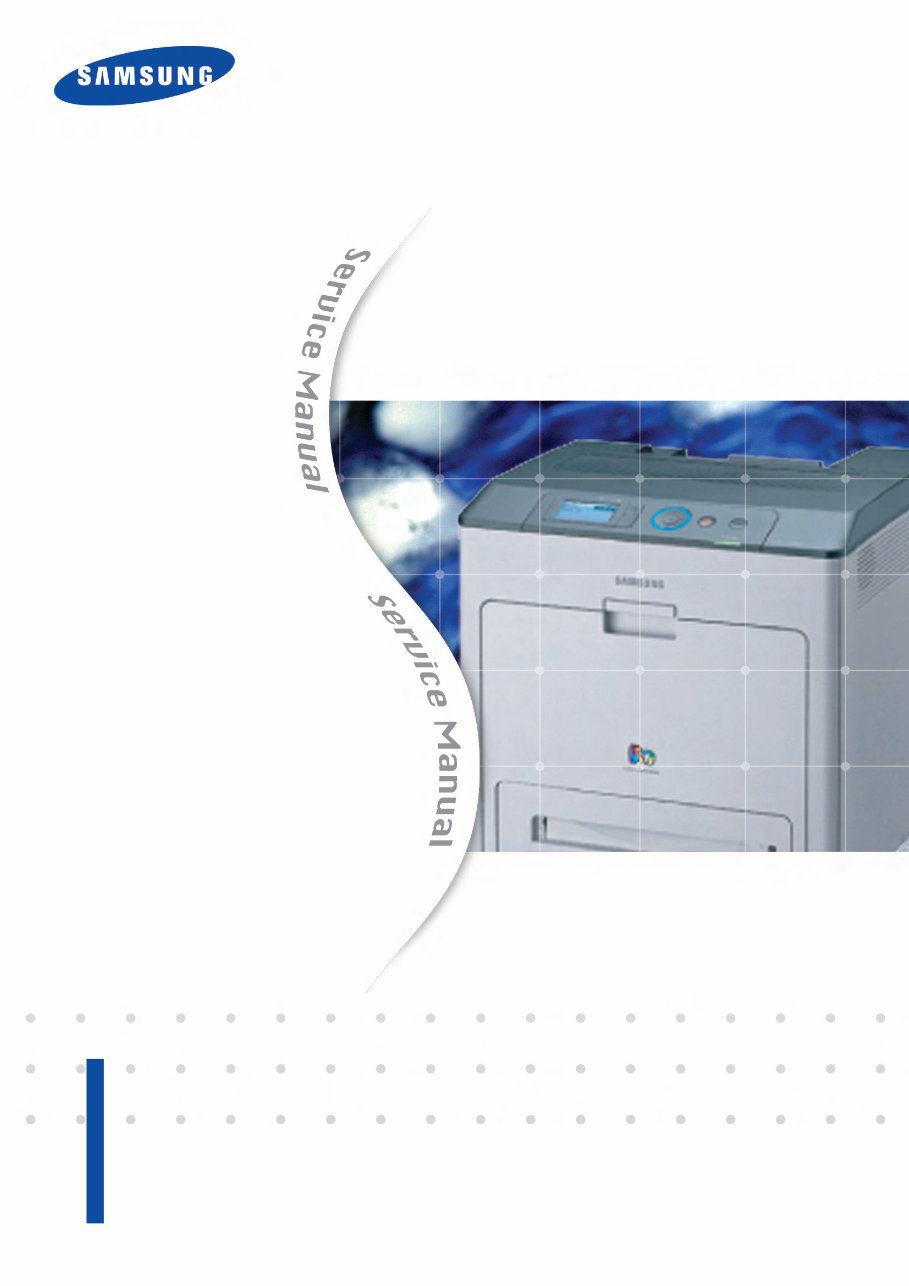
Service Manual Color Laser Printer CLP-770ND ■ Speed : 32 / 32 ppm (A4) ■ Resolution : up to 9600 X 600 dpi effective output. ■ 7K/7K Black/Color toner (Initial : 3.5K/3.5K) ■ Machine Life : 300K or 5 Years ■ Paper handling : Maximum 1,600 Sheets Paper Capacity : 500sh cassette, 500sh SCF x 2 EA : 100 MP ■ 80 GB HDD (Option) ■ Memory : 256 MB (Max. 768 MB) ■ Duplex printing ■ N/W, USB 2.0, EDI, Wireless option ■ 4 Line LCD The keynote of Product
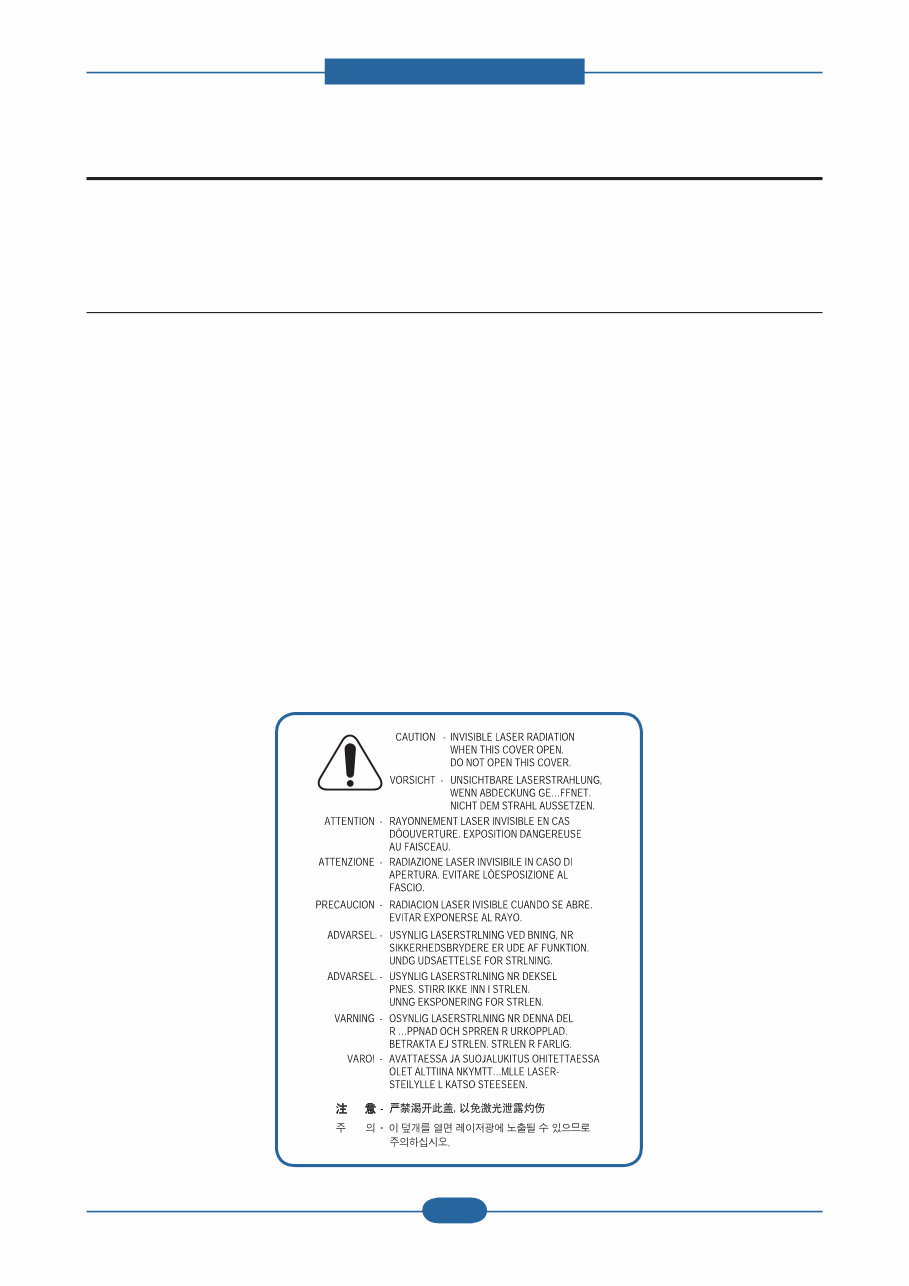
Precautions Service Manual 1-1 Samsung Electronics In order to prevent accidents and to prevent damage to the equipment please read the precautions listed below carefully before servicing the printer and follow them closely. 1.1 Safety Warning (1) Only to be serviced by appropriately qualified service engineers. High voltages and lasers inside this product are dangerous. This printer should only be serviced by a suitably trained and qualified service engineer. (2) Use only Samsung replacement parts There are no user serviceable parts inside the printer. Do not make any unauthorized changes or additions to the printer, these could cause the printer to malfunction and create electric shock or fire haz- ards. (3) Laser Safety Statement The Printer is certified in the U.S. to conform to the requirements of DHHS 21 CFR, chapter 1 Subchapter J for Class 1(1) laser products, and elsewhere, it is certified as a Class I laser product con-forming to the requirements of IEC 825. Class I laser products are not considered to be hazardous. The laser system and printer are designed so there is never any human access to laser radiation above a Class I level during normal operation, user maintenance, or prescribed service condition. Warning >> Never operate or service the printer with the protective cover removed from Laser/ Scanner assembly. The reflected beam, although invisible, can damage your eyes. When using this product, these basic safety pre-cautions should always be followed to reduce risk of fire, electric shock, and injury to persons. 1. Precautions
Precautions Service Manual 1-2 Samsung Electronics 1.2 Caution for safety 1.2.1 Toxic material This product contains toxic materials that could cause illness if ingested. (1) If the LCD control panel is damaged it is possible for the liquid inside to leak. This liquid is toxic. Contact with the skin should be avoided, wash any splashes from eyes or skin immediately and contact your doctor. If the liquid gets into the mouth or is swallowed see a doctor immediately. (2) Please keep Drum cartridge and Toner Cartridge away from children. The toner powder contained in the Drum cartridge and Toner Cartridge may be harmful and if swallowed you should contact a doctor. 1.2.2 Electric Shock and Fire Safety Precautions Failure to follow the following instructions could cause electric shock or potentially cause a fire. (1) Use only the correct voltage, failure to do so could damage the printer and potentially cause a fire or electric shock. (2) Use only the power cable supplied with the printer. Use of an incorrectly specified cable could cause the cable to overheat and potentially cause a fire. (3) Do not overload the power socket, this could lead to overheating of the cables inside the wall and could lead to a fire. (4) Do not allow water or other liquids to spill into the printer, this can cause electric shock. Do not allow paper clips, pins or other foreign objects to fall into the printer these could cause a short circuit leading to an electric shock or fire hazard. (5) Never touch the plugs on either end of the power cable with wet hands, this can cause electric shock. When servicing the printer remove the power plug from the wall socket. (6) Use caution when inserting or removing the power connector. The power connector must be inserted completely otherwise a poor contact could cause overheating possibly leading to a fire. When removing the power connector grip it firmly and pull. (7) Take care of the power cable. Do not allow it to become twisted, bent sharply round corners or other wise damaged. Do not place objects on top of the power cable. If the power cable is damaged it could overheat and cause a fire or exposed cables could cause an electric shock. Replace a damaged power cable immediately, do not reuse or repair the damaged cable. Some chemicals can attack the coating on the power cable, weakening the cover or exposing cables causing fire and shock risks. (8) Ensure that the power sockets and plugs are not cracked or broken in any way. Any such defects should be repaired immediately. Take care not to cut or damage the power cable or plugs when moving the machine. (9) Use caution during thunder or lightening storms. Samsung recommend that this machine be disconnected from the power source when such weather conditions are expected. Do not touch the machine or the power cord if it is still connected to the wall socket in these weather conditions. (10) Avoid damp or dusty areas, install the printer in a clean well ventilated location. Do not position the machine near a humidifier. Damp and dust build up inside the machine can lead to overheating and cause a fire. (11) Do not position the printer in direct sunlight. This will cause the temperature inside the printer to rise possibly leading to the printer failing to work properly and in extreme conditions could lead to a fire. (12) Do not insert any metal objects into the machine through the ventilator fan or other part of the casing, it could make contact with a high voltage conductor inside the machine and cause an electric shock.
Precautions Service Manual 1-3 Samsung Electronics 1.2.3 Handling Precautions The following instructions are for your own personal safety, to avoid injury and so as not to damage the printer (1) Ensure the printer is installed on a level surface, capable of supporting its weight. Failure to do so could cause the printer to tip or fall. (2) The printer contains many rollers, gears and fans. Take great care to ensure that you do not catch your fingers, hair or clothing in any of these rotating devices. (3) Do not place any small metal objects, containers of water, chemicals or other liquids close to the printer which if spilled could get into the machine and cause damage or a shock or fire hazard. (4) Do not install the machine in areas with high dust or moisture levels, beside on open window or close to a humidifier or heater. Damage could be caused to the printer in such areas. (5) Do not place candles, burning cigarettes, etc on the printer, These could cause a fire. 1.2.4 Assembly / Disassembly Precautions Replace parts carefully, always use Samsung parts. Take care to note the exact location of parts and also cable routing before dismantling any part of the machine. Ensure all parts and cables are replaced correctly. Please carry out the following procedures before dismantling the printer or replacing any parts. (1) Check the contents of the machine memory and make a note of any user settings. These will be erased if the mainboard or network card is replaced. (2) Ensure that power is disconnected before servicing or replacing any electrical parts. (3) Disconnect printer interface cables and power cables. (4) Only use approved spare parts. Ensure that part number, product name, any voltage, current or temperature rating are correct. (5) When removing or re-fitting any parts do not use excessive force, especially when fitting screws into plastic. (6) Take care not to drop any small parts into the machine. (7) Handling of the OPC Drum - The OPC Drum can be irreparably damaged if it exposed to light. Take care not to expose the OPC Drum either to direct sunlight or to fluorescent or incandescent room lighting. Exposure for as little as 5 mins can damage the surface? photoconductive properties and will result in print quality degradation. Take extra care when servicing the printer. Remove the OPC Drum and store it in a black bag or other lightproof container. Take care when working with the covers(especially the top cover) open as light is admitted to the OPC area and can damage the OPC Drum. - Take care not to scratch the green surface of OPC Drum Unit. If the green surface of the Drum Cartridge is scratched or touched the print quality will be compromised.
Precautions Service Manual 1-4 Samsung Electronics 1.2.5 Disregarding this warning may cause bodily injury (1) Be careful with the high temperature part. The fuser unit works at a high temperature. Use caution when working on the printer. Wait for the fuser to cool down before disassembly. (2) Do not put finger or hair into the rotating parts. When operating a printer, do not put hand or hair into the rotating parts (Paper feeding entrance, motor, fan, etc.). If do, you can get harm. (3) When you move the printer - The equipment weighs approximately 30 Kg (including consumables), therefore pay attention when handling it. - Be sure not to hold the movable parts or units (e.g. the control panel, DADF) when transporting the equipment. - Be sure to use a dedicated outlet with 110V/220Vpower input. - The equipment must be grounded for safety. - Select a suitable place for installation. Avoid excessive heat, high humidity, dust, vibration and direct sunlight. - Provide proper ventilation since the equipment emits a slight amount of ozone. - The equipment shall be installed near the socket outlet and shall be accessible. - Be sure to fix and plug in the power cable securely after the installation so that no one trips over it.
Precautions Service Manual 1-5 Samsung Electronics 1.3 ESD Precautions Certain semiconductor devices can be easily damaged by static electricity. Such components are commonly called “Electrostatically Sensitive (ES) Devices” or ESDs. Examples of typical ESDs are: integrated circuits, some field effect transistors, and semiconductor “chip” components. The techniques outlined below should be followed to help reduce the incidence of component damage caused by static electricity. Caution >>Be sure no power is applied to the chassis or circuit, and observe all other safety precautions. 1. Immediately before handling a semiconductor component or semiconductor-equipped assembly, drain off any electrostatic charge on your body by touching a known earth ground. Alternatively, employ a commercially available wrist strap device, which should be removed for your personal safety reasons prior to applying power to the unit under test. 2. After removing an electrical assembly equipped with ESDs, place the assembly on a conductive surface, such as aluminum or copper foil, or conductive foam, to prevent electrostatic charge buildup in the vicinity of the assembly. 3. Use only a grounded tip soldering iron to solder or desolder ESDs. 4. Use only an “anti-static” solder removal device. Some solder removal devices not classified as “anti-static” can generate electrical charges sufficient to damage ESDs. 5. Do not use Freon-propelled chemicals. When sprayed, these can generate electrical charges sufficient to damage ESDs. 6. Do not remove a replacement ESD from its protective packaging until immediately before installing it. Most replacement ESDs are packaged with all leads shorted together by conductive foam, aluminum foil, or a comparable conductive material. 7. Immediately before removing the protective shorting material from the leads of a replacement ESD, touch the protective material to the chassis or circuit assembly into which the device will be installed. 8. Maintain continuous electrical contact between the ESD and the assembly into which it will be installed, until completely plugged or soldered into the circuit. 9. Minimize bodily motions when handling unpackaged replacement ESDs. Normal motions, such as the brushing together of clothing fabric and lifting one’s foot from a carpeted floor, can generate static electricity sufficient to damage an ESD.
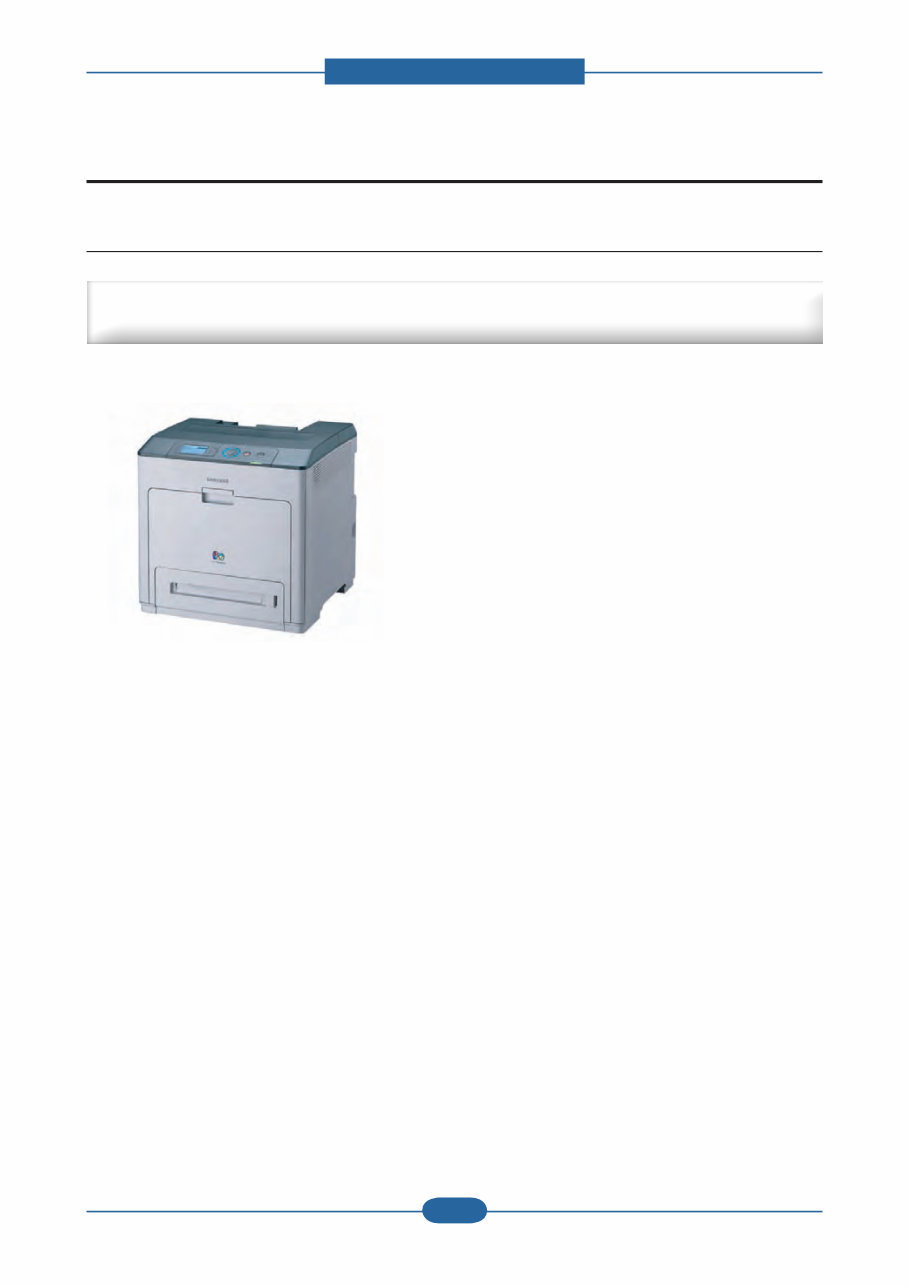
Product spec and feature Service Manual 2-1 Samsung Electronics 2.1 Product Summary 2. Product spec and feature ■ Speed : 32 / 32 ppm (A4) ■ Resolution : up to 9600 X 600 dpi effective output. ■ 7K/7K Black/Color toner (Initial : 3.5K/3.5K) ■ Machine Life : 300K or 5 Years ■ Paper handling : Maximum 1,600 Sheets Paper Capacity : 500sh cassette, 500sh SCF x 2 EA : 100 MP ■ 80 GB HDD (Option) ■ Memory : 256 MB (Max. 768 MB) ■ Duplex printing ■ N/W, USB 2.0, EDI, Wireless option ■ 4 Line LCD High performance CLBP at a Low Cost of Printing Large Workgroup (SMB/Corp) & Tender Biz
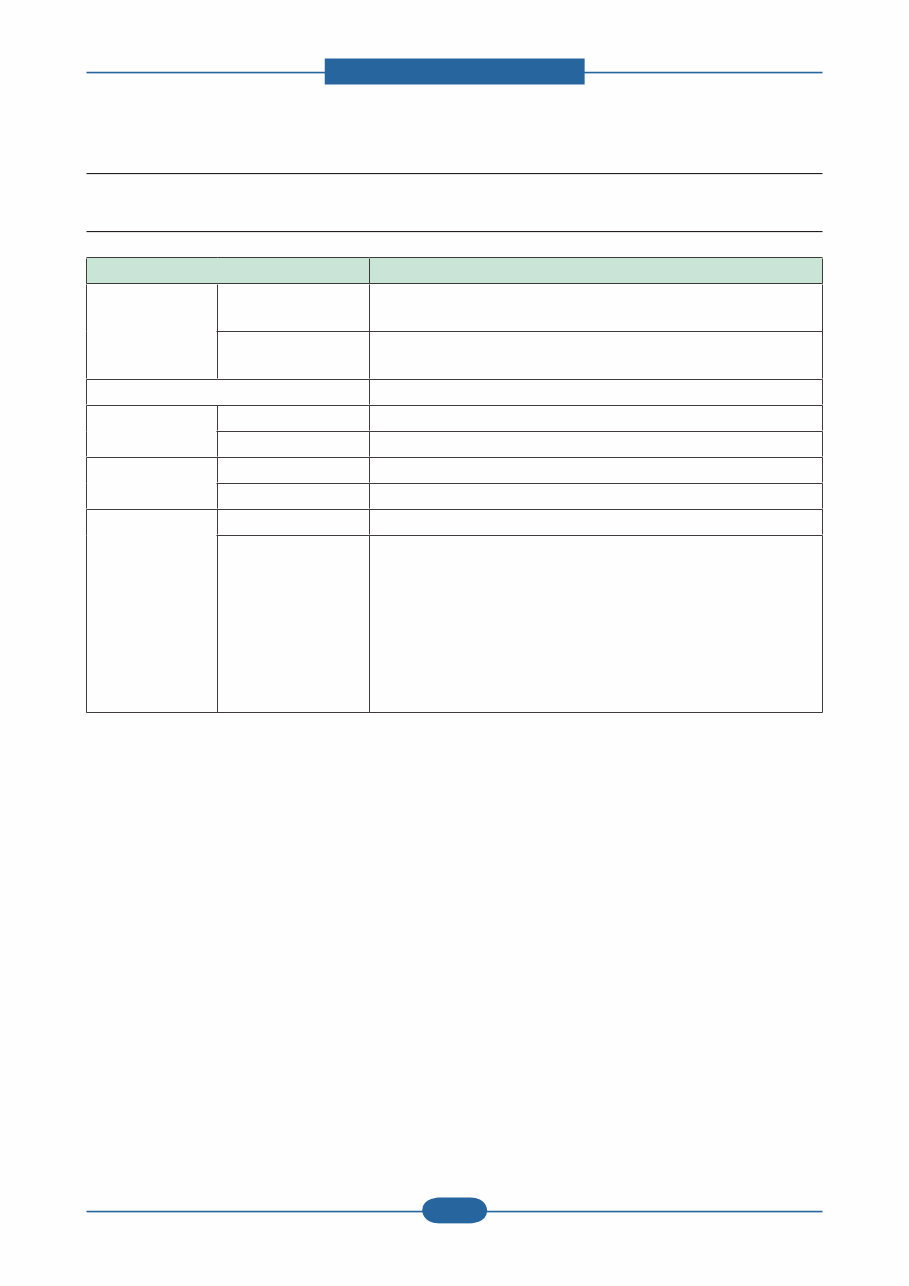
Product spec and feature Service Manual 2-2 Samsung Electronics 2.2 Sepcifications 2.2.1 General Print Engine Item Description Engine Speed Simplex B&W : Up to 32 ppm in A4 Color : Up to 32 ppm in A4 Duplex B&W : Up to 16 ipm in A4 Color : Up to 16 ipm in A4 Warmup time Less than 25 sec FPOT (B&W) From Ready Less than 10 sec From Idle Less than 28 sec FPOT (Color) From Ready Less than 11 sec From Idle Less than 30 sec Resolution Optical 600 x 600 dpi Support ■ PCL 6 Best : up to 9,600 x 600 effective output Normal : up to 2,400 x 600 dpi Draft : up to 600 x 600 dpi ■ PostScript 3 Best : up to 9,600 x 600 effective output Normal : up to 1,200 x 600 dpi Draft : up to 600x600 dpi
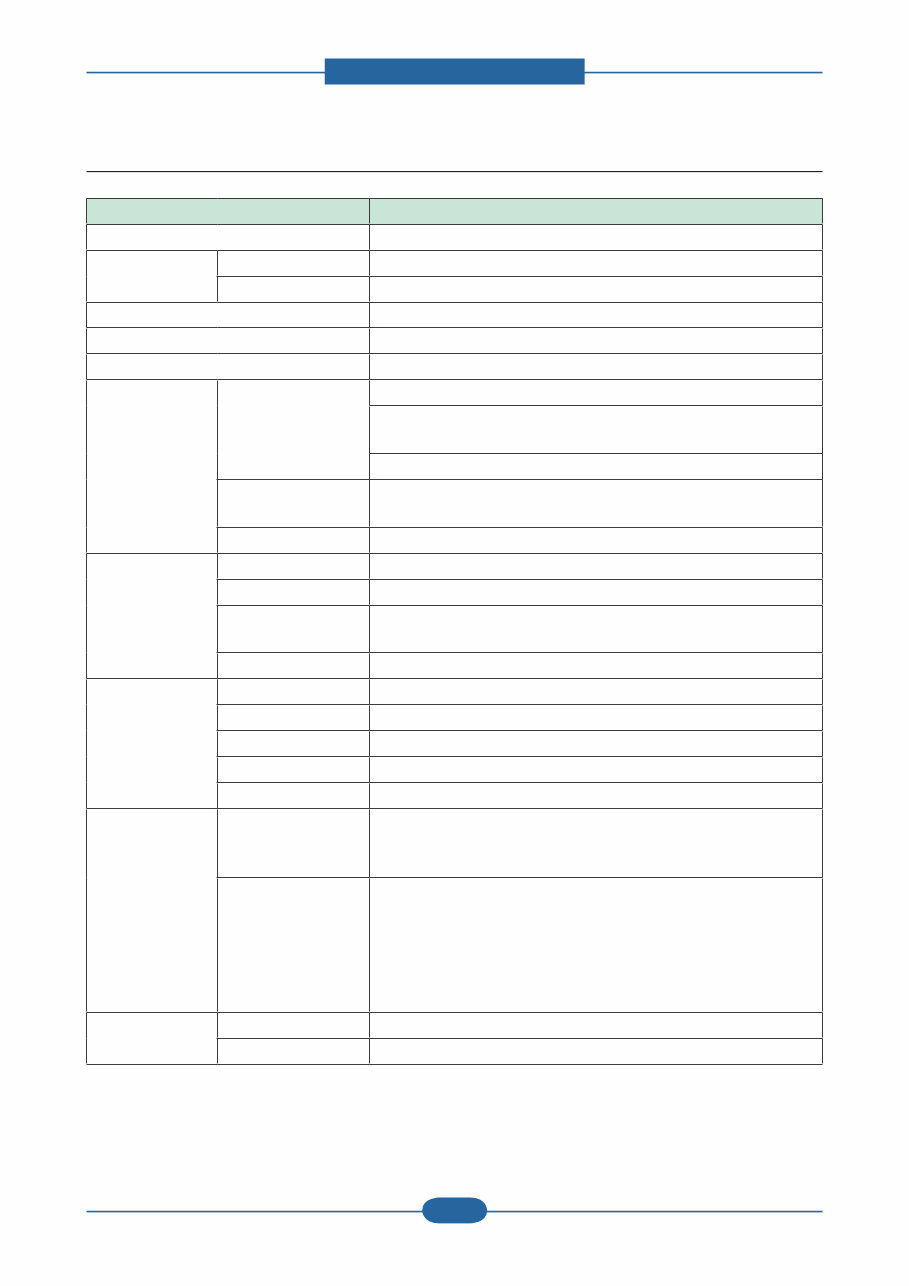
Product spec and feature Service Manual 2-3 Samsung Electronics 2.2.2 Controller & S/W Item Description MPU 800 MHz Memory Std. 256 MB Max. 768 MB Memory Expansion 1 Slot Printer Languages PostScript 3, PCL5c, PCL6 Fonts 93 scalable and 1 bitmap PCL and 136 PS Driver Supporting OS Windows 2000/XP/2003/Vista/Server 2003/Window Server 2008 Various Linux including Red Hat 8.0~9.0, Mandrake 9.2~10.1, SuSE 8.2~9.2 and Fedora Core 1~4 Mac OS 10.1 ~10.5 and Universal Mac Default Driver - PCL6 - including Mono Only Driver WHQL Windows 2000/XP/2003/Vista Application Printer Setting Utility USB Smart Panel Yes (USB / Network, Install Default) Network Management Set IP, SyncThru Web Admin Service 4.0 (SWAS 4.0) (Windows: IExplorer 5.5 or higher, Linux/Mac: not supported) SmarThru4 N/A Interface Parallel N/A USB USB 2.0 Network Ethernet 10/100 Base TX Wireless LAN Option EDI Yes Network Interface Protocol TCP/IPv4/v6, SNMPv2/v3, HTTP(S), DHCP/BOOTP, DNS, WINS, mDNS, SLP, UPnP, Standard TCP/IP Printing/IPP(S)/ SMTP/ LDAP Network OS Windows 2000/XP(32/64bit)/2003/Server(32/64bit)/Vista NetWare 5.x, 6.x Mac OS 10.3~10.5 - TCP/IP Only Various Linux OS including Red Hat 8.0~9.0, Fedora Core 1~4, Mandrake 9.2~10.1, and SuSE 8.2~9.2 HP-UX, Solaris, SunOS, SCO UNIX User Interface LCD & Button 4 Line LCD LED 1 LED for status (Green/Red)
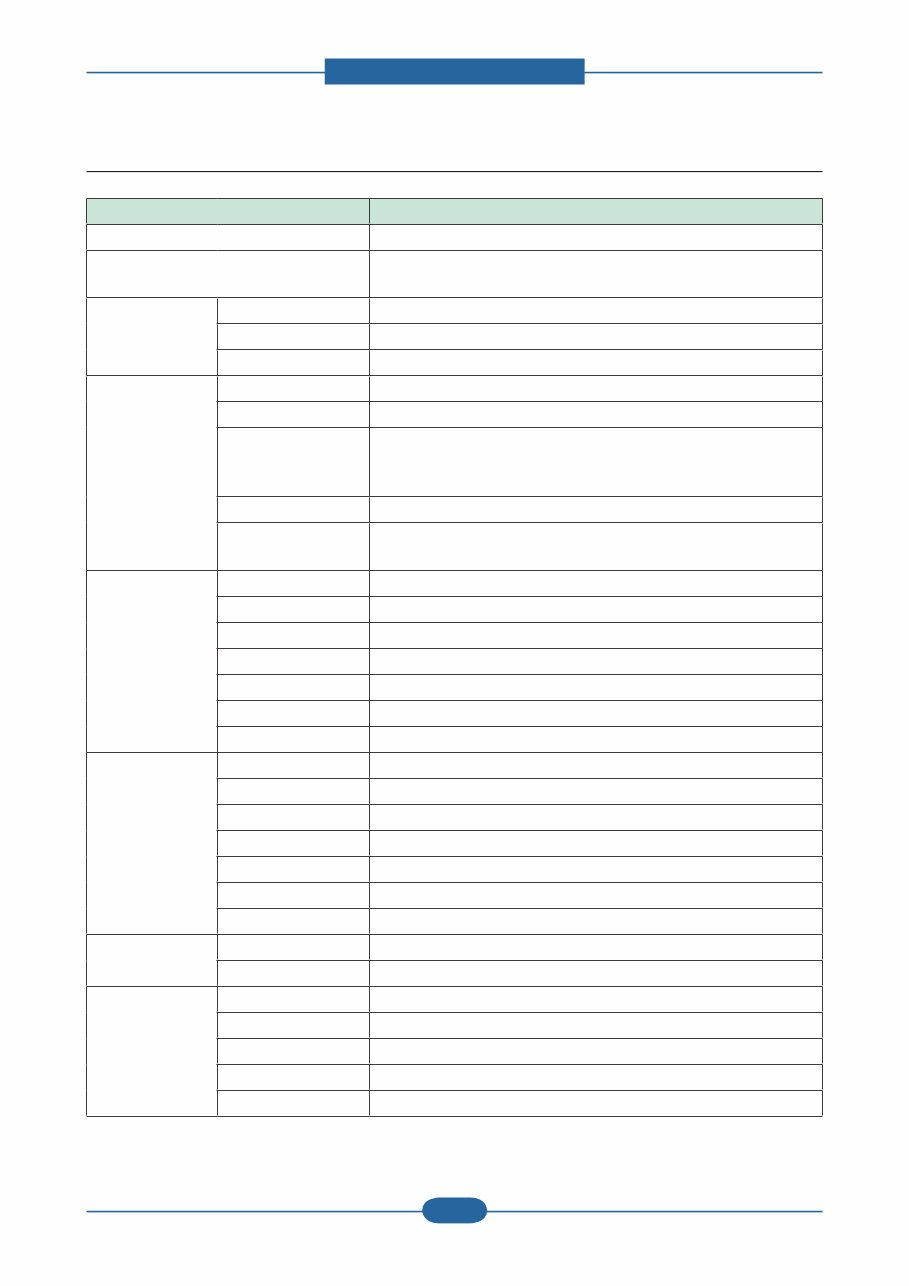
Product spec and feature Service Manual 2-4 Samsung Electronics 2.2.3 Paper Handling Item Description Standard Capa. 500-sheet Cassette Tray, 100 MP Max. Capa. 1600 sheets @ 80g/㎡ (500-sheet CST, 500-sheet SCFx2, 100MP) Printing Max. Size 216 x 356mm (8.5” x 14”) Min. Size 76 x 127 mm (3” x 5”) Margin(T/B/L/R) 4 mm, 4 mm, 4 mm, 4 mm Multi-purpose tray Capacity 100 sheets @ 75g/㎡ Media sizes A4 148.5x210 ~ Legal 216x356 (8.5”x14”) Media type Printer Default, Plain Paper, Thick, Thin, Cotton, Archive Paper, Bond, Card Stock, Labels, Preprinted, Color Paper, Envelope, Recycled Media weight 16~58lb (60 to 220g/㎡) Sensing Empty sensing No size sensor Standard Cassette Tray Capacity 500 sheets @ 80g/㎡ Media sizes 76 x 127 mm (3” x 5”) ~ 216 x 356mm (8.5” x 14”) Media types Plain paper Media weight 16~28lb (60 to 105g/㎡) Size sensor Paper size sensor User Interface Indicator Sensing Paper empty sensor Optional Cassette Tray Capacity 500 sheets @ 75g/㎡ Media sizes A5 148.5 x210mm ~ Legal 216 x 356mm (8.5" x 14") Media types Plain paper Media weight 16~28lb (60 to 105g/㎡) Size sensor Paper size sensor User Interface Indicator Sensing Empty sensing Output Stacking Capacity 250 sheets @ 80g/㎡ Output Full sensing Yes Duplex Supporting Std. Throughput N/A Media sizes A4, Letter, Legal, Oficio, Folio Media types Palin paper only Media weight 16~32lb (60 to 120g/㎡)
You're Reading a Preview
What's Included?
Lifetime Access
Fast Download Speeds
Online & Offline Access
Access PDF Contents & Bookmarks
Full Search Facility
Print one or all pages of your manual
$28.99
Samsung CLP-770ND Color Laser Printer Service Repair Manual
This is a comprehensive Service Repair Manual for the Samsung CLP-770ND Color Laser Printer. The manual contains easy-to-understand text sections, high-quality diagrams, and detailed instructions for repairing your SAMSUNG machine. It is a valuable resource for learning technical theory, installation, maintenance, troubleshooting, disassembly, assembly, and repair of SAMSUNG products.
This Manual Covers:
Precautions
Product spec and feature
Disassembly and Reassembly
Alignment & Troubleshooting
System Diagram
Reference Information
Exploded Views & Parts List
Model Specification: Samsung CLP-770ND Color Laser Printer
Total Pages: 148
File Format: PDF
Requirements: Adobe Reader
Language: English
Compatibility: All Versions of Windows & Mac, APP ISO, Iphone, Ipad, Android etc...
This manual is in PDF format. The Service Manual is fully indexed and bookmarked by topic, ensuring easy navigation. It is an original Adobe document, guaranteeing high quality and perfect printing. The PDF can be quickly searched to find information in every chapter. You have the flexibility to print the entire manual or select specific pages. Additionally, you can zoom in on any diagram or picture for detailed viewing of every part.
By using this manual, you can save time and money by performing your own repairs. The step-by-step instructions and detailed pictures make every repair job easy to accomplish.
All Service Repair Manuals are available for instant download, eliminating shipping costs and the wait for a CD or paper manual. Upon payment completion through our secure processor, you will instantly receive this manual. We accept all major credit/debit cards and PayPal.
Reviews
Q&A
Recently Viewed
5,521,897Happy Clients
2,594,462eManuals
1,120,453Trusted Sellers
15Years in Business
Price:
Actual Price:
Samsung CLP-770ND Color Laser Printer Service Repair Manual






 Lifetime Access