

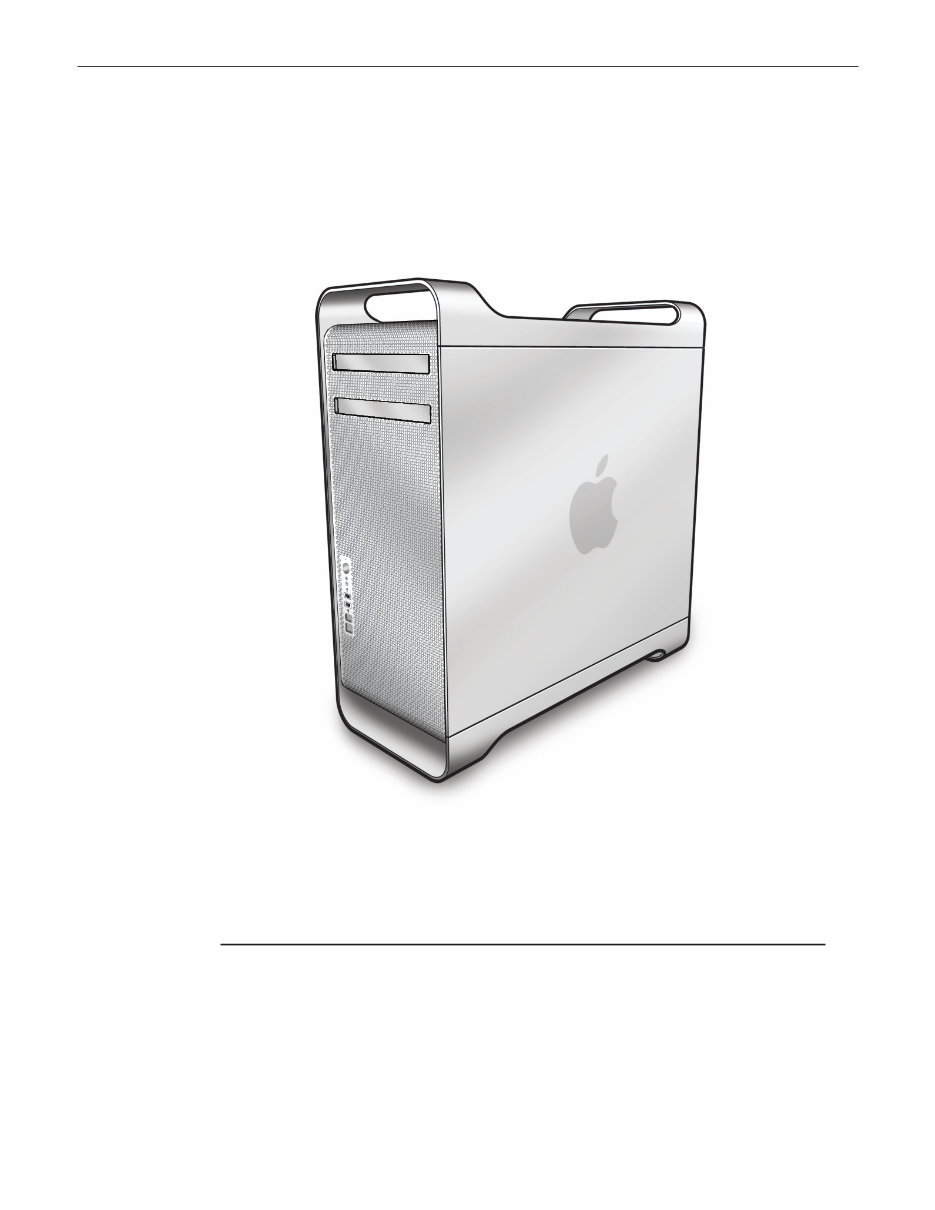
Apple Technician Guide
Mac Pro (Early 2009)
Updated: 2009-08-06

Apple Inc.
© 2009 Apple Inc. All rights reserved.
Under the copyright laws, this document may not be copied, in whole or in part, without the
written consent of Apple.
Every effort has been made to ensure that the information in this document is accurate. Apple
is not responsible for printing or clerical errors.
Apple
1 Infinite Loop
Cupertino, CA 95014-2084
USA
+ 1 408 996 1010
www.apple.com
Apple, the Apple logo, Mac, and Macintosh are trademarks of Apple Inc., registered in the U.S.
and other countries.

Mac Pro (Early 2009)
Contents
About This Guide
Manual Updates 8
Feedback 9
Basics
Overview 11
How to Identify Quad-Core and 8-Core Processor Configurations 1 2
Serial Number Location 1 3
Troubleshooting
General Troubleshooting 1 5
Update System Software 15
Troubleshooting Theory 15
Emerging Issues 15
Hardware vs. Software 15
Mac Pro Firmware Updates 1 6
Memory Configuration 1 7
Memory Diagnostic LEDs 1 9
PCIe/Graphics Cards 2 1
Functional Overview 22
Block Diagram 24
Common Reset Procedures 25
Power-On Self Test: RAM and Processor Verification 27
Minimum Configuration Testing 28
Symptom Charts Overview 31
Startup and Power Issues 34
No Power/Dead Unit 34
Intermittent Shutdown 37
Memory Issues/Kernel Panic and Freezes 40
No Video 45
Power, but No Boot 48
Noise/Hum/Vibration 49

Burnt Smell/Odor 5 1
Uncategorized Symptom 52
Communications 53
Ethernet Port/Device Issue 53
AirPort/Bluetooth: Defective Wireless Devices 55
No/Poor Wireless Signal 57
Wireless Input Device Loses Connection 59
AirPort Card: Kernel Panic 6 1
Wireless Performance Issue / Slow Connection 63
Wireless Input Device Doesn’t Pair 65
Uncategorized Symptom 66
Mass Storage 67
Hard Drive Read/Write Issue 67
Hard Drive Not Recognized/Not Mounting 69
Hard Drive Noisy 7 1
Optical Drive Won’t Accept/Reject Media 72
Optical Drive Read/Write Data Error 74
Optical Drive Not Recognized/Not Mounting 76
Optical Drive Noisy 78
Optical Drive Not Performing to Specs 8 1
Uncategorized Symptom 82
Input/Output Devices 83
USB Port Does Not Recognize Known Devices 83
FireWire Port Does Not Recognize Known Good Devices 84
No Audio from Internal Speaker 86
Distorted Audio from Internal Speaker 87
Front Headphone Jack Has No Audio 89
Line-In Jack Has No Input 90
Line-In Jack Has Distorted Input 92
Rear Line-Out Jack Has No Audio 93
Optical Digital Audio In Has No Input 95
Optical Digital Audio Out Has No Output 97
Uncategorized Symptom 98
Mechanical Issues: Thermals and Enclosure 99
Computer Runs Slow with Fast/Failed Fans 99
Power Button Stuck 10 1
Internal Cables and Connectors Defective 103
Mechanical/Physical Damage 104
Uncategorized Symptom 104

Take Apart
General Information 106
Orientation 106
Tools 106
Parts Requiring Enclosure Replacement 106
How to Identify Quad-Core and 8-Core Processor Configurations 106
Icon Legend 107
Note on Illustrations 107
Opening the Computer 108
Hard Drive 110
Removal 11 1
Reassembly 11 1
Formatting a New Drive 11 2
Optical Drive Carrier and Optical Drive 113
Removal 114
Reassembly 115
Processor Tray 116
Memory DIMMs 11 8
Memory Configuration 119
Removal 12 1
PCI Express/Graphics Card 122
Power Supply 129
AirPort Extreme Card 133
Bluetooth Card 135
Battery 137
Removal 138
Reassembly 138
PCIe Fan 139
Removal 140
Reassembly 140
Mac Pro RAID Card and Battery 141
Removal 142
Reassembly 143
Processor Cage 145
Processor Cage Fans, Front and Rear 148

Speaker Assembly 150
Processor Heatsinks, 8 Core 152
Removal 153
Reassembly 154
Processor Heatsink, Quad Core 158
Removal 159
Reassembly 159
Processor, 8 Core 163
Removal 164
Reassembly 165
Processor, Quad Core 168
Removal 169
Reassembly 17 1
Processor Board, 8 Core 17 4
Processor Board, Quad Core 176
Processor Tray Support Plate 178
Front-Panel-Board-to-Backplane-Board Cable 180
Backplane Board 182
Front Panel Board 186
Power Button 188
Optical Drive Cable Harness 190
Views
Exploded View #1 193
Exploded View #2 194
External Views 195
Front View 195
Rear View #1 196
Screw Matrix 197

© 2009 Apple Inc. All rights reserved.
Apple Technician Guide
About This Guide
Mac Pro (Early 2009)

Mac Pro (Early 2009) About This Guide — Manual Updates 8 2009-08-06
Manual Updates
Update 6 August 2009
Troubleshooting:
Revised art for Minimum Configuration Testing •
Take Apart:
Bluetooth Card: Changed tool to jewleler’s #0 Phillips screwdriver •
Update 1 July 2009
Take Apart:
General Information: In Tools section, added Apple part number 922-7122 to long-handled, •
magnetized 3 mm flathead hex screwdriver
Backplane Board: Updated screws from 9 to 10 •
Apple Technician Guide Introduced 03 March 2009

Mac Pro (Early 2009) About This Guide — Feedback 9 2009-08-06
Feedback
We want your feedback to help improve this and future Technician Guides!
Please email any comments to:
smfeedback3@apple.com

© 2009 Apple Inc. All rights reserved.
Apple Technician Guide
Basics
Mac Pro (Early 2009)
You're Reading a Preview
What's Included?
 Lifetime Access
Fast Download Speeds
Online & Offline Access
Access PDF Contents & Bookmarks
Full Search Facility
Print one or all pages of your manual
$27.99
Apple Mac Pro Early 2009 ServiceRepair Manual
Viewed 82 Times Today

What's Included?
Lifetime Access
Fast Download Speeds
Online & Offline Access
Access PDF Contents & Bookmarks
Full Search Facility
Print one or all pages of your manual
$27.99

Secure transaction
What's Included?
Lifetime Access
Fast Download Speeds
Online & Offline Access
Access PDF Contents & Bookmarks
Full Search Facility
Print one or all pages of your manual
Description
This Apple Mac Pro Early 2009 Service & Repair manual is an essential resource for both professional mechanics and DIY enthusiasts. It provides comprehensive instructions for disassembly/reassembly, repair, upgrade, part replacement, troubleshooting, software updating, and adjustments/corrections.
These manuals are extensively detailed and include fully illustrated step-by-step instructions and pictures. They are designed to assist in troubleshooting and repairing your Apple Mac Pro effectively.
All pages are printable, allowing you to have the necessary information on hand in your home, office, or repair shop. By utilizing this manual, you can perform your own repairs and save money.
- Disassembly/Reassembly Instructions
- Repair/Upgrade Procedures
- Part Replacement Notices
- Service Information
- Troubleshooting Guidelines
- Software Updating Instructions
- Adjustments/Corrections Details
SPECIFICATIONS:
- Language: English
- Format: PDF
- Platform: Windows & MAC


