WARNING The Warning symbol calls attention to a procedure, practice, or the like, which, if not correctly performed or adhered to, could result in personal injury. Do not proceed beyond a Warning symbol until the indicated conditions are fully understood and met. CAUTION The Caution symbol calls attention to an operating procedure, practice, or the like, which, if not correctly performed or adhered to, could result in damage to or destruction of part or all of the product. Do not proceed beyond a Caution symbol until the indicated conditions are fully understood and met.
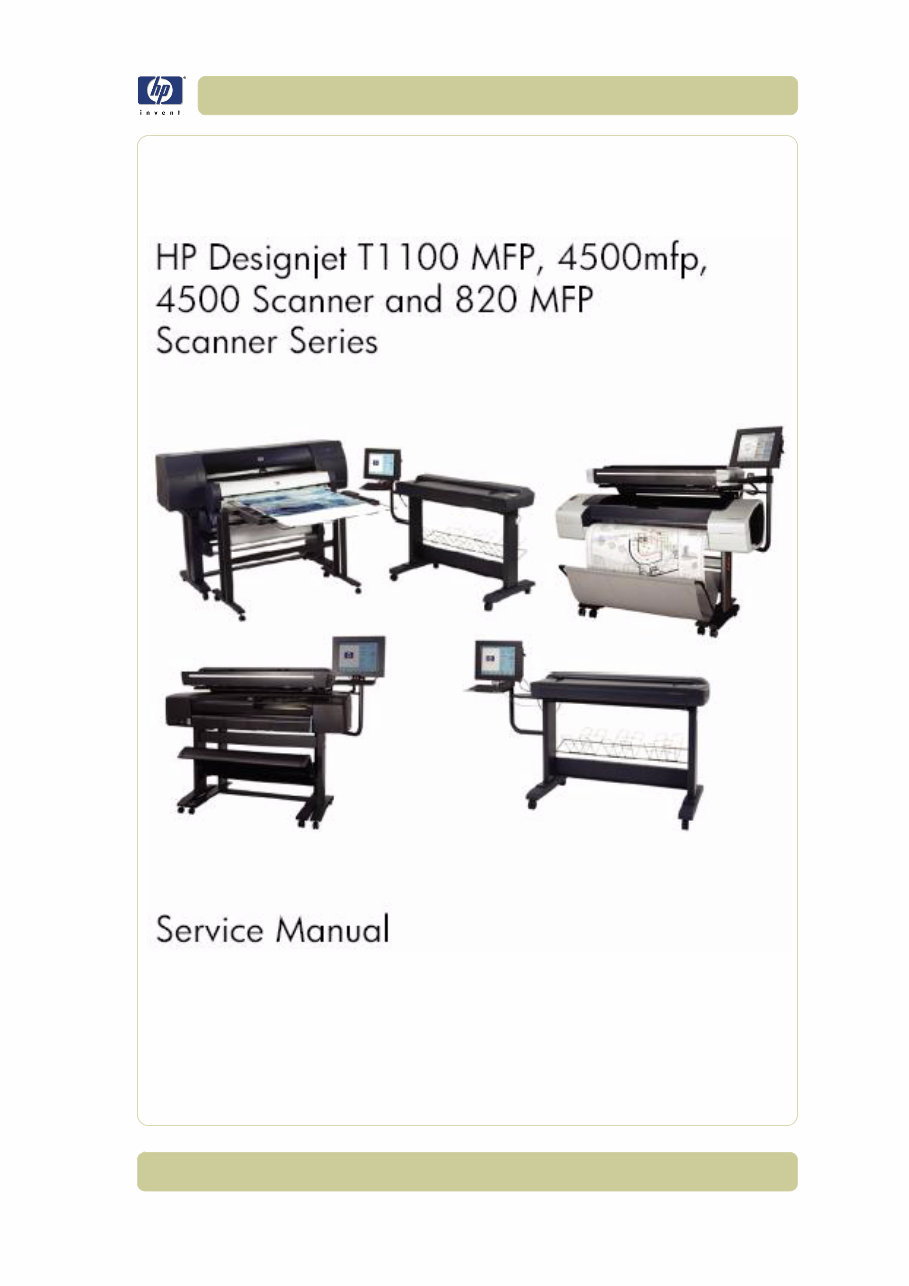
1 HP Designjet T1100 MFP, 4500mfp, 4500 Scanner, 820 MFP Service Manual
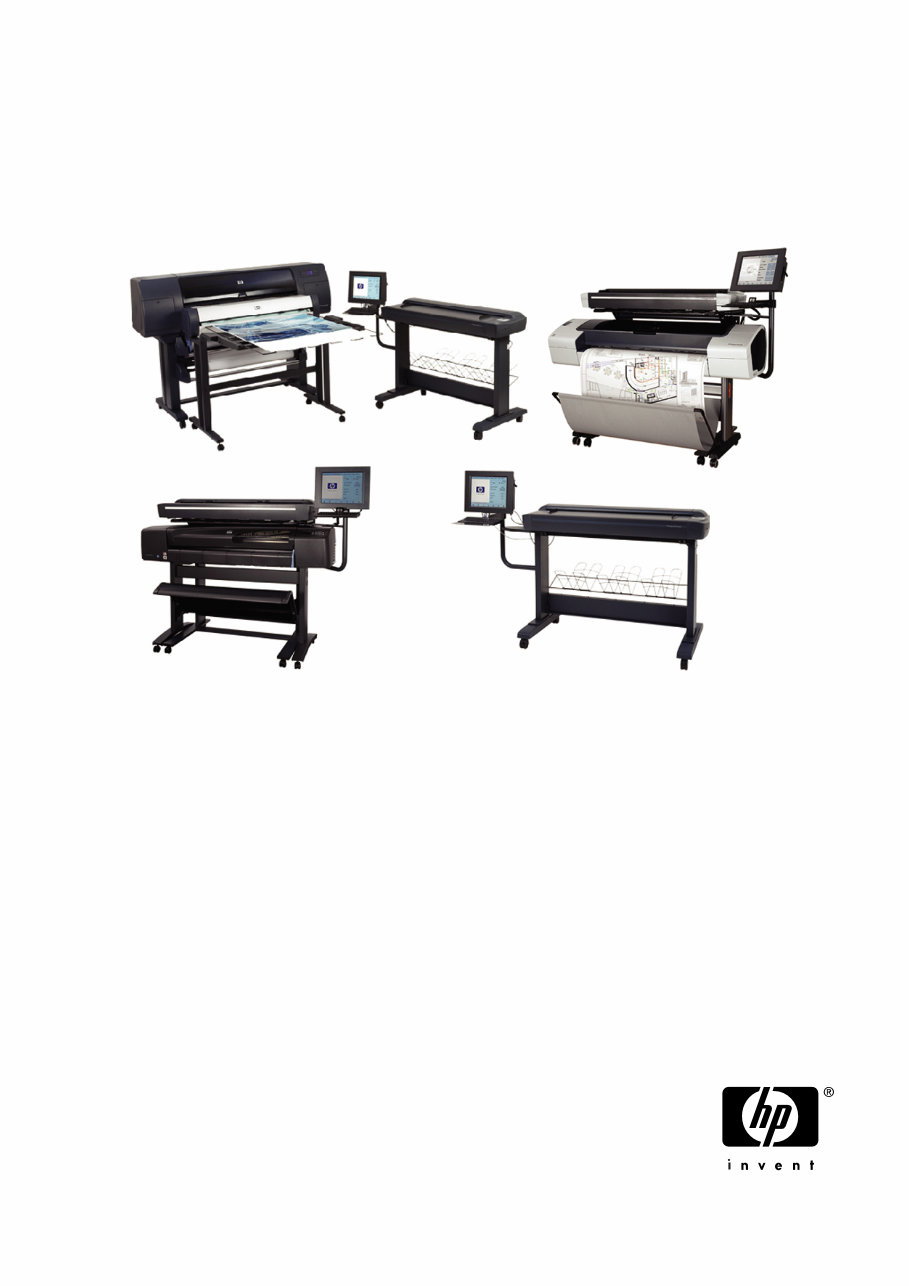
2 HP Designjet T1100 MFP, 4500mfp, 4500 Scanner, 820 MFP Service Manual Using this Manual Purpose This Service Manual contains information necessary to troubleshoot and service: HP Designjet 4500 Scanner- Model Q1277A HP Designjet T1100 MFP- Model Q6713A HP Designjet 820 MFP- Model Q6685 HP Designjet 4500mfp-Model Q1276A For information about using this product, refer to the corresponding User and Quick Reference Guides. This Service Manual is about the Scanner and the integration with the printer as a multi-functional printer and copier. In order to troubleshoot the printer, refer to the corresponding Service Manual for the printer. Readership The procedures described in this Service Manual are to be performed by HP Certified service personnel only. Part Numbers Part Numbers for service parts are located in Chapter 3. Conventions A small arrow ⇒ is used to indicate other parts of the Service Manual where you can find information related to the topic you are consulting.
3 HP Designjet T1100 MFP, 4500mfp, 4500 Scanner, 820 MFP Service Manual Table of Contents 1. Troubleshooting 2. System Error Codes 3. Parts and Diagrams 4. Removal and Installation 5. Scanner Adjustments and Calibrations
4 HP Designjet T1100 MFP, 4500mfp, 4500 Scanner, 820 MFP Service Manual
1-1 HP Designjet T1100 MFP, 4500mfp, 4500 Scanner, 820 MFP Service Manual Troubleshooting 1 Troubleshooting Tips 1-2 Is the problem with the printer or with the scanner? 1-2 Image-quality problems 1-2 No Output or Output is not as expected 1-3 Troubleshooting System Error Codes 1-3 Using the SCANtest 6 Diagnostic Software 1-3 Troubleshooting Issues 1-9 Troubleshooting print-quality and copy issues 1-9 Troubleshooting general scanner issues 1-13 Troubleshooting Specific Scanner Issues 1-21 Cleaning the Scanning Area 1-24 Troubleshooting Specific Panel PC Problems 1-27 Power failure. 1-27 Boot up failure. 1-28 LCD/Inverter failure: 1-28 No backlight and no display 1-28 With backlight but no display 1-29 How to check the voltage of the Inverter PCA in the Panel PC. 1-30 DDR DRAM failure: 1-31 DVD-ROM failure: 1-31 The CD/DVD is stuck in the DVD-ROM and cannot be ejected out. 1-31 Touch screen is working but cannot control the cursor. 1-33 Risks of not running the Scanner Maintenance 1-36 1
1-2 Troubleshooting HP Designjet T1100 MFP, 4500mfp, 4500 Scanner, 820 MFP Service Manual Guide to Troubleshooting the HP family of MFPs and Scanners This chapter guides you through the various procedures for troubleshooting the HP family of MFPs and scanners. Troubleshooting Tips 1 First record whether the problem is with the Printer, the Scanner, or the Touch Screen. 2 Make sure that the scanning area is completely clean. 3 Test 20: Noise Test can help you find whether or not the scanning area is dirty. 4 The SCAN dump files can help you to understand the light profile of the affected scanner. 5 Remember, in order to cancel when copying, press the Cancel button on the Touch Screen and the Cancel button on the printer. Is the problem with the printer or with the scanner? If you experience one of the following symptoms, the problem could be related to the scanner: System Error on the Touch Screen. LED’s flashing on the Scanner Operator Panel. WIDEsystem error message. Vertical lines (either color or black) in the scanned image. If you experience one of the following symptoms, perform an Image Preview in the scanner and send a Test Print to the printer: Image Quality Problems. No Output. Output is not as expected. If the Image Preview fails, this points to a problem with the Scanner. If the Test Print fails, this points to a problem with the Printer. Image-quality problems If you have Image Quality problems in any of your prints, try the following: 1 Print out a file already stored or print out the demo plot. 2 Once the print is finished, insert it into the Scanner. 3 Once scanned, print out the scanned image. If the original print is the same as the copied print, then the problem is related to the Printer. If the original print is NOT the same as the copied print, then the problem is related to the Scanner.
1-3 Troubleshooting HP Designjet T1100 MFP, 4500mfp, 4500 Scanner, 820 MFP Service Manual No Output or Output is not as expected If the output is not as you expected it to be, try the following: Check all the settings in the Software: Color Settings and Margins. Check media settings: Media profile (in software) and media loaded in the printer (front panel selection) should be the same. Perform Color Calibration (both Scanner and Printer). Check the Preview Image. If there is no output at all, then try the following: Check the connection between the Printer and the Scanner. Check the selected settings: List, Collate, Scan to file, etc. Troubleshooting System Error Codes Chapter 2 - System Error Codes contains a list of system error codes and their respective descriptions and recommended corrective actions. Only try one recommended action at a time and check if the error code has disappeared. If you have an error code which is not documented in this Service Manual, or you have an error which you cannot resolve, report the error to the HP Response Center or the nearest HP Support Office. When reporting the error, have the following information ready: Model and serial number of the MFP or scanner Software and firmware version for the MFP or scanner. To check the software and firmware version, press the Setup tab, and then select Options > General > About). The complete error number ScanDump of Light Profiles Using the SCANtest 6 Diagnostic Software Here we briefly describe the various tests found in the SCANtest 6 Diagnostic Software, for more detail of some of the Adjustments shown below refer to Chapter 5 - The purpose of the SCANtest 6 diagnostic software is to support the troubleshooting and adjustment of the Scanner. To access the software you must go to the Setup Tab and to: Options- >System->Service-> (this part is password protected, the password is ’support’)->Scantest When the SCANtest 6 diagnostic software has been started, the Scanner is switched ON in Test Mode, and the Diagnostic LED in the Operator Panel is Make sure you provide the full error code and the full software and firmware version. Without this information, the HP Support personnel cannot help you.
You're Reading a Preview
What's Included?
Lifetime Access
Fast Download Speeds
Online & Offline Access
Access PDF Contents & Bookmarks
Full Search Facility
Print one or all pages of your manual
$28.99
HP Designjet 820 MFP, 4500 Scanner/MFP, 4520 Scanner/MFP, HD Scanner, T1100 MFP, T1120 HD MFP, T1200 HD MFP series Scanners Service
This is a comprehensive Service Repair Manual for the HP Designjet 820 MFP, 4500 Scanner/MFP, 4520 Scanner/MFP, HD Scanner, T1100 MFP, T1120 HD MFP, T1200 HD MFP series Scanners. It contains easy-to-read text sections with high-quality diagrams and step-by-step instructions for repairing your HP machine. This manual is useful for both professional mechanics and DIY enthusiasts, providing technical theory, installation, maintenance, troubleshooting, disassembly, assembly, and repair of HP products.
Models Covered:
HP Designjet 820 MFP, Model Q6685
HP Designjet 4500 Scanner, Model Q1277A
HP Designjet 4500 MFP, Model Q1276A
HP Designjet 4520 Scanner, Model CM770A
HP Designjet 4520 HD MFP, Model CM769A
HP Designjet HD Scanner, Model CQ654A & CQ654B
HP Designjet T1100 MFP, Model Q6713A
HP Designjet T1120 HD MFP, Model CK841A
HP Designjet T1200 HD MFP, Model CQ653A & CQ653B
This Manual Covers:
Troubleshooting
System Error Codes
Parts and Diagrams
Removal and Installation
Scanner Adjustments and Calibrations
Model Specification: HP Designjet 820 MFP, 4500 Scanner/MFP, 4520 Scanner/MFP, HD Scanner, T1100 MFP, T1120 HD MFP, T1200 HD MFP series Scanners
Total Pages: 196
File Format: PDF
Requirements: Adobe Reader
Language: English
Compatibility: All Versions of Windows & Mac, APP ISO, iPhone, iPad, Android, etc.
This manual is in PDF format. It is fully indexed and bookmarked by topic, ensuring easy navigation. The document is of original Adobe quality, allowing for perfect printing and quick searches within each chapter. You have the flexibility to print the entire manual or select specific pages. Additionally, you can zoom in on any diagram or picture for detailed viewing of every part.
By using this manual, you can save time and money on repairs with its easy-to-follow step-by-step instructions and detailed pictures covering all areas of repair. The manual is available for instant download, eliminating shipping costs and waiting time for delivery. Secure payment options include all major credit/debit cards and PayPal.
Reviews
Q&A
Recently Viewed
5,521,897Happy Clients
2,594,462eManuals
1,120,453Trusted Sellers
15Years in Business
Price:
Actual Price:
HP Designjet 820 MFP, 4500 Scanner/MFP, 4520 Scanner/MFP, HD Scanner, T1100 MFP, T1120 HD MFP, T1200 HD MFP series Scanners Service








 Lifetime Access