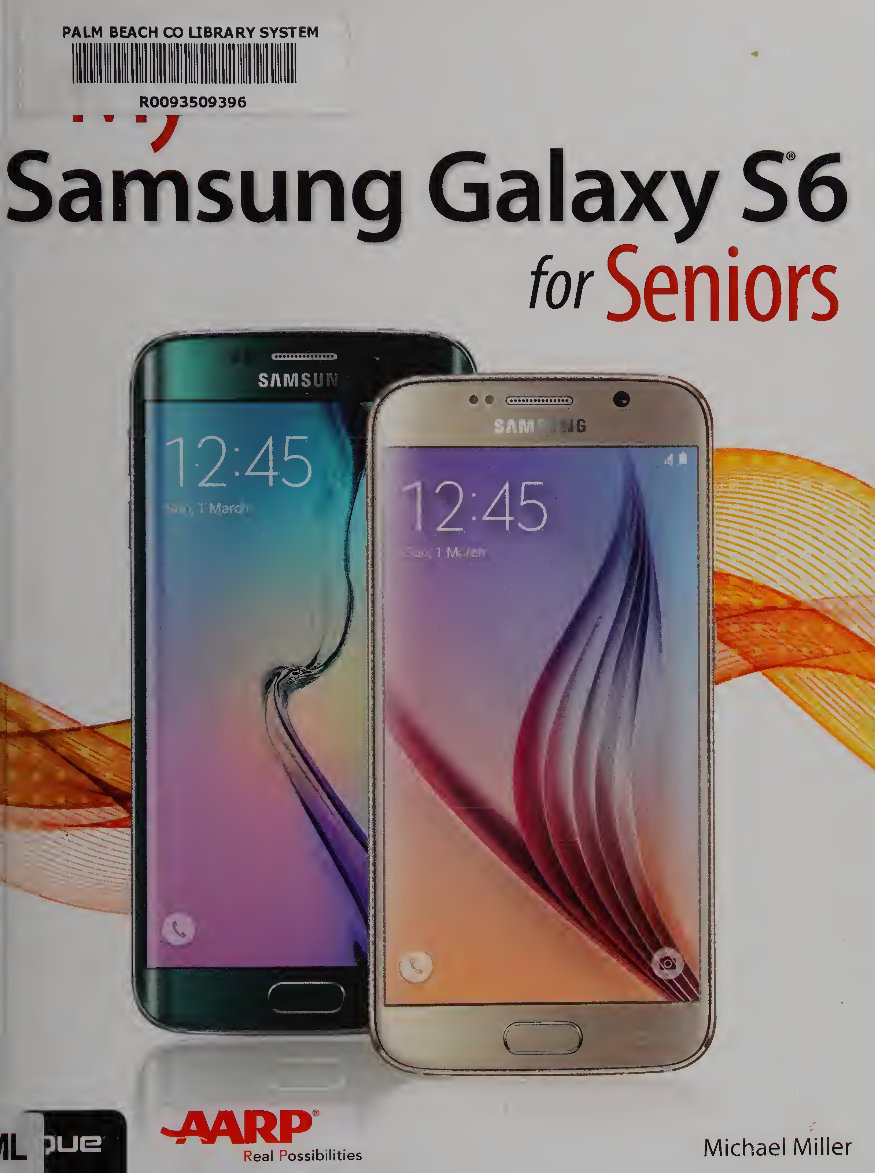
PALM BEACH CO LIBRARY SYSTEM R0093509396 / Samsung Galaxy S6 for Seniors Michael Miller 1L «4ARP Real Possibilities
Samsung Galaxy S6 Seniors Date: 9/29/15 004.1675 MIL Miller, Michael, 1958- My Samsung Galaxy S6 for seniors Michael Miller PALM BEACH COUNTY LIBRARY SYSTEM 3650 Summit Boulevard West Palm Beach, FL 33406-4198 due 800 East 96th Street, Indianapolis, Indiana 46240 USA Real Possibilities
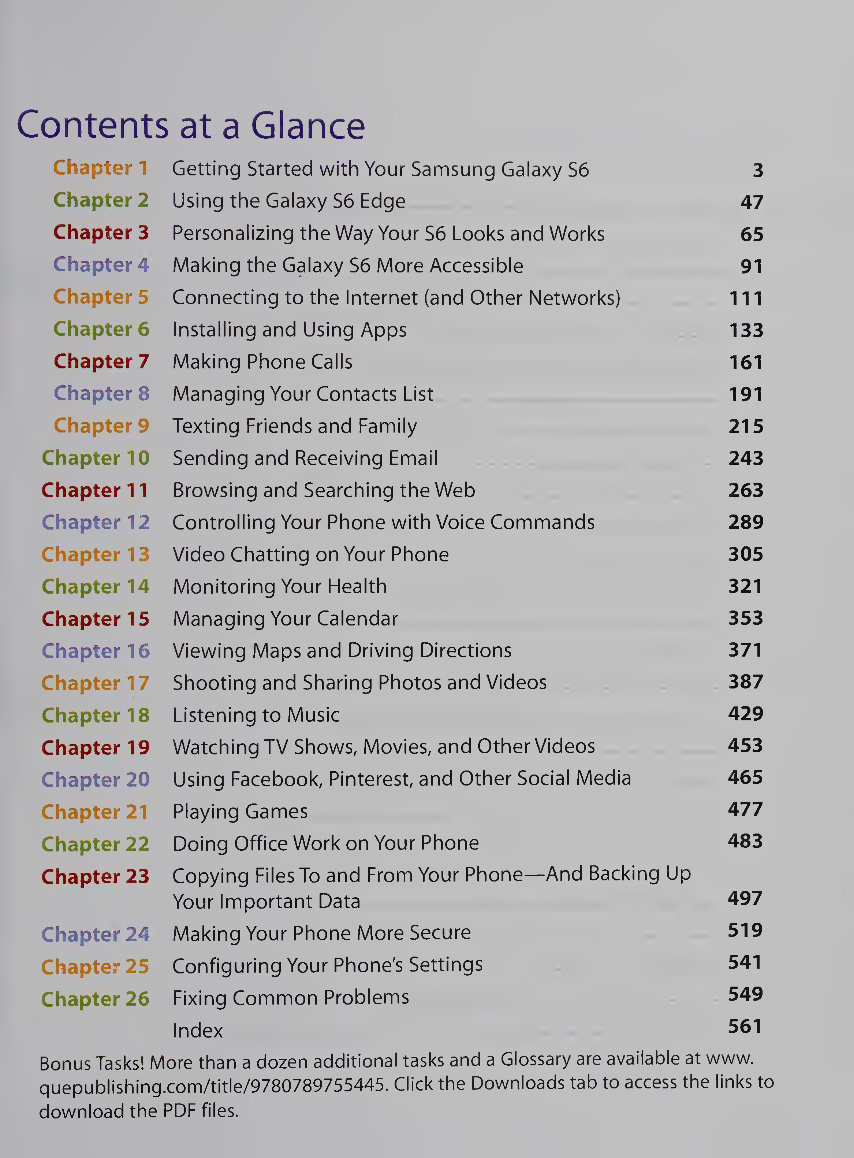
Contents at a Glance Chapter 1 Getting Started with Your Samsung Galaxy S6 3 Chapter 2 Using the Galaxy S6 Edge 47 Chapters Personalizing the Way Your S6 Looks and Works 65 Chapter 4 Making the Galaxy S6 More Accessible 91 Chapters Connecting to the Internet (and Other Networks) 111 Chapters Installing and Using Apps 133 Chapter? Making Phone Calls 161 Chapters Managing Your Contacts List 191 Chapter 9 Texting Friends and Family 215 Chapter 10 Sending and Receiving Email 243 Chapter 11 Browsing and Searching the Web 263 Chapter 12 Controlling Your Phone with Voice Commands 289 Chapter 13 Video Chatting on Your Phone 305 Chapter 14 Monitoring Your Health 321 Chapter 15 Managing Your Calendar 353 Chapter 16 Viewing Maps and Driving Directions 371 Chapter 17 Shooting and Sharing Photos and Videos 387 Chapter 18 Listening to Music 429 Chapter 19 Watching TV Shows, Movies, and Other Videos 453 Chapter 20 Using Facebook, Pinterest, and Other Social Media 465 Chapter 21 Playing Games 477 Chapter 22 Doing Office Work on Your Phone 483 Chapter 23 Copying Files To and From Your Phone—And Backing Up Your Important Data 497 Chapter 24 Making Your Phone More Secure 519 Chapter 25 Configuring Your Phone's Settings 541 Chapter 26 Fixing Common Problems 549 Index 561 Bonus Tasks! More than a dozen additional tasks and a Glossary are available at www. quepublishing.com/title/9780789755445. Click the Downloads tab to access the links to download the PDF files.
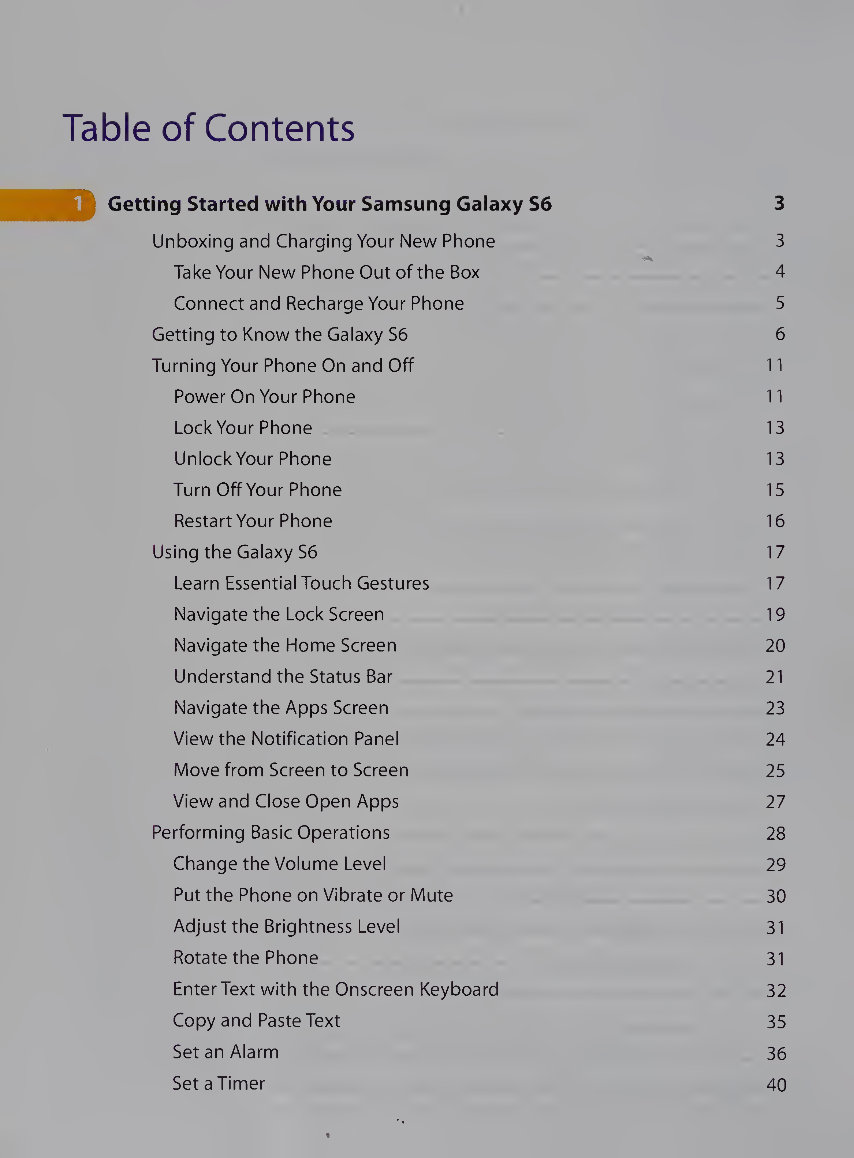
Table of Contents Getting Started with Your Samsung Galaxy S6 3 Unboxing and Charging Your New Phone 3 Take Your New Phone Out of the Box 4 Connect and Recharge Your Phone 5 Getting to Know the Galaxy S6 6 Turning Your Phone On and Off 11 Power On Your Phone 11 Lock Your Phone 13 Unlock Your Phone 13 Turn Off Your Phone 15 Restart Your Phone 16 Using the Galaxy 56 17 Learn Essential Touch Gestures 17 Navigate the Lock Screen 19 Navigate the Home Screen 20 Understand the Status Bar 21 Navigate the Apps Screen 23 View the Notification Panel 24 Move from Screen to Screen 25 View and Close Open Apps 27 Performing Basic Operations 28 Change the Volume Level 29 Put the Phone on Vibrate or Mute 30 Adjust the Brightness Level 31 Rotate the Phone 31 Enter Text with the Onscreen Keyboard 32 Copy and Paste Text 35 Set an Alarm 36 Set a Timer 40
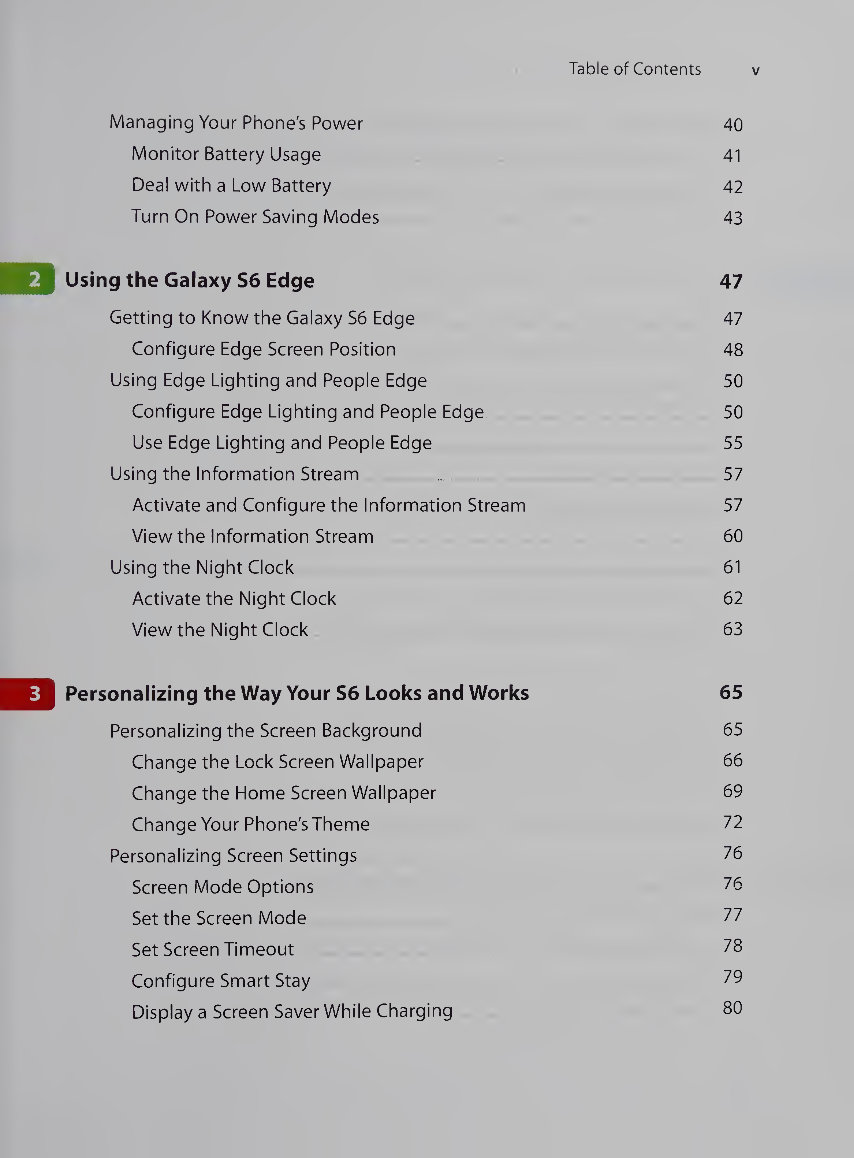
Table of Contents V Managing Your Phone's Power 40 Monitor Battery Usage 41 Deal with a Low Battery 42 Turn On Power Saving Modes 43 Using the Galaxy S6 Edge 47 Getting to Know the Galaxy S6 Edge 47 Configure Edge Screen Position 48 Using Edge Lighting and People Edge 50 Configure Edge Lighting and People Edge 50 Use Edge Lighting and People Edge 55 Using the Information Stream 57 Activate and Configure the Information Stream 57 View the Information Stream 60 Using the Night Clock 61 Activate the Night Clock 62 View the Night Clock 63 Personalizing the Way Your S6 Looks and Works 65 Personalizing the Screen Background 65 Change the Lock Screen Wallpaper 66 Change the Home Screen Wallpaper 69 Change Your Phone's Theme 72 Personalizing Screen Settings 76 Screen Mode Options ^6 Set the Screen Mode 77 Set Screen Timeout 78 Configure Smart Stay 79 Display a Screen Saver While Charging 80
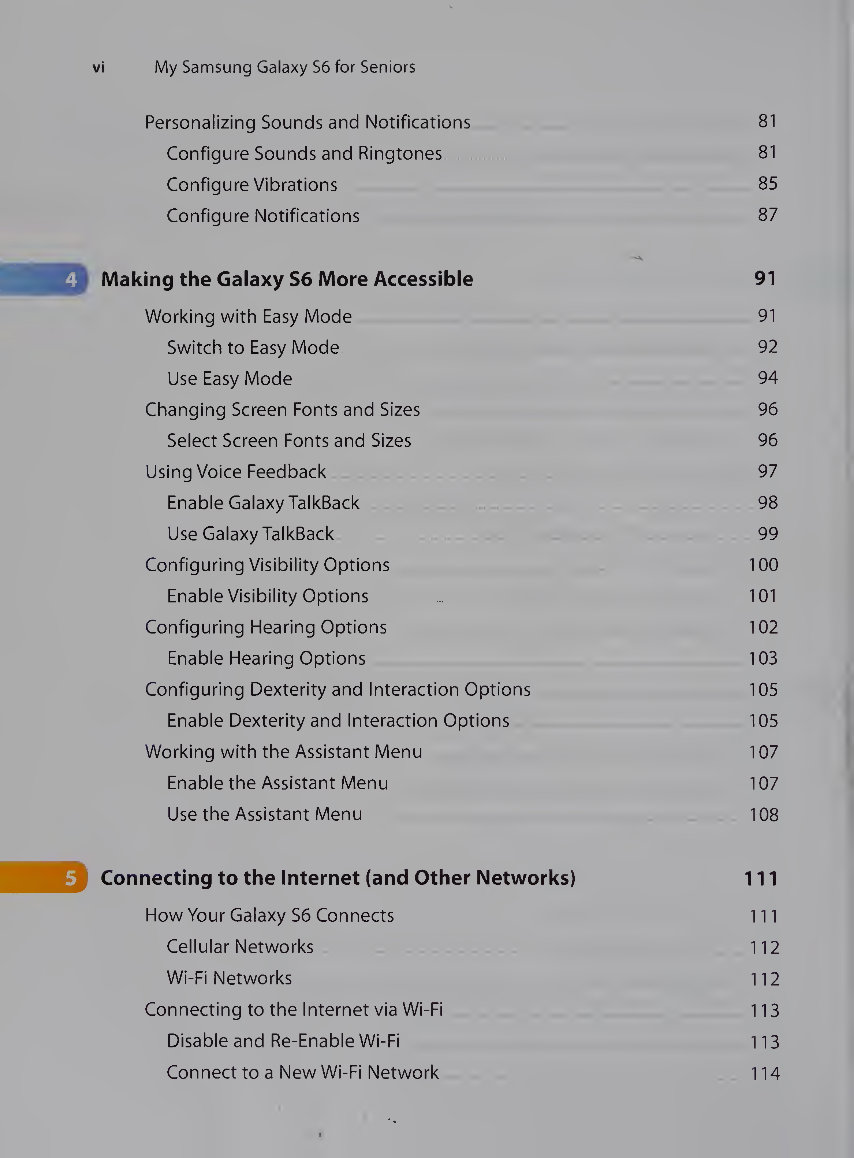
vi My Samsung Galaxy S6 for Seniors Personalizing Sounds and Notifications 81 Configure Sounds and Ringtones 81 Configure Vibrations 85 Configure Notifications 87 Making the Galaxy S6 More Accessible 91 Working with Easy Mode 91 Switch to Easy Mode . 92 Use Easy Mode 94 Changing Screen Fonts and Sizes 96 Select Screen Fonts and Sizes 96 Using Voice Feedback 97 Enable Galaxy TalkBack 98 Use Galaxy TalkBack . 99 Configuring Visibility Options 100 Enable Visibility Options 101 Configuring Hearing Options 102 Enable Hearing Options 103 Configuring Dexterity and Interaction Options 105 Enable Dexterity and Interaction Options 105 Working with the Assistant Menu 107 Enable the Assistant Menu 107 Use the Assistant Menu 108 Connecting to the Internet (and Other Networks) 111 How Your Galaxy S6 Connects 111 Cellular Networks 112 Wi-Fi Networks 112 Connecting to the Internet via Wi-Fi 113 Disable and Re-Enable Wi-Fi 113 Connect to a New Wi-Fi Network 114
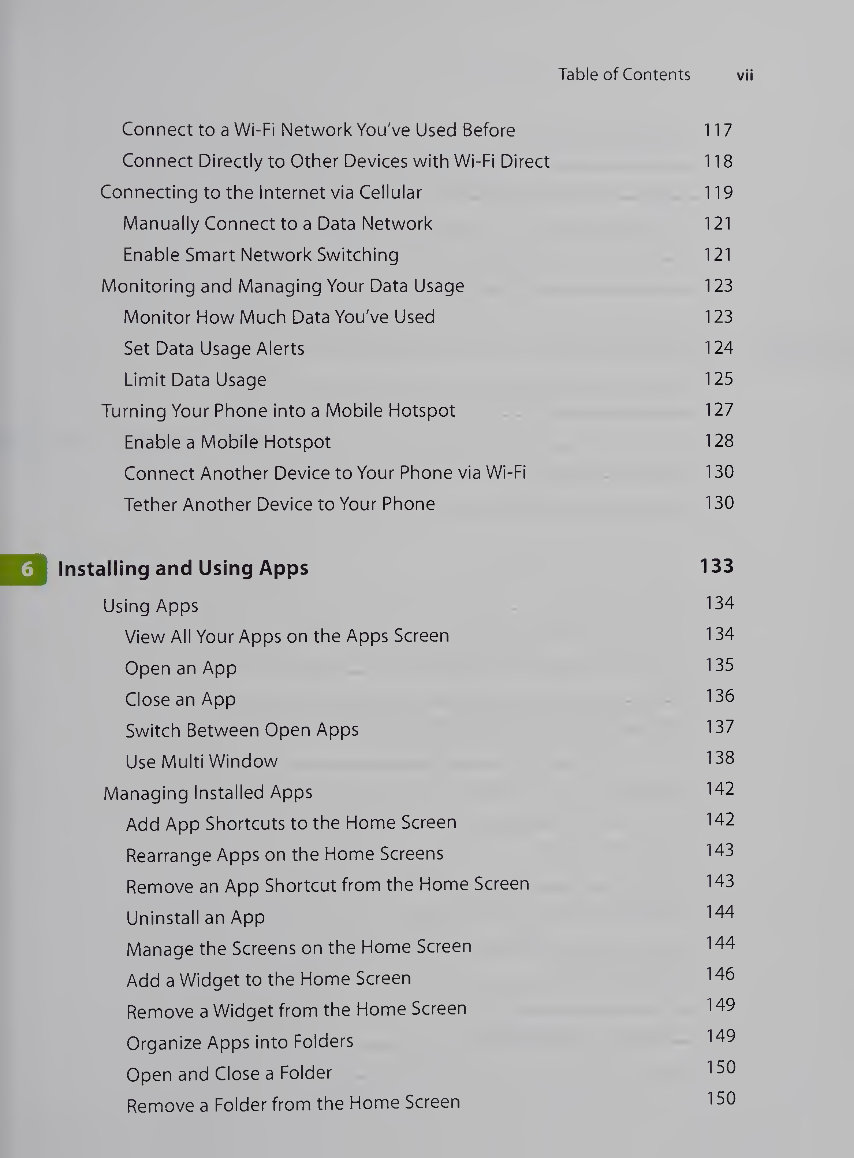
Table of Contents VII Connect to a Wi-Fi Network You've Used Before 117 Connect Directly to Other Devices with Wi-Fi Direct 118 Connecting to the Internet via Cellular 119 Manually Connect to a Data Network 121 Enable Smart Network Switching 121 Monitoring and Managing Your Data Usage 123 Monitor How Much Data You've Used 123 Set Data Usage Alerts 124 Limit Data Usage 125 Turning Your Phone into a Mobile Hotspot 127 Enable a Mobile Hotspot 128 Connect Another Device to Your Phone via Wi-Fi 130 Tether Another Device to Your Phone 130 6 Using Apps T34 View All Your Apps on the Apps Screen 134 Open an App 135 Close an App 136 Switch Between Open Apps 137 Use Multi Window 138 Managing Installed Apps 142 Add App Shortcuts to the Home Screen 142 Rearrange Apps on the Home Screens 143 Remove an App Shortcut from the Home Screen 143 Uninstall an App 144 Manage the Screens on the Home Screen 144 Add a Widget to the Home Screen 146 Remove a Widget from the Home Screen 149 Organize Apps into Folders 149 Open and Close a Folder 150 Remove a Folder from the Home Screen 150
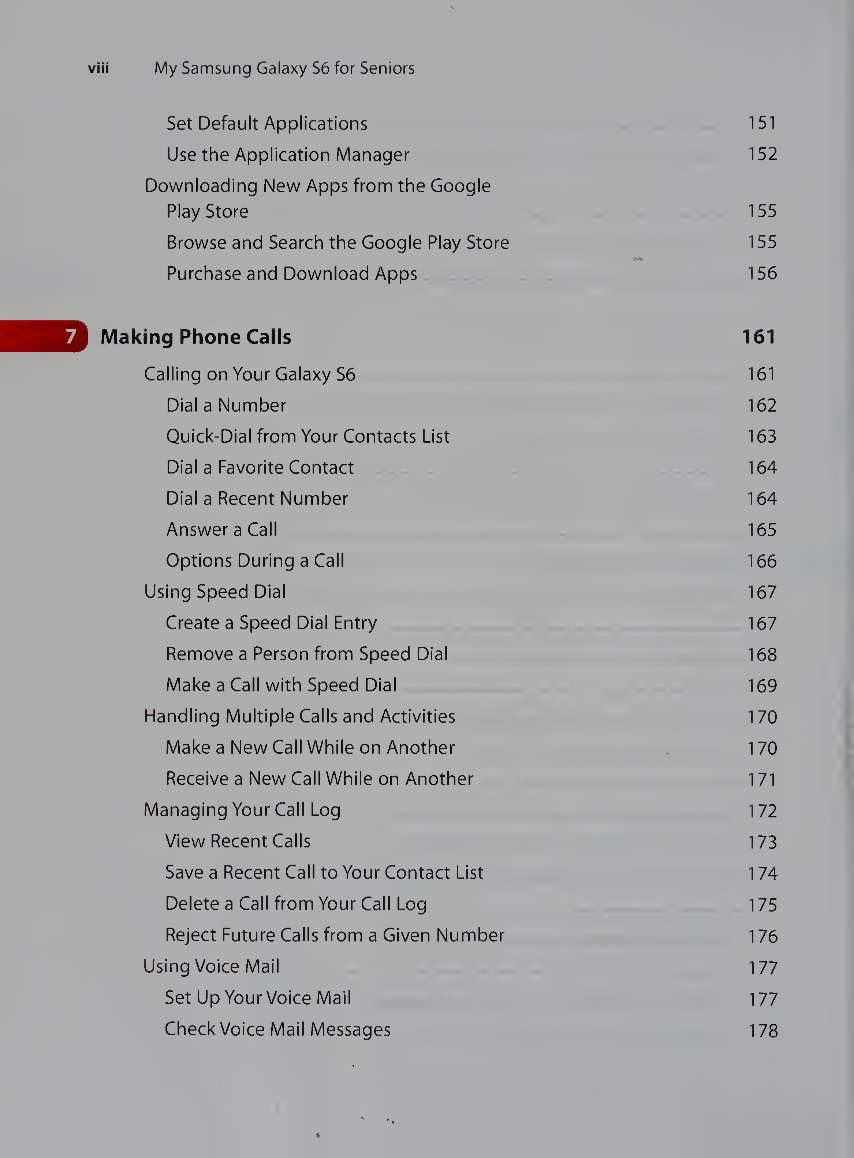
viii My Samsung Galaxy S6 for Seniors Set Default Applications 151 Use the Application Manager 152 Downloading New Apps from the Google Play Store 155 Browse and Search the Google Play Store . 155 Purchase and Download Apps . 156 Making Phone Calls 161 Calling on Your Galaxy S6 161 Dial a Number 162 Quick-Dial from Your Contacts List 163 Dial a Favorite Contact 164 Dial a Recent Number 164 Answer a Call 165 Options During a Call 166 Using Speed Dial 167 Create a Speed Dial Entry 167 Remove a Person from Speed Dial 168 Make a Call with Speed Dial 169 Handling Multiple Calls and Activities 170 Make a New Call While on Another 170 Receive a New Call While on Another 171 Managing Your Call Log 172 View Recent Calls 173 Save a Recent Call to Your Contact List 174 Delete a Call from Your Call Log 175 Reject Future Calls from a Given Number 176 Using Voice Mail 177 Set Up Your Voice Mail 177 Check Voice Mail Messages 178
The "My Samsung Galaxy S6 for Seniors" book is the perfect guide for individuals aged 50 and above who want to learn how to use the Samsung Galaxy S6. Written by veteran author Michael Miller, this comprehensive manual is designed to help users quickly and easily familiarize themselves with the smartphone's features and functionalities.
With over 100 nonfiction books to his name, Michael Miller is renowned for his ability to simplify complex topics for everyday readers. In this book, he adopts a 50+ perspective, using relevant examples to cover all the popular tasks associated with the Samsung Galaxy S6.
Set up contacts, accounts, and voicemail
Make and receive voice and video calls
Turn your phone into an alarm clock
Explore the Web with Google Chrome
Connect with family and friends on social networks
Customize your phone’s settings
Master the arts of texting and emailing
Take and share great photos and videos
Get driving directions
Watch TV and movies
Use your phone to monitor your health
Learn exclusive features of the Galaxy S6 Edge
Keep your phone safe and secure
Additionally, registering the book provides access to more than a dozen bonus tasks and a Glossary. The book is authored by Michael Miller, published by Que Publishing, and is available in English. It contains 608 pages and was released on July 31, 2015, under ISBN: 9780789755445.



 Lifetime Access




