


Procedure for installing
Service Manual Viewer
and Service Manual data

Contents
1. System requirements for installation of
Service Manual Viewer .................................................................... 1
2. Procedure for installing .................................................................. 2
2-1. Flow of installation....................................................................................2
2-2. Procedure for installing Service Manual Viewer ....................................3
2-3. Procedure for installing Service Manual data ........................................7
2-3-1. Preparation of installing Service Manual data .........................................7
2-3-2. Installation of Service Manual data.........................................................10
3. Procedure for uninstalling............................................................ 19
3-1. Flow of uninstallation .............................................................................19
3-2. Procedure for uninstalling Service Manual data ..................................20
3-3. Procedure for uninstalling Service Manual Viewer ..............................23
4. Instruction of use only for Windows2000 and WindowsXP ...... 26
4-1. Valid account in using SMV ...................................................................26

1
Chapter 1 System requirements for installation of Service Manual Viewer
(1) Hardware
Operating System: Windows2000 , WindowsXP or Windows Vista
Caution: The recommended OS is English version in this installer.
When you use OS in other languages, some characters may be garbled.
There is no problem on the system, so you can keep installing.
RAM: More than recommended value of operating system
Display: Greater than 800X600 pixels resolution and 256 colors
(2) Software
Microsoft Internet Explorer 5.5 or 6.0 or 7.0
Trademarks
Microsoft, Windows2000, WindowsXP, Windows Vista and Internet Explorer are registered
trademarks of Microsoft Corporation in the United States and/or other countries.
Acrobat ® Reader Copyright © 1987-2001 Adobe Systems Incorporated. All rights reserved. Adobe,
Adobe logo, Adobe Acrobat, and Adobe Acrobat logo are trademarks of Adobe Systems
Incorporated.
2
Chapter 2 Procedure for installing
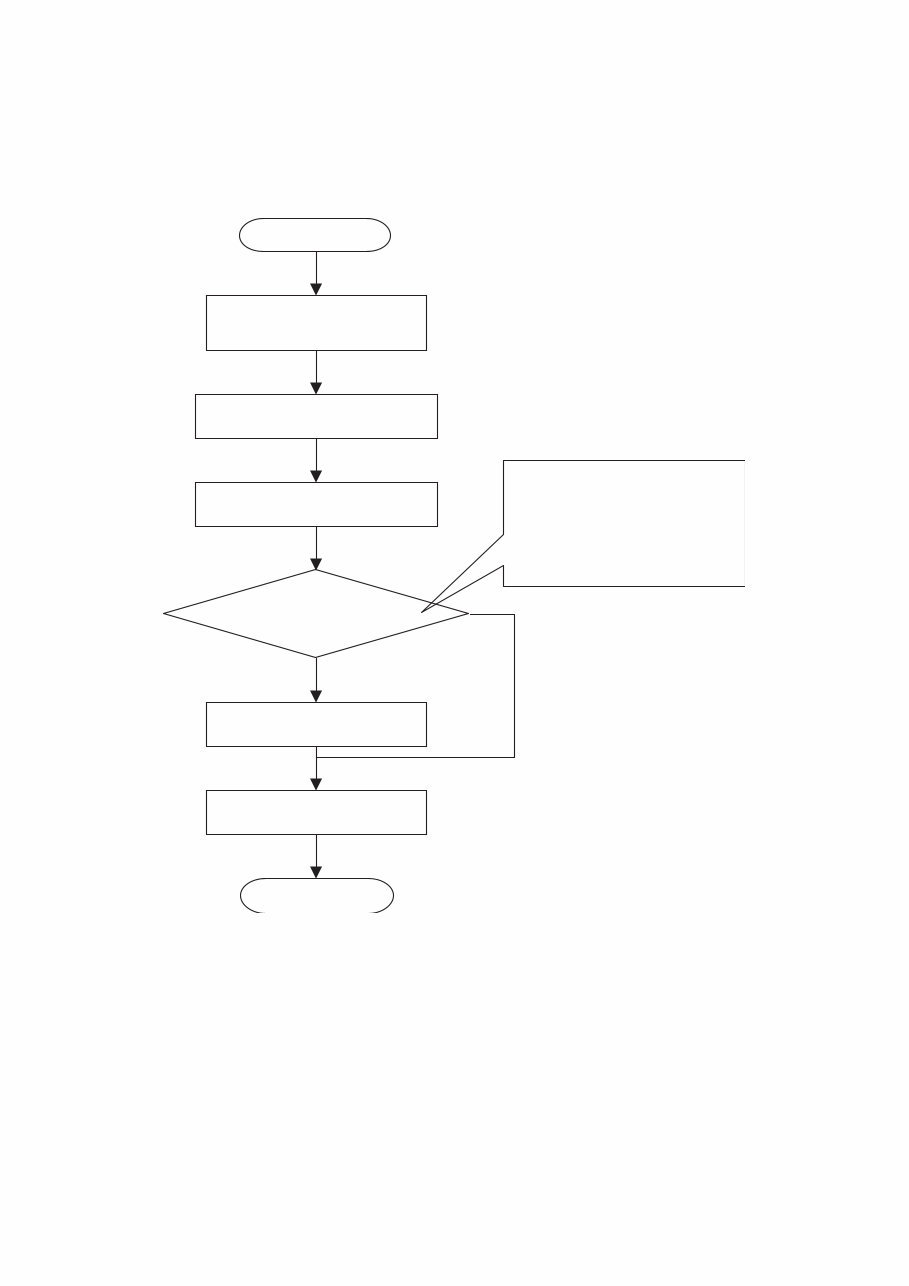
2-1. Flow of installation
Caution: In case of Windows2000, WindowsXP and Windows Vista, installation must be started after
login by a user who has authority of the Administrator.
Restarting PC.
No
2.3.2. Installing Service Manual
data
Yes
2.3.1. Preparing S/M installation
The set location for installation is the
same folder as the system.
Recommendation:
If there is enough space on another
drive, change of location for
installation is recommended
Login to the computer as
an administrator
Complete
Start
2.2. Installing Service Manual data
Change of location where Service
Manual (S/M) data is installed
3
2-2. Procedure for installing Service Manual Viewer
Caution: Exit all of other applications before installing.
Some data may be lost because of restarting PC after completing installation.
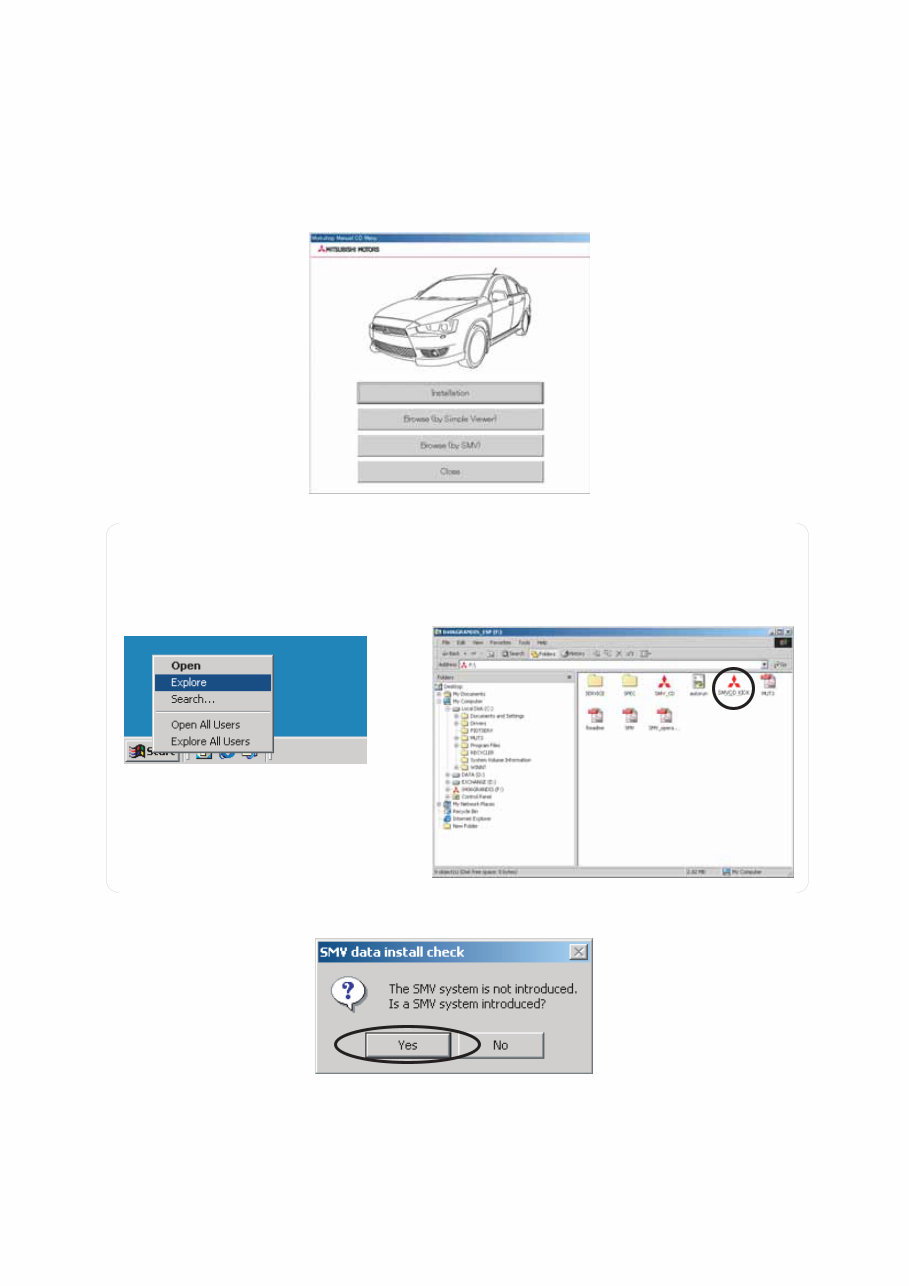
(1) When you set CD-ROM into CD drive, the W/M CD’s menu screen (Figure 1) appears automatically.
Click [Installation] button. --Go to (2) on this page.
Figure 1: W/M CD’s menu screen
(2) Dialog box for confirmation of Service Manual (S/M) Viewer installation (Figure 4) appears. Click Yes.
Note:
In case that the above screen is not appeared, right-click on Start at the lower-left corner of the
desktop and click Explore. (Refer to Figure 2)
Then double-click SMVCD_KICK.exe in the CD-ROM. (Refer to Figure 3)
Figure 2: Running Explore
Figure 3: Running SMVCD_KICK.exe
Figure 4: Dialog box for confirmation of S/M Viewer installation
You're Reading a Preview
What's Included?
 Lifetime Access
Fast Download Speeds
Offline Viewing
Access Contents & Bookmarks
Full Search Facility
Print one or all pages of your manual
$31.99
2012-2013 Mitsubishi L200 Service & Repair Manual
Viewed 79 Times Today

What's Included?
Lifetime Access
Fast Download Speeds
Offline Viewing
Access Contents & Bookmarks
Full Search Facility
Print one or all pages of your manual
$31.99

Secure transaction
What's Included?
Lifetime Access
Fast Download Speeds
Offline Viewing
Access Contents & Bookmarks
Full Search Facility
Print one or all pages of your manual
Description
- This complete factory service repair workshop manual is available for instant access on your computer, tablet, or smartphone.
- It covers all repairs, servicing, and troubleshooting procedures with detailed photos and diagrams.
- Professional mechanics and technicians use this manual, which contains step-by-step instructions and highly detailed exploded diagrams and pictures.
- You have the option to print out a single page or the entire manual.
- This manual can be used on multiple computers without any limitations or trial periods.
- There is no expiry date, renewal fee, or need to pay extra for continued use.
- It is fully compatible with Windows and MAC computers.
For more information, please click on the provided button.


