4 Infotainment System Overview Read this manual thoroughly to become familiar with how the navigation system operates. All functions are available when the vehicle is parked. Before driving: . Become familiar with the navigation system operation and the buttons and knobs on the faceplate of the navigation system. . Set up the audio by presetting favorite stations, setting the tone, and adjusting the speakers. . Set up the navigation features before beginning to drive, such as entering an address or a preset destination. . For vehicles with phone capability, set up phone numbers in advance so they can be called with the press of a single button or a single voice command. { WARNING Taking your eyes off the road too long or too often while using the navigation system could cause a crash resulting in injury or death to you or others. Focus your attention on driving. { WARNING Avoid looking too long or too often at the moving map on the navigation screen. This could cause a crash and you or others can be injured or killed. Use the turn-by-turn voice guidance directions whenever possible. Use the navigation system to: . Plan a route by selecting a destination using the various methods and choices. . Follow turn-by-turn instructions and map guidance with voice prompts, when permitted by traffic laws, controls, and conditions. . Receive RDS broadcast announcements.
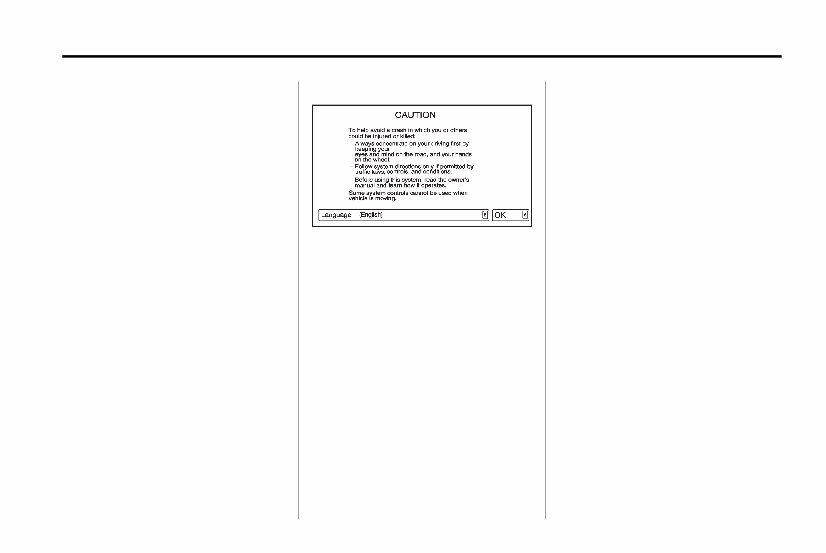
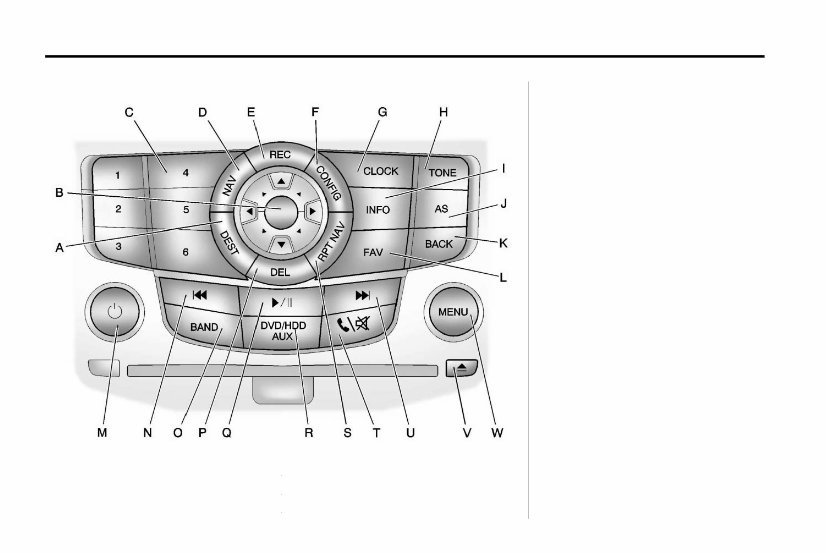
Infotainment System 5 Always be alert and obey traffic and roadway laws and instructions, regardless of the guidance from the navigation system. Because the navigation system uses street map information that does not include all traffic restrictions or the latest road changes, it could suggest using a road that is now closed for construction or a turn that is prohibited by signs at the intersection. Because the system uses limited information, always evaluate whether following the system's directions is safe and legal for the current conditions. When the navigation system is turned on, a screen might appear with the information below. Read and acknowledge the information it contains. If the Caution screen appears, select the OK screen button by pressing preset 6 located on the faceplate. If NAV or DEST buttons are pressed, this Caution screen appears and the preset 6 button must be pressed to access NAV and DEST functions. See instructions later in this section. To get started, set preferences or delete information from the navigation system using various options. See “Deleting Personal Information” later for more information. Navigation System Overview The navigation system in the vehicle is not a touch screen system. It is controlled by using the MENU or MENU/SEL knob, eight-way selector arrows, preset buttons, and other buttons on the faceplate. The eight-way selector arrows can be pressed from side to side, up, or down to navigate through many of the menus. The MENU or MENU/ SEL knob can be turned and then pressed to complete any of the highlighted screen functions. The preset buttons can be pressed to select the appropriate screen button function as shown on the display. See “Navigation Buttons” under Using the Navigation System on page 39 for more information.
6 Infotainment System A. DEST (Destination) B. Eight-Way Selector Arrows C. Preset Buttons (1–6) D. NAV (Navigation) E. REC (Record) F. CONFIG (Configuration) G. CLOCK H. TONE I. INFO (Information) J. AS (Automatic Store) K. BACK L. FAV (Favorite) M. O (Power/Volume) N. g REV (Reverse) O. BAND (AM, FM, XM) P. DEL (Delete) Q. k (Play/Pause)
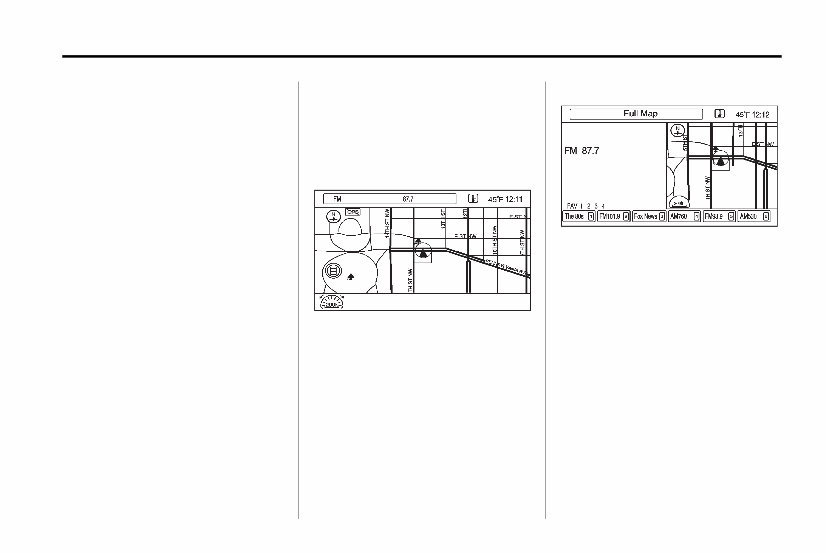
Infotainment System 7 R. DVD/HDD/AUX (Source) S. RPT NAV (Repeat Navigation) T. 5 / > (Phone/Mute) U. l FWD (Forward) V. X (Eject) W. MENU or MENU/SEL NAV (Navigation) Menu The Navigation menu screen accesses the navigation system settings. 1. Press the NAV button to view the navigation map screen. The map and current vehicle location displays. 2. Press the NAV button again to change between a map/audio split view or a full map view.
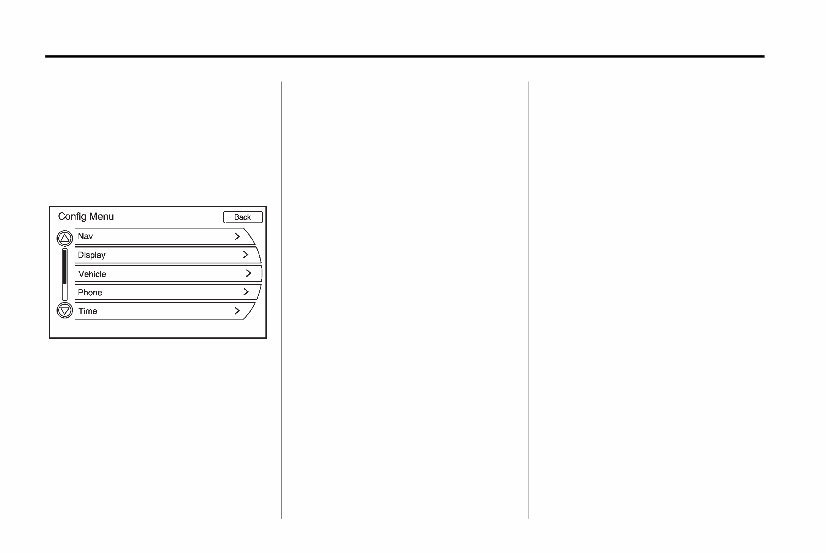
8 Infotainment System Config Setup Menu The Config setup menu is used for changing the options for the audio, navigation, display, vehicle configuration, phone, and time. Press the CONFIG button to display the Config Menu, then turn the MENU or MENU/SEL knob to scroll through the features. Once the desired feature displays, press the MENU or MENU/SEL knob to display more options within that feature. Languages The vehicle supports English, French (Canadian), and Spanish. The default language is English. To change the display language, see “Vehicle Personalization” in the Index of the vehicle's owner manual. English and Metric Unit Conversion To change the display units between English and metric units, see “Driver Information Center (DIC)” in the Index of the vehicle's owner manual. Deleting Personal Information The navigation system can store destinations and personal information such as names and addresses. At times, such as when selling or disposing of your vehicle, you may want to delete this information: . Previous Destinations . Address Book, Fav Route, Preset Destinations, and HDD music files Storing Radio Station Presets Up to 36 preset stations can be stored. AM, FM, and XM™ (if equipped) can be mixed. To store presets: 1. Press O to turn the system on. 2. If viewing a map screen, press the BAND or FAV buttons. 3. Select the band. 4. Press the Seek arrows on the faceplate or turn and press the MENU or MENU/SEL knob to select a station.
Infotainment System 9 5. Press and hold one of the preset buttons for more than one and a half seconds. 6. Repeat the steps for each preset. To change the number of preset pages, see AM-FM Radio on page 12 for more information. Entering an Address and Point of Interest, and Storing Preset Destinations The vehicle must be in P (Park) to perform these operations. Entering an Address If having trouble finding a city or a street name: . Use the MENU or MENU/SEL knob by turning it to scroll, then press it as needed to enter the street name first, instead of the city name, or vice versa. . Use the MENU or MENU/SEL knob by turning it to scroll, then press it as needed to enter more characters or reduce the number of characters to expand or reduce the available options. To set a destination by entering a street name: 1. Press the DEST button. 2. If necessary, use the MENU or MENU/SEL knob to enter the state/province name. The last state/province name is automatically recalled. 3. Use the MENU or MENU/SEL knob to select the street name field. Enter the street name. Do not enter directional information or street type. Use the space screen button between street and city names. Select the backspace q screen button to delete an incorrect character. A list displays if four or fewer names are available. If there are more than four, there is a match counter with a number of available streets. Press the List button using preset 6 to view the list and select the street. 4. Use the MENU or MENU/SEL knob to select the city from the list or enter the city name. 5. Use the MENU or MENU/SEL knob to enter the house number. This field is automatically selected. 6. Press the OK preset 6 button on the faceplate. The address information screen displays the address entered. 7. Press preset 6 if correct. The route will calculate.
10 Infotainment System 8. Select the route preference preset for Fastest, Shortest, or Easiest. The chosen route preference highlights. See Destination on page 50 for more information. 9. Press preset 6 to Start Guidance. The route is calculated. See “Address Entry” under Destination on page 50 for more information. Entering a Point of Interest (POI) To set a destination by entering a Point of Interest (POI): 1. Press O to turn the system on. 2. A Caution could appear. Press the OK preset 6 button on the faceplate to proceed. 3. Press the DEST button. 4. Use the MENU or MENU/SEL knob to select the Point of Interest. 5. Use the MENU or MENU/SEL knob to enter the specific title of the POI in the POI name space. If four or less names are available, a list displays. If more than four are available, there is a match counter with a number in it, representing the number of available POI names. Press the List button using preset 6 to view the list. Press the MENU or MENU/SEL knob to select the POI. 6. Press the Go preset 6 button on the faceplate if correct. The route will calculate. 7. Select the route preference preset for Fastest, Shortest, or Easiest. The system highlights the route. 8. Press the preset 6 button to Start Guidance. The route is now ready to be started. See “Point of Interest (POI)” under Destination on page 50 for more information. Storing Preset Destinations 1. Press O to turn the system on. 2. A Caution could appear. Select the OK preset 6 button to proceed. 3. Press the NAV or DEST buttons. 4. Use the MENU or MENU/SEL knob to enter a destination. See Destination on page 50 for information on how to enter a destination. 5. Press the Save preset button to add the current final destination to the address book. The address book screen appears.
You're Reading a Preview
What's Included?
Lifetime Access
Fast Download Speeds
Online & Offline Access
Access PDF Contents & Bookmarks
Full Search Facility
Print one or all pages of your manual
$24.99
2011 Chevrolet Cruze Navigation System Owners Manual
The 2011 Chevy/Chevrolet Cruze Navigation Manual is a comprehensive guide designed to assist owners in navigating their Cruze with ease and confidence. Whether you're a newbie or a seasoned driver, this manual provides detailed instructions and helpful tips on utilizing the navigation system to its fullest potential.
Model 1: 2011 Chevy Cruze LS
Model 2: 2011 Chevy Cruze LT
Model 3: 2011 Chevy Cruze LTZ
With this manual, you'll gain access to step-by-step instructions on setting your destination, choosing the most efficient routes, and customizing various navigation settings according to your preferences. Additionally, it provides valuable information on understanding icons, symbols, and voice prompts used by the navigation system.
Whether you're heading to work, embarking on a road trip, or exploring new places, the 2011 Chevy/Chevrolet Cruze Navigation Manual is a must-have companion to ensure a seamless and enjoyable driving experience with your Cruze.
Reviews
Q&A
Recently Viewed
5,521,897Happy Clients
2,594,462eManuals
1,120,453Trusted Sellers
15Years in Business
Price:
Actual Price:
2011 Chevrolet Cruze Navigation System Owners Manual






 Lifetime Access