


Black plate (1,1)
Cadillac SRX Navigation System (Include Mex) - 2012
2012 Cadillac SRX Navigation System M
Infotainment System ...... 3
Introduction ................. 3
Overview ....................... 3
Radio ....................... 10
AM-FM Radio ................. 10
Satellite Radio ................ 16
Audio Players ............. 16
CD/DVD Player ............... 16
MP3 .......................... 22
Hard Drive Device (HDD) .... . 25
Auxiliary Devices .............. 38
Rear Seat Infotainment ... 39
Rear Seat Entertainment (RSE)
System ...................... 39
Navigation ................. 45
Using the Navigation
System ...................... 45
Maps .......................... 50
Navigation Symbols ........... 52
Destination .................... 56
OnStar
®
Destination
Download .................... 68
Configure Menu ............... 70
Global Positioning
System (GPS) ............... 79
Vehicle Positioning ............ 80
Problems with Route
Guidance .................... 80
If the System Needs
Service ...................... 81
Ordering Map DVDs .......... 81
Database Coverage
Explanations ................. 82
Voice Recognition ........ 82
Phone ...................... 91
Bluetooth ..................... 91
Using Voice Recognition ...... 92
Pairing a Phone Using the
Infotainment System ......... 98
Hands-Free Phone (UHP,
Mexico) .................... 108
Trademarks and License
Agreements ............. 118
Index ..................... i-1
Downloaded from www.Manualslib.com manuals search engine

Black plate (2,1)
Cadillac SRX Navigation System (Include Mex) - 2012
Downloaded from www.Manualslib.com manuals search engine

Black plate (3,1)
Cadillac SRX Navigation System (Include Mex) - 2012
Infotainment System 3
Introduction
GENERAL MOTORS, GM, the GM
Emblem, CADILLAC, the CADILLAC
Crest & Wreath, and the name SRX
are registered trademarks of
General Motors LLC.
The information in this manual
supplements the owner manual.
This manual describes features that
may or may not be on your specific
vehicle either because they are
options that you did not purchase or
due to changes subsequent to the
printing of this owner manual.
Please refer to the purchase
documentation relating to your
specific vehicle to confirm each of
the features found on your vehicle.
Keep this manual with the owner
manual in the vehicle, so it will be
there if it is needed. If the vehicle is
sold, leave this manual in the
vehicle.
Overview
Read this manual thoroughly to
become familiar with how the
navigation system operates.
The navigation system includes
navigation and audio functions.
Keeping your eyes on the road and
your mind on the drive is important
for safe driving. The navigation
system has built-in features
intended to help with this by
disabling some features when
driving. A grayed-out function is not
available when the vehicle is
moving.
All functions are available when the
vehicle is parked. Do the following
before driving:
.
Become familiar with the
navigation system operation,
buttons on the faceplate, and
touch-sensitive screen buttons.
.
Set up the audio by presetting
favorite stations, setting the
tone, and adjusting the
speakers.
.
Set up the navigation features,
such as entering an address or a
preset destination.
.
Set up phone numbers in
advance so they can be called
easily by pressing a single
button or a single voice
command for navigation systems
equipped with phone capability.
Litho in U.S.A.
Part No. 22824133 A First Printing
©
2011 General Motors LLC. All Rights Reserved.
Downloaded from www.Manualslib.com manuals search engine
Black plate (4,1)
Cadillac SRX Navigation System (Include Mex) - 2012
4 Infotainment System
{ WARNING
Taking your eyes off the road too
long or too often while using the
navigation system could cause a
crash and you or others could be
injured or killed. Focus your
attention on driving and limit
glances at the moving map on the
navigation screen. Use voice
guidance whenever possible.
Use the navigation system to:
.
Plan a route.
.
Select a destination using
various methods and choices.
.
Follow turn-by-turn route and
map guidance with voice
prompts, only if permitted by
traffic laws, controls, and
conditions.
.
Receive RDS broadcast
announcements.
Always be alert and obey traffic and
roadway laws and instructions,
regardless of the guidance from the
navigation system. Because the
navigation system uses street map
information that does not include all
traffic restrictions or the latest road
changes, it may suggest using a
road that is now closed for
construction or a turn that is
prohibited by signs at the
intersection. Always evaluate
whether following the system's
directions is safe and legal for the
current conditions.
When the navigation system is
turned on, a screen may appear
with information that must be read
and acknowledged before accessing
some navigation features.
After acknowledging the start up
information, the NAV (Navigation)
and DEST (Destination) functions
are accessible. Information can now
be entered or deleted, and other
functions accessed. See
instructions later in this section.
Every 50 times the vehicle is started
and the navigation system is turned
on, the Caution screen appears.
After reading the caution, select OK
to load the map DVD information.
If OK is not selected, all control
buttons except for NAV (Navigation)
and DEST (Destination) can be
accessed. You can also press NAV
to have this Caution screen appear.
When getting started, set your
preferences or delete information in
the navigation system using various
options.
Downloaded from www.Manualslib.com manuals search engine
Black plate (5,1)
Cadillac SRX Navigation System (Include Mex) - 2012
Infotainment System 5
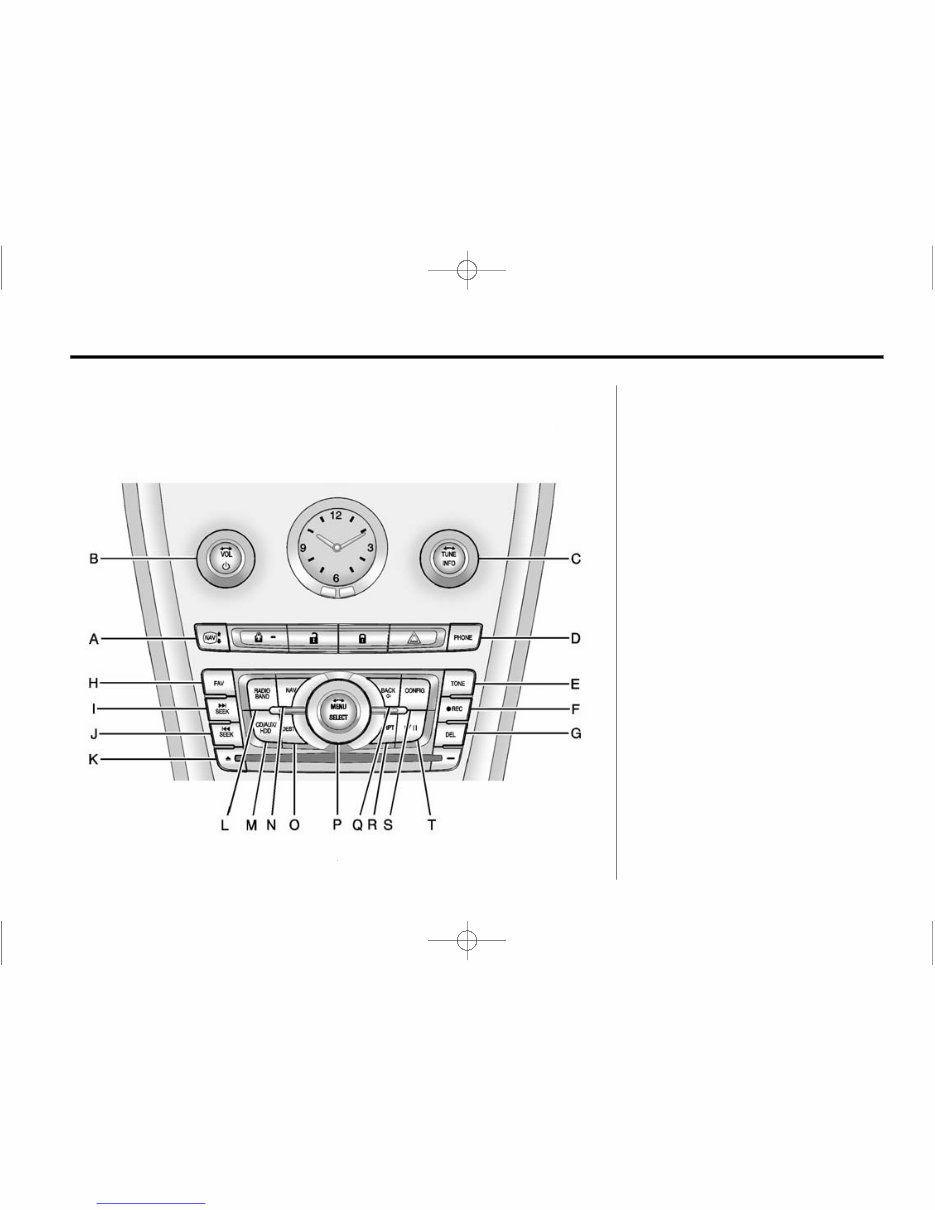
Navigation System Overview
A. NAV mn (Navigation Screen)
B. VOL/ O (Volume/Power)
C. TUNE/INFO (Tune/Information)
D. PHONE
E. TONE
F. O REC (Record)
G. DEL (Delete)
H. FAV (Favorite)
I. l SEEK (Forward)
J. g SEEK (Reverse)
K. Y (Eject)
L. RADIO/BAND (AM, FM, and XM
(jf equipped))
M. CD/AUX/HDD (Source)
N. NAV (Navigation)
O. DEST (Destination)
P. MENU/SELECT
Downloaded from www.Manualslib.com manuals search engine
Black plate (6,1)
Cadillac SRX Navigation System (Include Mex) - 2012
6 Infotainment System
Q. BACK /
R. RPT (Repeat)
S. CONFIG (Configure)
T. k (Play/Pause)
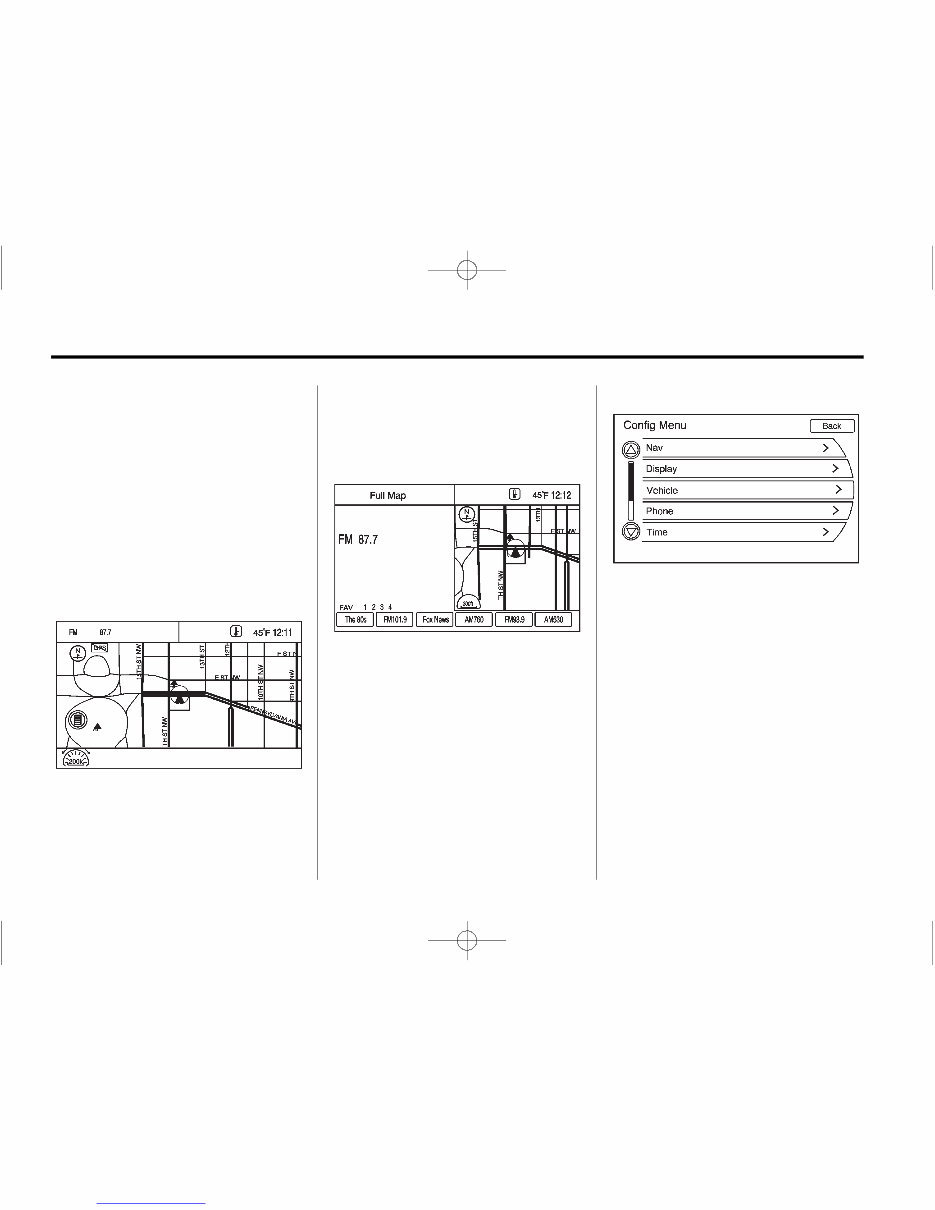
NAV (Navigation) Menu
The Navigation menu screen
accesses the navigation system
settings.
1. Press NAV to view the
navigation map screen. The map
and the vehicle's current location
displays.
2. Press NAV to change between a
map/audio split view or a full
map view.
Config Menu
Press CONFIG to display the Config
Menu. The Config Menu is used to
change the screens for the audio,
navigation display, phone, vehicle
configuration, and time features.
Turn the MENU/SELECT knob to
scroll through the available setup
features. Once the desired feature
displays, press the MENU/SELECT
knob or press the desired feature on
the screen, to display more options
within that feature.
Downloaded from www.Manualslib.com manuals search engine

Black plate (7,1)
Cadillac SRX Navigation System (Include Mex) - 2012
Infotainment System 7
Languages
To change the display language,
see “Vehicle Personalization” in the
vehicle owner manual.
The vehicle supports English,
French (Canadian), and Spanish.
The default language is English.
English and Metric Unit
Conversion
To change the display readings
between English and metric units,
see “Driver Information Center
(DIC)” in the vehicle owner manual
for more information.
Deleting Personal Information
The navigation system can record
and store destinations and personal
information such as names and
addresses.
At times, such as when you are
selling or disposing of your vehicle,
you may want to delete this
information:
.
Previous Destinations.
.
Address Book, Fav Route,
Preset Destinations, and HDD
music files.
Storing Radio Station Presets
Up to 36 preset stations can be
stored. AM, FM, and XM
(if equipped) can be mixed. To store
presets:
1. Press O to turn the system on.
2. If viewing a map screen, press
RADIO/BAND, FAV, or press the
source screen button.
3. Select the band.
4. Press l SEEK, g SEEK,
or TUNE/INFO to select the
desired station.
5. Press and hold one of the preset
screen buttons for more than
two seconds.
6. Repeat the steps for each
preset.
To change the number of preset
pages, see AM-FM Radio on
page 10.
Entering an Address and Point
of Interest, and Storing Preset
Destinations
The vehicle must be in P (Park) to
perform these operations.
Entering an Address
If having trouble finding a city or a
street name:
.
Enter the street name first
instead of the city name, or vice
versa.
.
Enter more characters or reduce
the amount of characters to
reduce or expand the available
options.
Downloaded from www.Manualslib.com manuals search engine

Black plate (8,1)
Cadillac SRX Navigation System (Include Mex) - 2012
8 Infotainment System
To set a destination by entering a
street name:
1. Press DEST.
2. If necessary, enter the state/
province name. The last state/
province name is automatically
recalled.
3. Select the street name field.
Enter the street name. Do
not enter directional information
or street type. Use the
space U screen button
between street and city names.
Use the backspace q screen
button to delete an incorrect
character.
A list displays if four or fewer
names are available. If there are
more than four, there is a match
counter with a number of
available streets. Press the List
button to view the list and select
the street.
4. Select the city from the list or
enter the city name.
5. Enter the house number. This
field is automatically selected.
6. Press OK. The address
information screen displays the
address entered.
7. Press Go if correct. The route
will calculate.
8. Select the route preference for
Fastest, Shortest, or Easiest.
The chosen route preference
highlights. See “Navigation
Settings” under Using the
Navigation System on page 45.
9. Press the Start Guidance screen
button and the route is now
ready to be started.
See “Address Entry” under
Destination on page 56.
Entering a Point of Interest (POI)
To set a destination by entering a
Point of Interest (POI):
1. Press O to turn the system on.
2. A caution could appear. Press
OK to proceed.
3. Press DEST.
4. Press the Point of Interest
screen button.
5. Enter the specific title of the POI
in the POI name space.
If four or less names are
available, a list displays. If more
than four are available, there is a
match counter with a number in
it, representing the number of
available POI names. Press List
to view the list. Select the POI.
6. Press Go. The system
calculates the route.
Downloaded from www.Manualslib.com manuals search engine

Black plate (9,1)
Cadillac SRX Navigation System (Include Mex) - 2012
Infotainment System 9
7. Select the route preference for
Fastest, Shortest, or Easiest.
The system highlights the route.
8. Press the Start Guidance screen
button. The route is now ready
to be started.
See “Point of Interest (POI)” under
Destination on page 56.
Storing Preset Destinations
1. Press O to turn the system on.
2. A caution could appear. Press
OK to proceed.
3. Press DEST.
4. Enter a destination. See
Destination on page 56.
5. Press Save from the map screen
to add the current final
destination to the address book.
The address book screen
appears.
6. Press the Name screen button.
An alpha-keyboard displays.
Enter the name.
7. Press and hold one of the
screen buttons at the bottom of
the screen until the text in the
button changes.
The address book entry name
appears in that preset
destination screen button and is
now available to select from the
Select Destination screen. See
“Using the Stored Preset
Destinations” next in this section
to select it as a destination.
See “Preset Destination” under
Destination on page 56.
Using the Stored Preset
Destinations
These destinations are available for
selection while driving.
1. Press O to turn the system on.
2. A caution could appear. Press
OK to proceed.
3. Press DEST.
4. Press one of the available preset
destination screen buttons. The
system calculates the route.
5. Select the route preference for
Fastest, Shortest, or Easiest.
The system highlights the route.
6. Press the Start Guidance screen
button. The route is now ready
to be started.
See “Preset Destination” under
Destination on page 56.
Canceling Guidance
Guidance is canceled once you
arrive at the final destination. To
cancel guidance prior to arrival at
the final destination:
1. Press DEST.
2. Press the Cancel Guidance
screen button.
3. Press Yes to confirm
cancellation.
Downloaded from www.Manualslib.com manuals search engine

Black plate (10,1)
Cadillac SRX Navigation System (Include Mex) - 2012
10 Infotainment System
Voice Guidance
To adjust the volume of voice
guidance prompts:
1. Press CONFIG to enter the
Config Menu features. Turn the
MENU/SELECT knob until Nav
displays. Press the MENU/
SELECT knob to select Nav or
press the Nav screen button to
display more options within that
feature.
2. Press the Voice Prompt screen
button.
3. Press the Voice Volume screen
button.
4. Press + or – to increase or to
decrease the volume of the
voice prompts.
See “Volume ” under Using the
Navigation System on page 45.
Cleaning the Display
Notice: Using abrasive cleaners
when cleaning glass surfaces
could scratch the glass. Use only
a soft cloth and do not spray
cleaner directly on the system as
it could affect the mechanical
parts.
Do not wipe the panel with a hard
cloth or use a volatile liquid such as
paint thinner, it could scratch the
surface or erase the characters on
the buttons.
Radio
AM-FM Radio
Playing the Radio
Audio Source Menu
O (Power/Volume):
1. Press to turn the radio on or off.
2. Turn to increase or decrease the
volume. The volume is adjusted
for the current audio source,
active navigation voice
guidance, or voice prompts.
The steering wheel controls can
also be used to adjust the volume.
See “Steering Wheel Controls” in
the vehicle's owner manual for more
information.
Also, see “Radio Settings” and
“Automatic Volume” in this section.
TUNE/INFO: Turn to change the
radio station. See “Finding a
Station” following for more
information.
Downloaded from www.Manualslib.com manuals search engine
You're Reading a Preview
What's Included?
 Lifetime Access
Fast Download Speeds
Online & Offline Access
Access PDF Contents & Bookmarks
Full Search Facility
Print one or all pages of your manual
$24.99
2012 Cadillac SRX Crossover Navigation Manual
Viewed 78 Times Today

What's Included?
Lifetime Access
Fast Download Speeds
Online & Offline Access
Access PDF Contents & Bookmarks
Full Search Facility
Print one or all pages of your manual
$24.99

Secure transaction
What's Included?
Lifetime Access
Fast Download Speeds
Online & Offline Access
Access PDF Contents & Bookmarks
Full Search Facility
Print one or all pages of your manual
Description
Get instant access to the 2012 Cadillac SRX Crossover Navigation Manual. This official manual is compiled in PDF format, identical to the original factory manual. It contains detailed information useful for both professional mechanics and DIY enthusiasts, covering:
- Introduction
- Driver and Passenger Safety
- Instruments and Controls
- Comfort and Convenience Features
- Operation Tips
- Appearance Care
- Taking Care of the Unexpected
- Technical Information
- Warranty and Customer Relations
- Entertainment Systems
- Climate Controls
- Lights
- Driver Controls
- Locks and Security
- Seating and Safety Restraints
- Driving
- Customer Assistance
- Reporting Safety Defects (U.S. only)
- Cleaning
- Engine Compartment
- Engine Oil
- Battery Fuel Information
- Air Filter(s)
- Part Numbers
- Refill Capacities
- Lubricant Specifications
- Accessories
- Service Information and Specifications
- Maintenance Information and Specifications
This manual requires a PDF reader, such as Acrobat Reader, Foxit, or a comparable reader, to open and will work on any device capable of reading a PDF file.


