


Peterbilt SmartNav Kenworth NavPlus Modem Activation Manual
What's Included?
 Lifetime Access
Fast Download Speeds
Online & Offline Access
Access PDF Contents & Bookmarks
Full Search Facility
Print one or all pages of your manual

Peterbilt SmartNav / Kenworth NavPlus
Modem Activation and Connectivity
User’s Guide
Published: March 2, 2011

- 2 -
Table of Contents
1. Accessing Connection Manager ........................................................ 3
2. Activating Services ............................................................................ 6
3 Activating a Replacement Modem ..................................................... 8
4 Troubleshooting ................................................................................. 9
5. Tips.................................................................................................. 10
- 3 -
1. Accessing Connection Manager
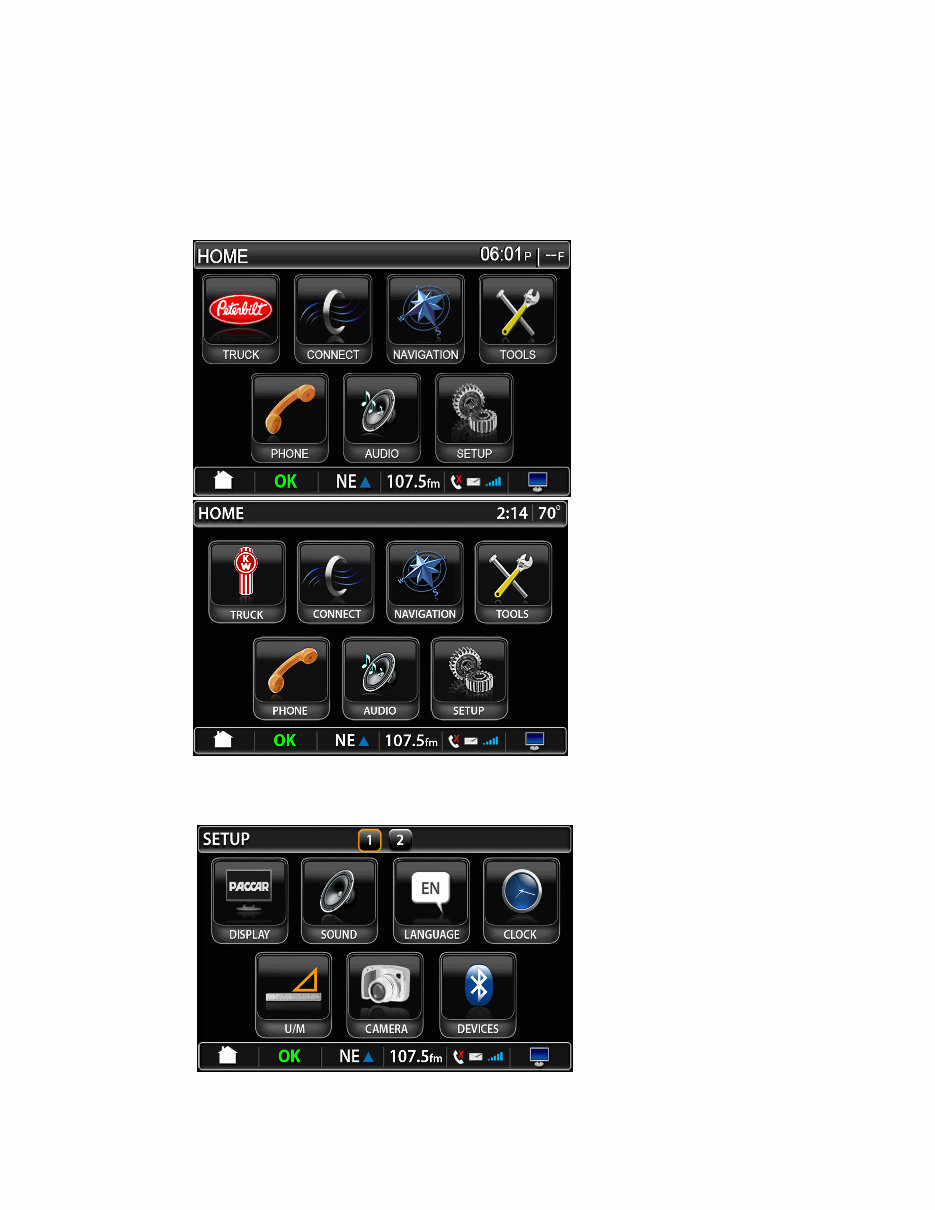
1.1 Select the SETUP button from the HOME screen
(Peterbilt SmartNav & Kenworth NavPlus screens shown)
Fig 1.1
1.2 Select page 2 at the top of the screen
Fig 1.2
- 4 -
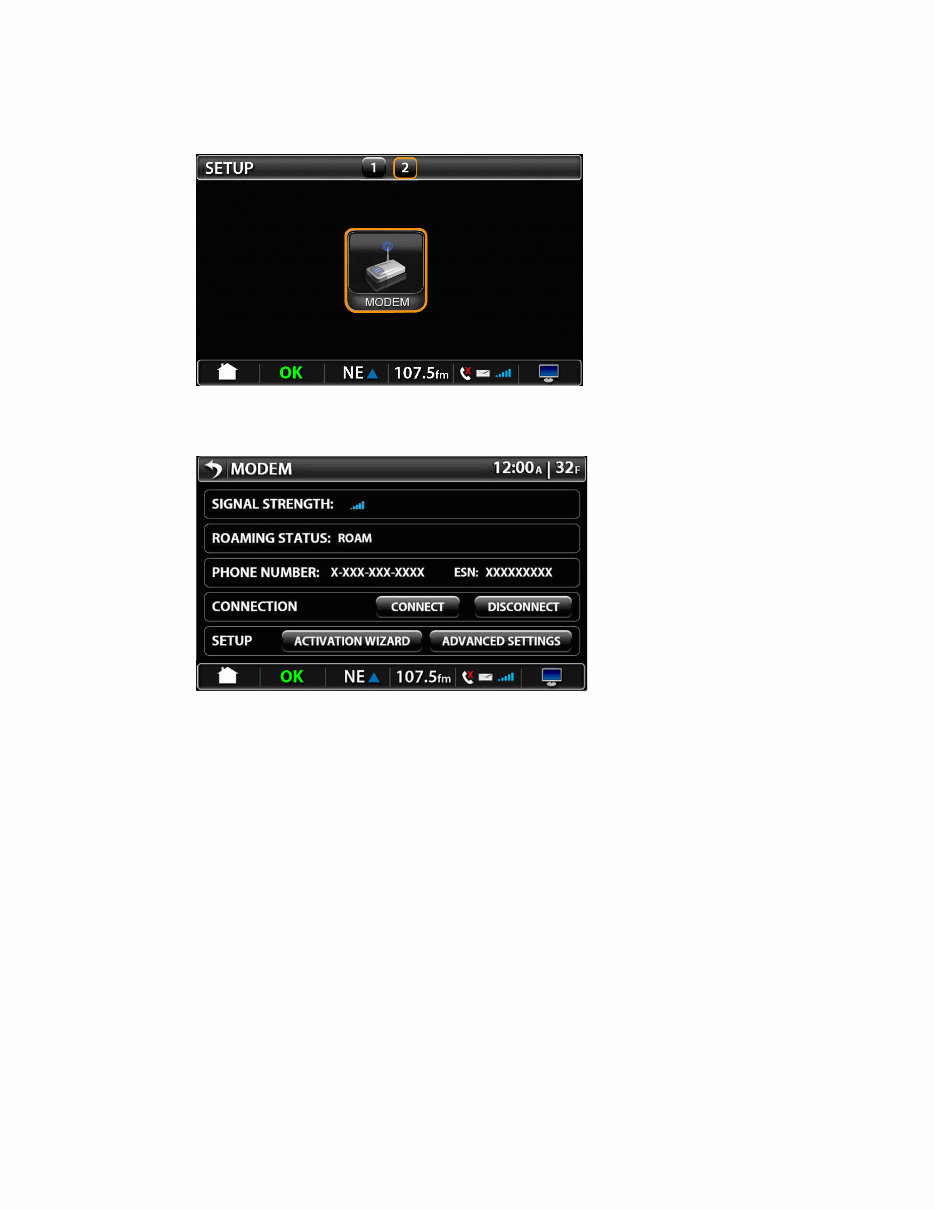
1.3 Select the MODEM button
Fig 1.3
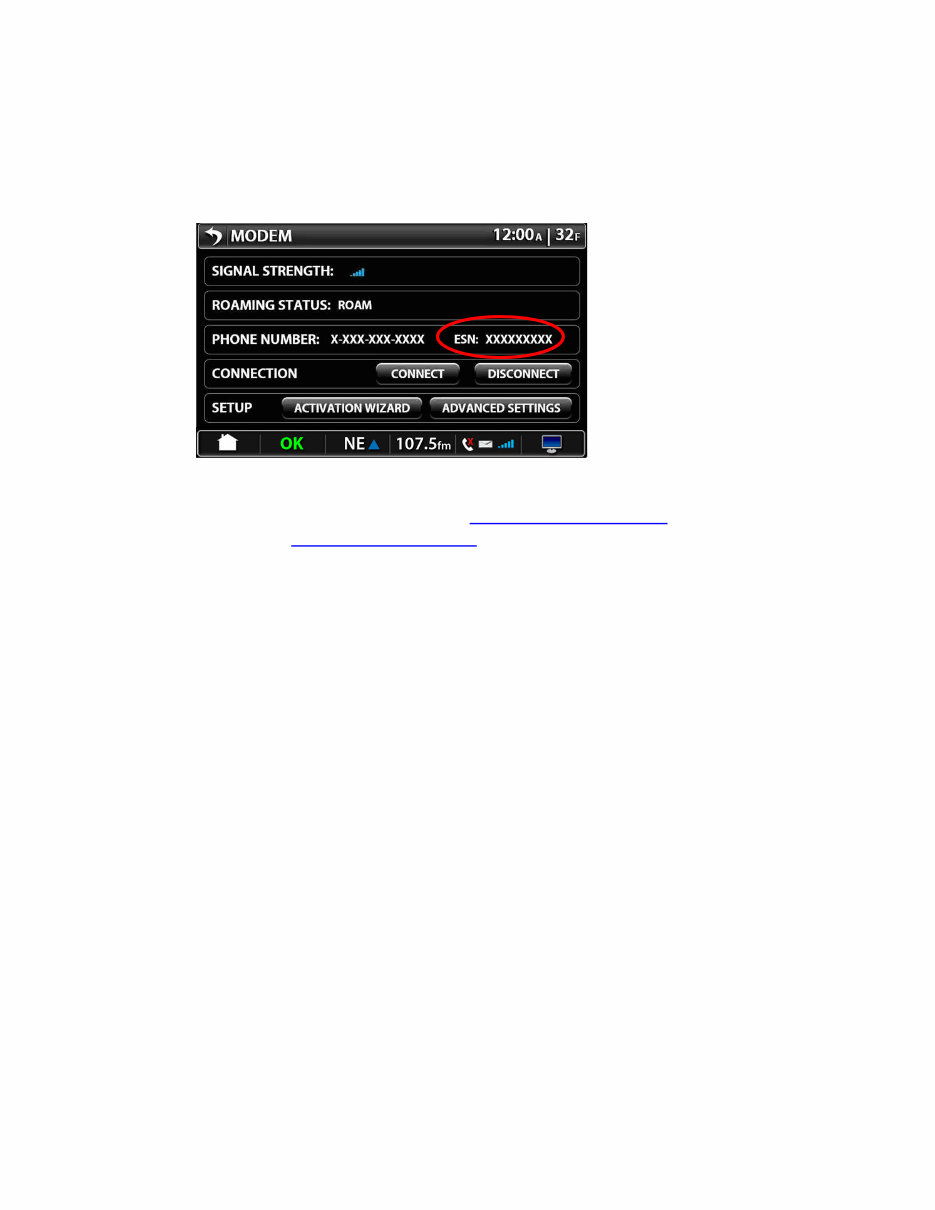
1.4 The MODEM (Connection Manager) screen appears.
Fig 1.4
Field descriptions:
SIGNAL STRENGTH: One bar (low signal) to five bars (strong signal)
ROAMING STATUS:
• HOME: Home network
• ROAM: Roaming network
• NO SERVICE: Out of coverage
PHONE NUMBER: If the phone number is visible in this field, it means the
modem is connected to the Sprint network and the device can access the
internet. Note: This modem does not provide voice service, only data service.
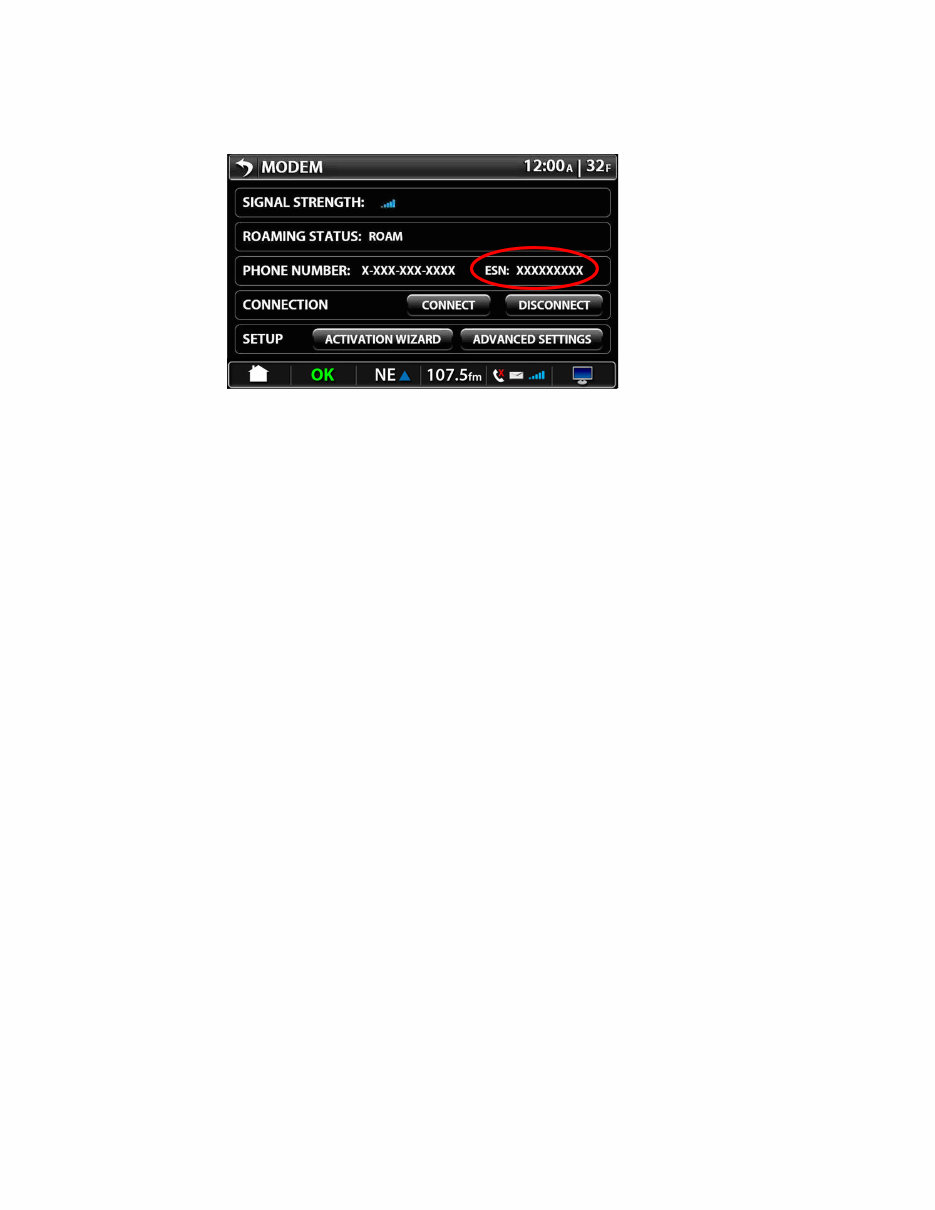
ESN: The Electronic Serial Number (ESN) must be provided to Sprint when
registering for service or when troubleshooting the device. If the ESN is not
- 5 -
visible, the modem is either not installed or not connected to the In-Dash
Display.
CONNECTION: This button is used to Connect or Disconnect from the network
- similar to airplane mode on regular cell phones. If the vehicle will be traveling
into Canada and Mexico, it is beneficial to select DISCONNECT on this screen
to avoid international roaming charges. Remember to re-connect when you are
back in the United States by pressing the CONNECT button.
Note: There is a North America Data Plan if you travel into Canada and Mexico
often. Please contact Sprint at 877-301-9874 for more information.
ACTIVATION WIZARD: The device will activate the modem automatically after
an account has been established with Sprint. However, if it does not, you may
manually activate by going into Activation Wizard.
ADVANCED SETTINGS: This screen should only be accessed when working
with Sprint Technical Support.
- 6 -
2. Activating Services
2.1 To activate the device for the first time, locate the ESN number from the MODEM
(Connection Manager) screen. (To navigate from the HOME screen, select SETUP.
Select page 2 at the top of the screen. Select MODEM button.)
Fig. 2.1
2.2 Contact Sprint at 1-877-301-9874 or www.sprint.com/SmartNav (for Peterbilt
vehicles) or www.sprint.com/NavPlus (for Kenworth vehicles) to set up a Sprint
account. The following information will be required:
• ESN number (from MODEM screen)
• Company name and billing address
• Billing name and contact phone number
• Email address
• Either a corporate tax id or date of birth and social security number
• Billable credit card number
• Select the data plan to be activated (5mb, 25mb, 5gb, North America +
Connection Card 5gb plan)
• The vehicle VIN number where the modem is installed
2.3 Once an account has been set up and the modem ESN linked to the account, the
the device will automatically activate. The SERVICES and INTERNET buttons
should be available to access the internet.
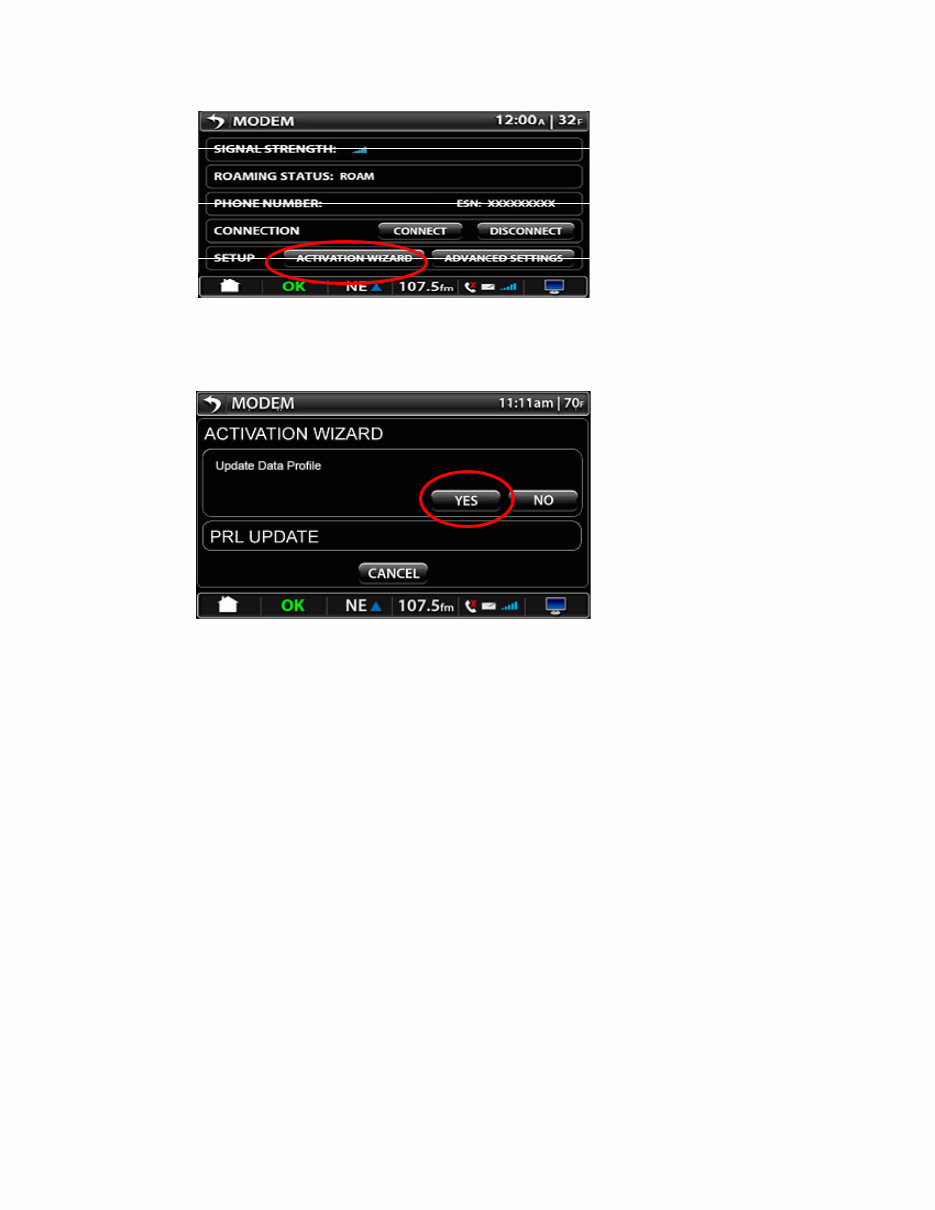
2.4 If the device does not automatically activate, select the ACTIVATION WIZARD
button on the MODEM screen.
- 7 -
Fig 2.4
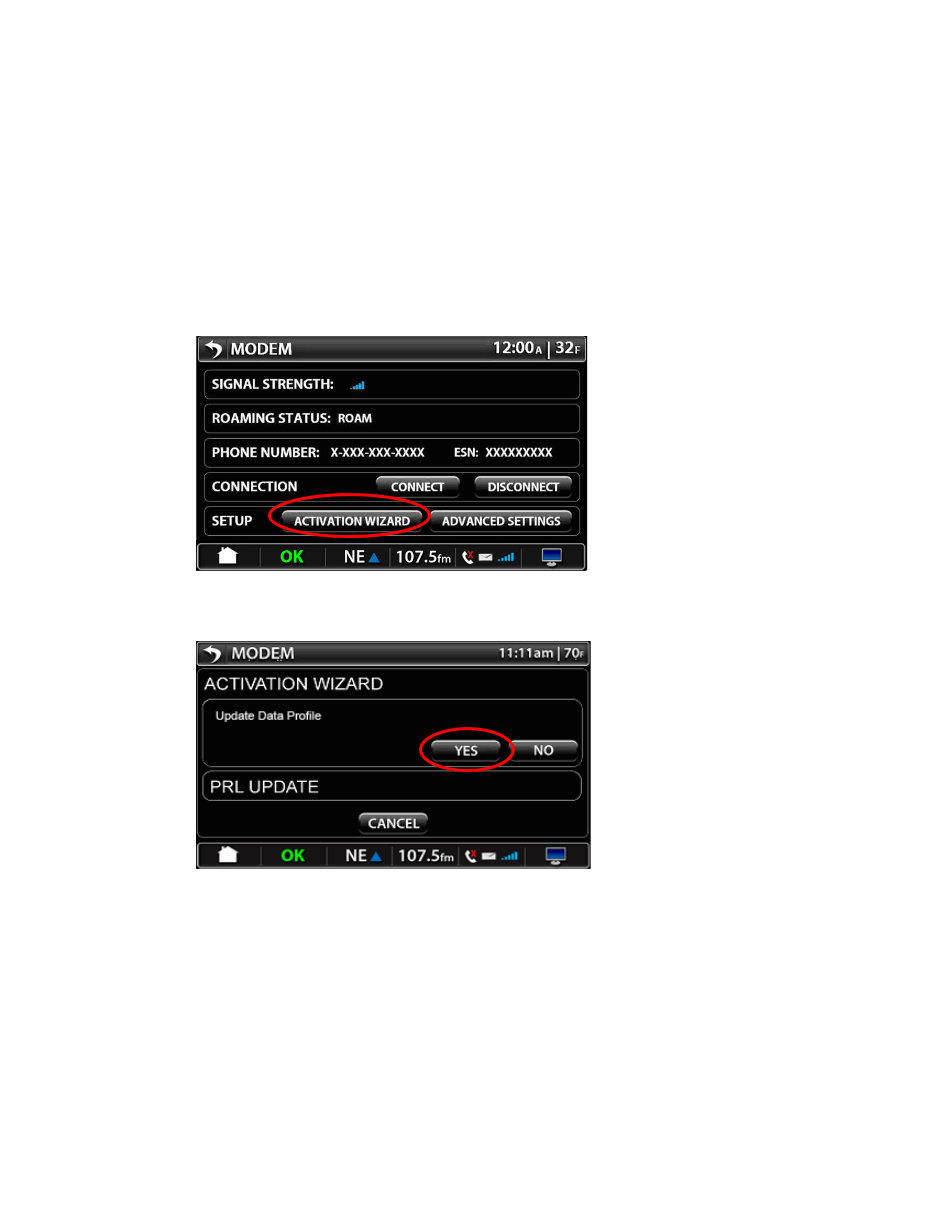
2.5 Select the YES button to activate the device. A message will appear “Update Data
Profile.”
Fig 2.5
2.6 If successfully activated a message “Activation completed successfully” will appear.
2.7 If unsuccessful, an error message will appear to try again or to contact Sprint at
1-877-301-9874.
2.8 If the YES and NO buttons are grayed out, the modem is already active on the
Sprint network.
2.9 Once the device has been activated, the SERVICES and INTERNET buttons should
be available to access the internet.
- 8 -
3 Activating a Replacement Modem
3.1 Provide the phone number or the ESN that was associated to the old device.
3.2 Provide the new ESN so Sprint can activate the new ESN on the account
3.3 Go to the MODEM Screen. (To navigate from the HOME screen, select SETUP.
Select page 2 at the top of the screen. Select MODEM button.)
3.4 Select ACTIVATION WIZARD button.
Fig 3.4
3.5 Select YES button on the ACTIVATION WIZARD screen.
Fig 3.5
3.6 If you get an error message, please contact Sprint at 1-877-301-9874
- 9 -
4 Troubleshooting
4.1 Perform the following steps when you have problems accessing the internet:
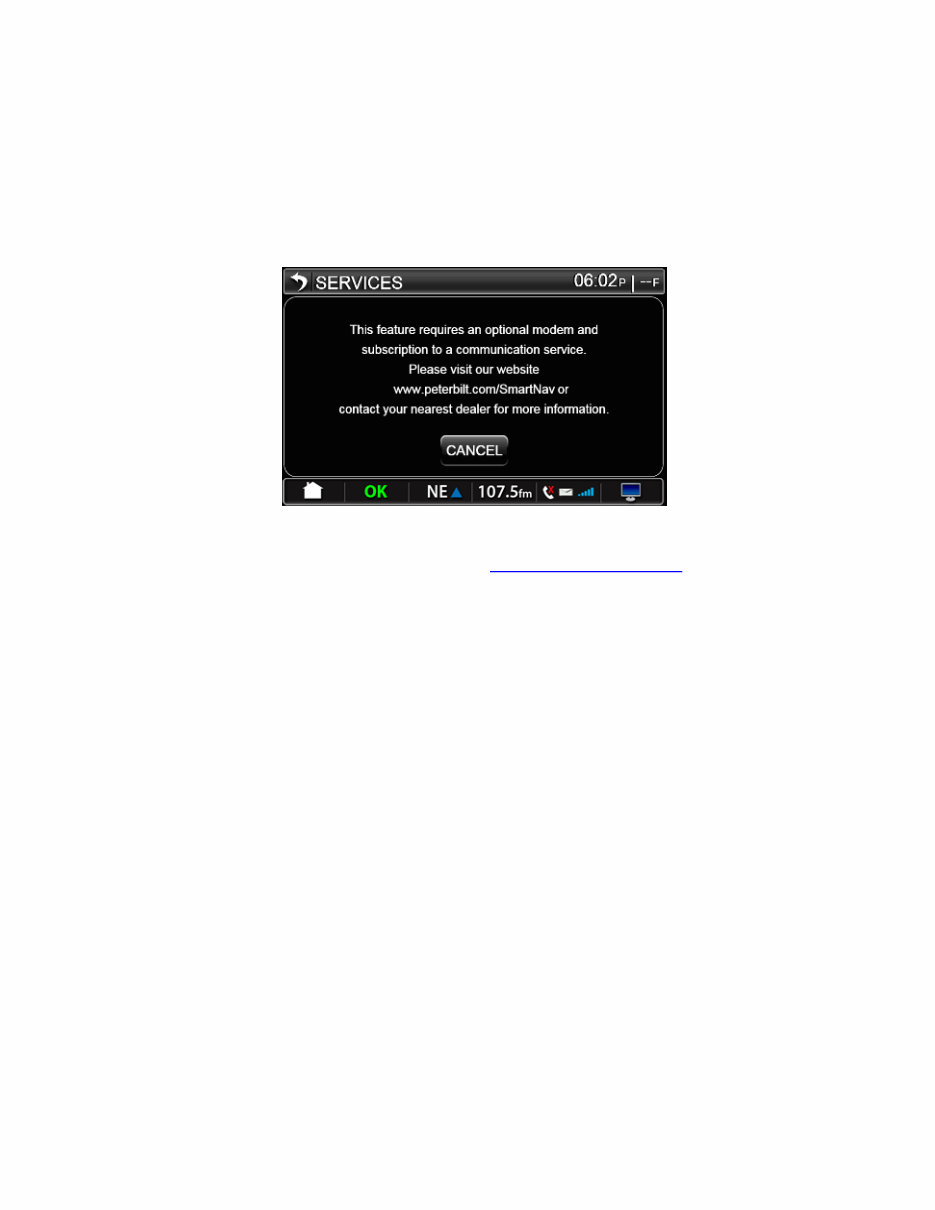
4.1.1 Verify that the modem is connected to the In-Dash Display. If no modem
is attached, a message will appear when SERVICES or INTERNET
button is selected
Fig 4.1.1
4.1.2 Verify coverage by going to www.sprint.com/coverage , enter a zip code
and use the coverage tool.
4.1.3 Verify that the ESN on the MODEM screen matches the device ESN that
was activated on your Sprint account.
4.1.4 Verify that the phone number on the MODEM screen matches what is on
your Sprint account.
4.1.5 Verify that the CONNECT button on the MODEM screen is grayed out.
4.1.6 Go back to the Internet screen and try to access the internet again.
4.1.7 Call Sprint at 1-877-301-9874 if problem persists.
- 10 -
5. Tips
5.1 Connect / Disconnect
Prior to travelling into Mexico or Canada, disconnect from the network to avoid
international roaming charges. When you return to the US, connect back onto
the network.
5.1.1. Select SETUP from the HOME screen
5.1.2. Select page 2 on SETUP screen
5.1.3. Select MODEM button
5.1.4. Select DISCONNECT to disconnect from the network
5.1.5. Select CONNECT to connect to the network.
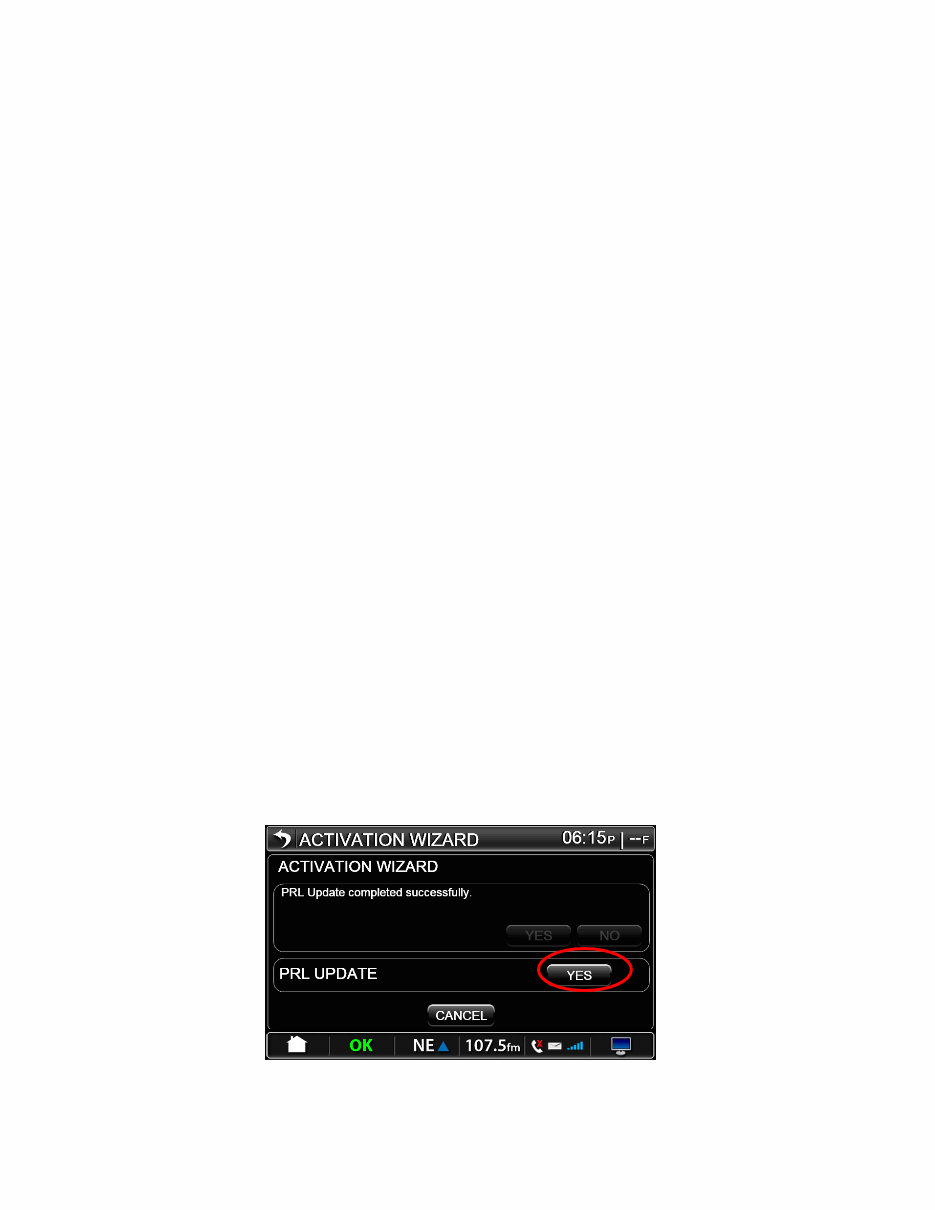
5.2 PRL Update
To update the Preferred Roaming Lists (PRL) into the modem for Sprint’s roaming
partners. This should only be initiated when instructed by a Sprint Technical
Support person. This could allow coverage in areas previously without coverage
based on updated roaming agreements within Sprint.
5.2.1 Select SETUP from the HOME screen
5.2.2 Select page 2 on SETUP screen
5.2.3 Select MODEM button
5.2.4 Select ACTIVATION WIZARD button
5.2.5 Select YES button for PRL UPDATE. The update will load into the modem.
Fig 5.2.5
You're Reading a Preview
What's Included?
Lifetime Access
Fast Download Speeds
Online & Offline Access
Access PDF Contents & Bookmarks
Full Search Facility
Print one or all pages of your manual
$35.99
Viewed 15 Times Today

Secure transaction
What's Included?
Lifetime Access
Fast Download Speeds
Online & Offline Access
Access PDF Contents & Bookmarks
Full Search Facility
Print one or all pages of your manual
$35.99
Get the most out of your Peterbilt SmartNav or Kenworth NavPlus with the Modem Activation and Connectivity User's Guide. This comprehensive manual provides essential information for professional mechanics and DIY enthusiasts alike. Whether you're troubleshooting connectivity issues or setting up the modem, this guide has got you covered.


