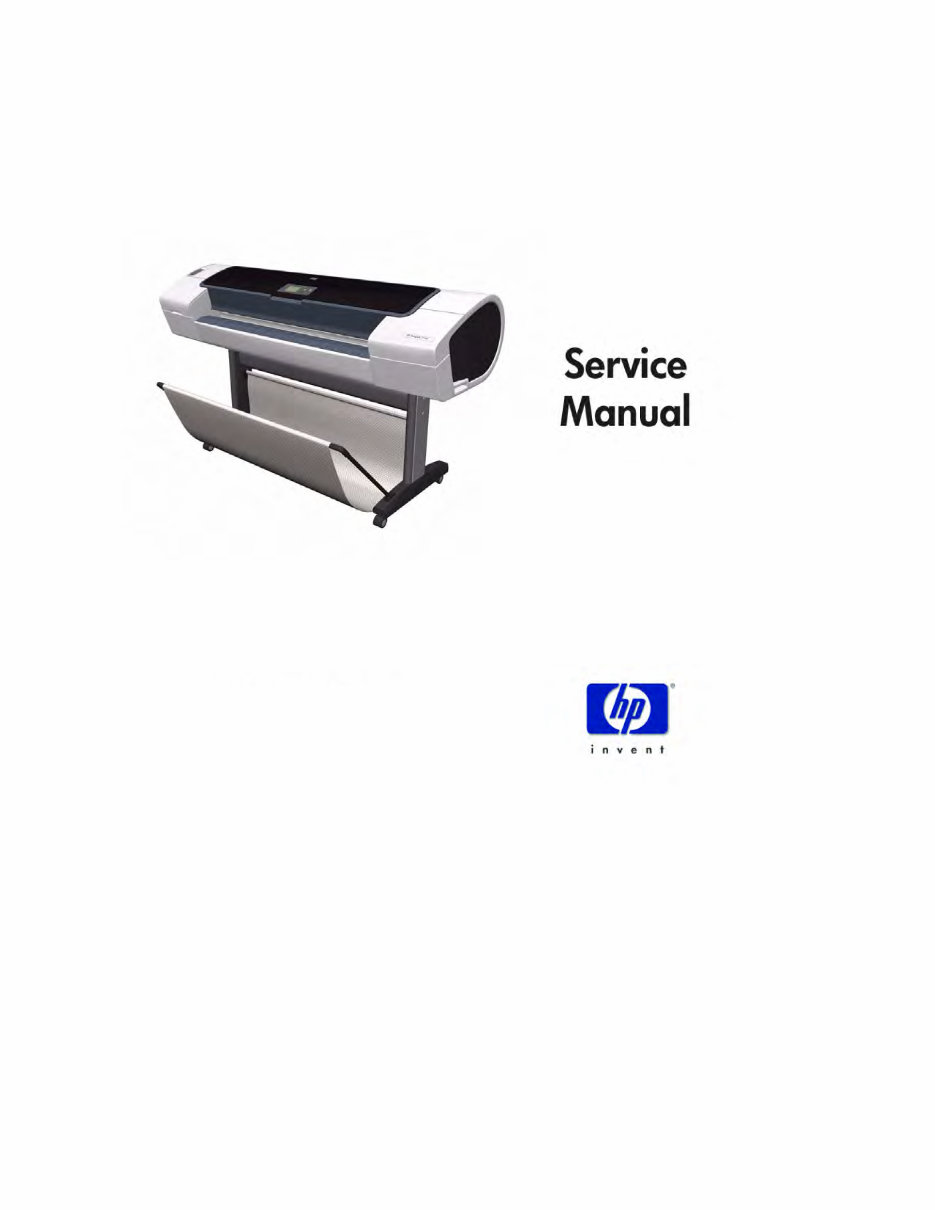
HP Designjet T Series — Service Manual -1 Table of Contents 1 1 Troubleshooting 2 System Error Codes 3 Service Tests and Utilities 4 Service Calibrations 5 Parts and Diagrams 6 Removal and Installation 7 Preventive Maintenance For information about Using this Manual, please refer to the next page.
Table of Contents -2 HP Designjet T Series — Service Manual Using this Manual Purpose This Service Manual contains information necessary to test, calibrate and service: HP designjet T1100 Printer 24 inch (Model Q6683A) HP designjet T1100 Printer 44 inch (Model Q6687A) HP designjet T1100ps Printer 24 inch (Model Q6684A) HP designjet T1100ps Printer 44 inch (Model Q6688A) HP designjet T610 Printer 24 inch (Model Q6711A) HP designjet T610 Printer 44 inch (Model Q6712A) HP designjet T1120 Printer 24 inch (Model CK837A) HP designjet T1120 Printer 44 inch (Model CK839A) HP designjet T1120ps Printer 24 inch (Model CK838A) HP designjet T1120ps Printer 44 inch (Model CK840A) For information about using these printers, refer to the corresponding User and Quick Reference Guides. Readership The procedures described in this Service Manual are to be performed by HP Certified service personnel only. Part Numbers Part Numbers for Printer options, accessories and service parts are located in Chapter 5 Parts and Diagrams on page 5-1 . Conventions Any text that uses the blue underlined format (except this one) is a link that directs you to the page number of the reference. If you are viewing the document as a pdf, you can click on that link to be taken there directly.
HP Designjet T Series — Service Manual 1-1 Using the Front Panel 1-3 General Troubleshooting 1-4 Introduction 1-4 Troubleshooting System Error Codes 1-4 Performing a Service Test on a failed Assembly 1-4 Performing the Necessary Service Calibrations 1-4 The Front Panel is blank 1-5 Solving Print Quality Problems 1-5 The Printer does not Power ON 1-5 The Printer Continuously Rejects Printheads 1-5 Cover Sensors are not Working 1-5 The Line Sensor has Problems Detecting Media 1-5 Banding at variable extreme environmental conditions 1-6 Worm marks on HP Coated media with light area fills 1-6 Solving Media-Handling Problems 1-7 Print quality troubleshooting 1-9 Print Quality Troubleshooting Actions 1-9 The Service Image Quality Diagnostic Print 1-9 Reading the Diagnostic Print Results 1-11 Diagnostic Part 1: Printhead Reliability 1-11 Diagnostic Part 2: Printhead Alignment 1-12 Diagnostic Part 3: Printheads & Paper Advance 1-13 The Advanced Diagnostic Prints 1-15 Reading the Advanced diagnostic Print Results 1-16 Troubleshooting Print Quality Problems 1-24 Print Quality General Advice 1-24 Horizontal Lines Across the Image (Banding) 1-25 Lines are Missing, Too Thin, or Too Thick 1-26 Problems with Stepped Lines 1-27 Lines are Printed Double or in Wrong Colors 1-27 Lines are discontinuous 1-28 Lines are Blurred (Ink Bleeds from Lines) 1-28 Problems with Graininess 1-29 Paper is not Flat 1-29 Ink marks on the paper 1-30 Horizontal smears on the front of coated paper 1-31 Ink marks on the back of the paper 1-31 Problems with the Edges of objects 1-32 Stepped or not sharp 1-32 Darker than expected 1-32 Black and white prints do not look neutral 1-32 Horizontal lines at the end of a cut sheet print 1-32 Vertical lines of different colors 1-32 White spots on the print 1-33 1 Troubleshooting 1
HP Designjet T Series — Service Manual 1-2 Problems with Color Accuracy 1-33 Output Only Contains a Partial Print 1-34 Problems with Image Clipping 1-34 Some objects are missing from the printed image 1-35 A PDF file is clipped or objects are missing 1-35 Print Quality Troubleshooting Wizard 1-35 Ink Supplies Troubleshooting 1-39 Introduction to ink supplies 1-39 What are Ink Supplies? 1-39 Ink Cartridges 1-39 Available Ink Cartridges 1-40 Printheads 1-40 Available Printheads 1-41 General Information About the Ink Supplies 1-41 General Precautions When Handling Ink Supplies 1-41 When Should You Replace the Ink Supplies? 1-42 Ink Cartridge Levels, Information, and Replacement 1-42 Ink Cartridge Levels 1-42 “View Ink Levels” Direct Access Key 1-42 “View Ink Levels” from the ink menu 1-42 Obtaining Ink Cartridge Information 1-42 The printer consumes more gray ink ink than M, C, or Y 1-44 Changing an Ink Cartridge 1-44 Printhead Information, Replacement and Alignment 1-46 Obtaining Printhead Information 1-46 Changing a Printhead 1-47 Aligning Printheads 1-49 Reinsert Printheads Procedure 1-49 Image Quality Maintenance Procedure 1-49 Scanning errors during alignment 1-50 Ink Cartridge and Printhead Status Messages 1-50 Ink Cartridge Status Messages 1-50 Printhead status messages 1-51 Printhead Error Codes 1-51 Solving Ink Supplies Problems 1-53 You Cannot Insert the Ink Cartridge Into the Printer 1-53 You Cannot Insert the Printhead Into the Printer 1-53 The front panel says to reset or replace a printhead 1-53 Maintaining and Cleaning the Printheads 1-54 Clean the printheads 1-54 Flex Contacts Cleaning Tool 1-55
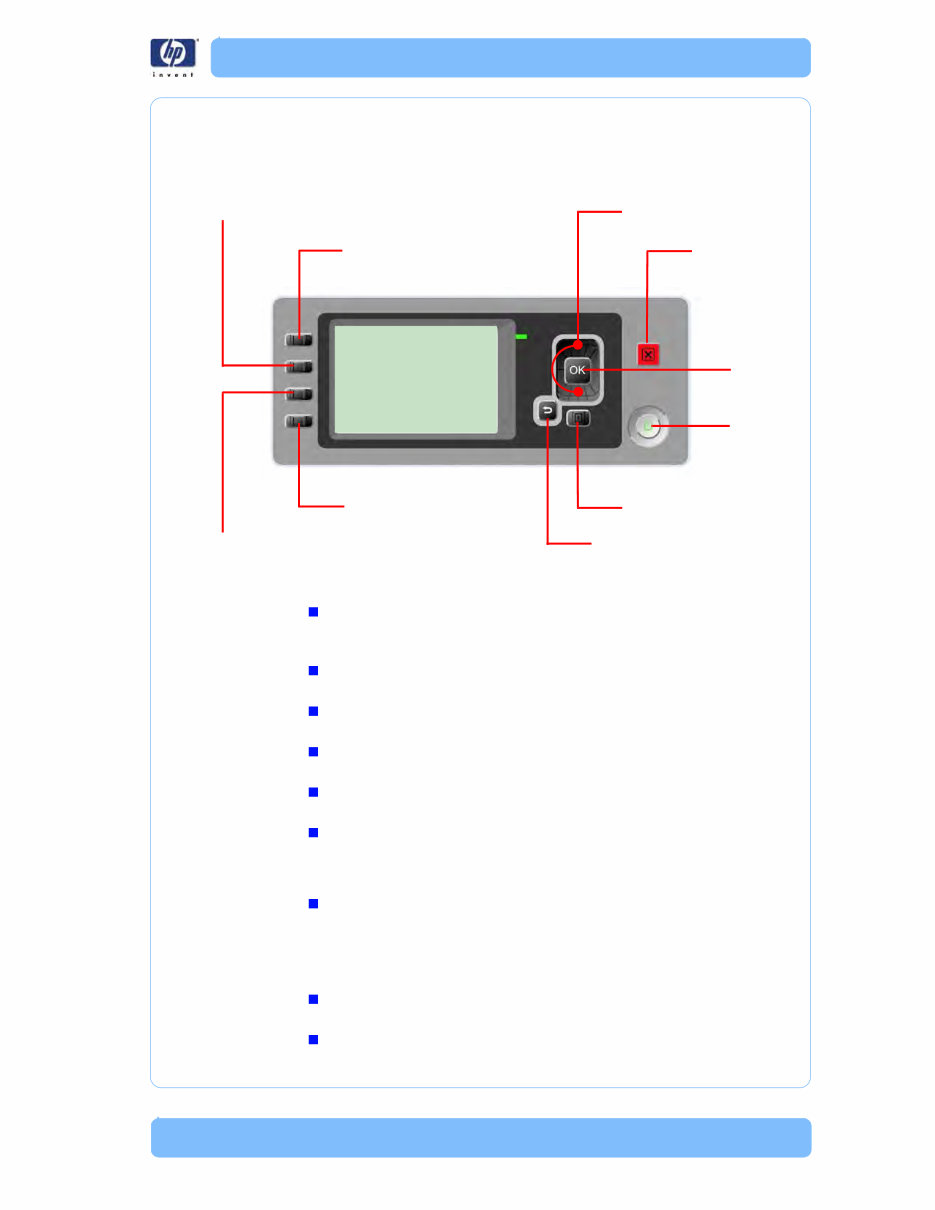
HP Designjet T Series — Service Manual 1-3 Using the Front Panel Using the Front Panel Up and Down Cancel OK Power Menu Back Form Feed and Cut Unload Paper View Loaded Paper View Ink Levels Below is a diagram of the front panel. Key Function Arrow Keys Use the Arrow keys to scroll through a menu or toggle between YES or NO when prompted. Cancel Use the Cancel key to abort or stop a procedure or reject test results. OK Use the OK key to select a menu option. Power Use the Power key to turn the printer ON and OFF. Menu Use the Menu key to enter the main menu. Back Use the Back key to go back to the previous menu or reject test results. Service Key Combinations Diagnostic mode With the printer OFF, press and hold the UP and OK keys. While holding the Up and OK keys down, press and hold the Power key to turn on the printer. Hold all three keys until the Power key stops flashing, usually about 5 seconds. Service Menu (Service Engineers Only) From the main menu, press and hold the Up and Cancel keys. Service Menu (For users) From the main menu, press and hold the Down and Cancel keys.
Troubleshooting 1-4 HP Designjet T Series — Service Manual General Troubleshooting Introduction This chapter will guide you through the relevant steps to take when troubleshooting the printer. Troubleshooting System Error Codes Chapter 2 System Error Codes on page 2-1 contains a list of system error codes and their respective descriptions and recommended corrective actions. Only try one recommended action at a time and check if the error code has disappeared. If you have an error code which is not documented in this Service Manual or you have an error which you cannot resolve, then report the error to the HP Response Center or the nearest HP Support Office. When reporting the error, have the following information ready: Model and Serial Number of the printer. Which firmware revision the printer is using (See Note below). Check firmware in Utilities / Statistics / Code rev . The complete error number (See Note below). The Service Configuration Print . The Current configuration sheet. Which software application the customer is using (name, version, etc.). When reporting the System Error Code, make sure that you supply the full Error Code and the firmware version. Without this information, HP Support Personnel cannot help you. Performing a Service Test on a failed Assembly If possible, always perform a Service Test on the component/assembly that you are about to replace, just to make sure that is the component/assembly that has failed. If the test on that component/assembly passes, you should NOT replace it. For information on the Service Tests and how to use them see Chapter 3 Service Tests and Utilities on page 3-1 . Performing the Necessary Service Calibrations Is the printer calibrated correctly after replacing a component? For information on the Service Calibrations and how to use them see Chapter 4 Service Calibrations on page 4-1 . Remember that certain Calibrations are required even if an Assembly has been disassembled to gain access to another Assembly or Component.
HP Designjet T Series — Service Manual 1-5 General Troubleshooting Solving Print Quality Problems Whenever a Print Quality problem appears, it is advisable to print the Diagnostic Print to help diagnose the problem. The Diagnostic Print will help you differentiate between possible printhead errors and other problems such as incorrect front-panel selection, driver or RIP configuration or mechanical problems. The Front Panel is blank 1 See What to do if the Front Panel is blank on page 2-3 . The Printer does not Power ON 1 Check that the power cord is connected correctly to the Printer and to the Power Socket. 2 Check that the Power Switch on the BACK of the Printer is in the ON position. 3 Check to see the LED on the Front Panel Power Switch are On. 4 Check that the Front-Panel Cable is correctly connected to the Electronics Module. Also make sure that the Front-Panel cable is not damaged. 5 Replace the Power Supply Unit. See Starwheel Assembly on page 6-208 . The Printer Continuously Rejects Printheads 1 Clean the flex contacts on the Printhead and in the Carriage Assembly using the Carriage Interconnect Wiper and try again. See Flex Contacts Cleaning Tool on page 3-20 . 2 If ALL the Printheads are rejected (the status message on the Front Panel does NOT show "OK" for ALL the Printheads) then perform the Electronic Module Test. See 3. Electronics Module on page 3-21 . Cover Sensors are not Working 1 Perform the Sensors Test. See 5. Sensors on page 3-31 . 2 Check if the cable for the faulty sensor is not damaged and is connected correctly. 3 Replace the faulty Sensor. The Line Sensor has Problems Detecting Media 1 Check the type of media that is being used since the Line sensor may have problems detecting transparent media or some types of Non-HP media. Try loading white HP media in to the Printer and check if the Line sensor detects it. 2 The Line Sensor is not calibrated correctly. Perform the Line Sensor Calibration. See Line Sensor Calibration on page 4-15 . 3 The Line Sensor is damaged or faulty. Replace the Line Sensor. See Line Sensor (T1120/T1120ps) on page 6-157 .
Troubleshooting 1-6 HP Designjet T Series — Service Manual Troubleshooting Media Jams/Printhead Crashes The failure modes "media jam" and "head crash" are grouped together because in many cases a media jam causes the media to lift up into the Carriage path and cause a Printhead crash, thus causing many media jam failures to be reported as head crashes. 1 Did the media jam occur when loading media? If the client has had media jams, it is common for pieces of media to get stuck in the media path. Clear the media path. When clearing a media jam, sometimes media is stuck in the paper path. To clear this, you must lift the Media Lever and insert thicker media into the paper path to push out the media that is still stuck there. 2 Is the customer using non-HP media? The use of non-HP media can easily be the cause of media jams and head crashes (especially head crashes because HP media is specially formulated to avoid cockle, one of the primary causes of head crashes). If the media is not HP approved, advise the customer to use HP media and check to see if the problem is now solved. Banding at variable extreme environmental conditions Since the Accuracy Calibration has been done at normal environmental conditions, printing in extreme environmental conditions will cause banding because the advance of the Media Advance Roller does not correspond to the same conditions that the calibration was done in. To solve the problem, try the following: Perform the Accuracy Calibration in the new environmental conditions (Refer to the User’s Guide). Worm marks on HP Coated media with light area fills Light bands (S-shaped) in Paper axis direction where light area fills are printed, causing unacceptable Image Quality defect. Print the Service Configuration Print and check if the level of Humidity is very low (below 30%). Increasing humidity may help in reducing the severity of the problem. The media is causing the problem and NOT the Printer. Do not attempt to try and replace Printer parts to solve this problem.
This is the complete factory Service Repair Manual for the HP Designjet T1100/T1100ps/T610 series printer. This Service Manual has easy-to-read text sections with top quality diagrams and instructions as well as step-by-step instructions for repairing your HP machine.
It makes it easy for you to learn technical theory, installation, maintenance, troubleshooting, disassembly, assembly, and repair of HP products.
Models Covered:
HP designjet T1100 Printer 24 inch (Model Q6683A)
HP designjet T1100 Printer 44 inch (Model Q6687A)
HP designjet T1100ps Printer 24 inch (Model Q6684A)
HP designjet T1100ps Printer 44 inch (Model Q6688A)
HP designjet T610 Printer 24 inch (Model Q6711A)
HP designjet T610 Printer 44 inch (Model Q6712A)
This Manual Covers:
Troubleshooting
System Error Codes
Ink Supplies Troubleshooting
Service Tests and Utilities
Service Calibrations
Print Quality
Parts and Diagrams
Removal and Installation
Preventive Maintenance
Model Specification: HP Designjet T1100/T1100ps/T610 series printer
Total Pages: 388
File Format: PDF
Requirements: Adobe Reader
Language: English
Compatible: All Versions of Windows & Mac, APP ISO, iPhone, iPad, Android etc...
This manual is in PDF format. The Service Manual is fully indexed and bookmarked by topic. This is an original Adobe document which equals Perfect Quality and Perfect Printing. The PDF can be searched quickly to find what you need to know in every Chapter. You can print the Entire manual or ANY Pages you want to select. You can also Zoom in on any Diagram or Picture to easily SEE EVERY PART.
Save time and money by doing your own repairs! This manual makes any repair job easy to do with very easy to follow step-by-step instructions & pictures on all areas of repair.
All Service Repair Manuals are instant downloads, it means no shipping cost or waiting for a CD or paper manual to arrive in the mail. You will receive this manual today via instant download on completion of payment via our secure payment processor. We accept all major credit/debit cards and PayPal.
Recently Viewed
5,521,897Happy Clients
2,594,462eManuals
1,120,453Trusted Sellers
15Years in Business
Price:
Actual Price:
HP Designjet T1100/T1100ps/T610 series printer Service Repair Manual



 Lifetime Access