Canon ,"',. t( Exil Ptint II JEf PictBridge Photo Printer PI}{MA iP6600D Series Quick Start Guide
Getting Help from Canon Help Us Help You Better Before you contact Canon, pLease record the following information. Serial Number (located on the inside of the printer): _ Model Number (located on the top of the printer): _ Printer Driver CD-ROM number (located on the CD-ROM): _ Purchase _ Customer Technical Support Sequence* 1.Internet - www.canonhelp.com For quick and comprehensive self-help in an intuitively guided interactive troubleshooting environment, the place to start is our helpful tech support web site. In addition, the latest driver downloads, answers to frequently asked questions, product information, and "where to buy" instructions are found here. 2. Email Tech Support - www.canonhelp.com For individual attention to a special issue, try emailing our friendly technical engineers, specially trained to communicate quick, easy, and logical solutions to your inquiries within 24 hours. 3. Toll-Free Live Tech Support - (1-800-828-4040) This option provides live telephone technical support, free of service charges, Monday- Saturday (excluding holidays), during your product's 1 year limited warranty period. Telephone Device for the Deaf (TDD) support is available at (1-866-251-3752). 4. Extended Service and Support - www.canonesp.com Canon CarePAK Extended Service Plan is a cost-attractive and easy-to-use extended service program that provides up to three full years of service and support coverage at a very attractive price. CarePAK offers toll-free Canon technical support and includes Canon's superb Instant Exchange product replacement program. For further information about extending your Canon service and support, call (1-800-385-2155), orvisit our Web site at www.canonesp.com. CarePAK must be purchased during your product's warranty period. For more information and updated program specifics, please visit our web site at www.canonhelp.com. * Support program specifics are subject to change without notice.
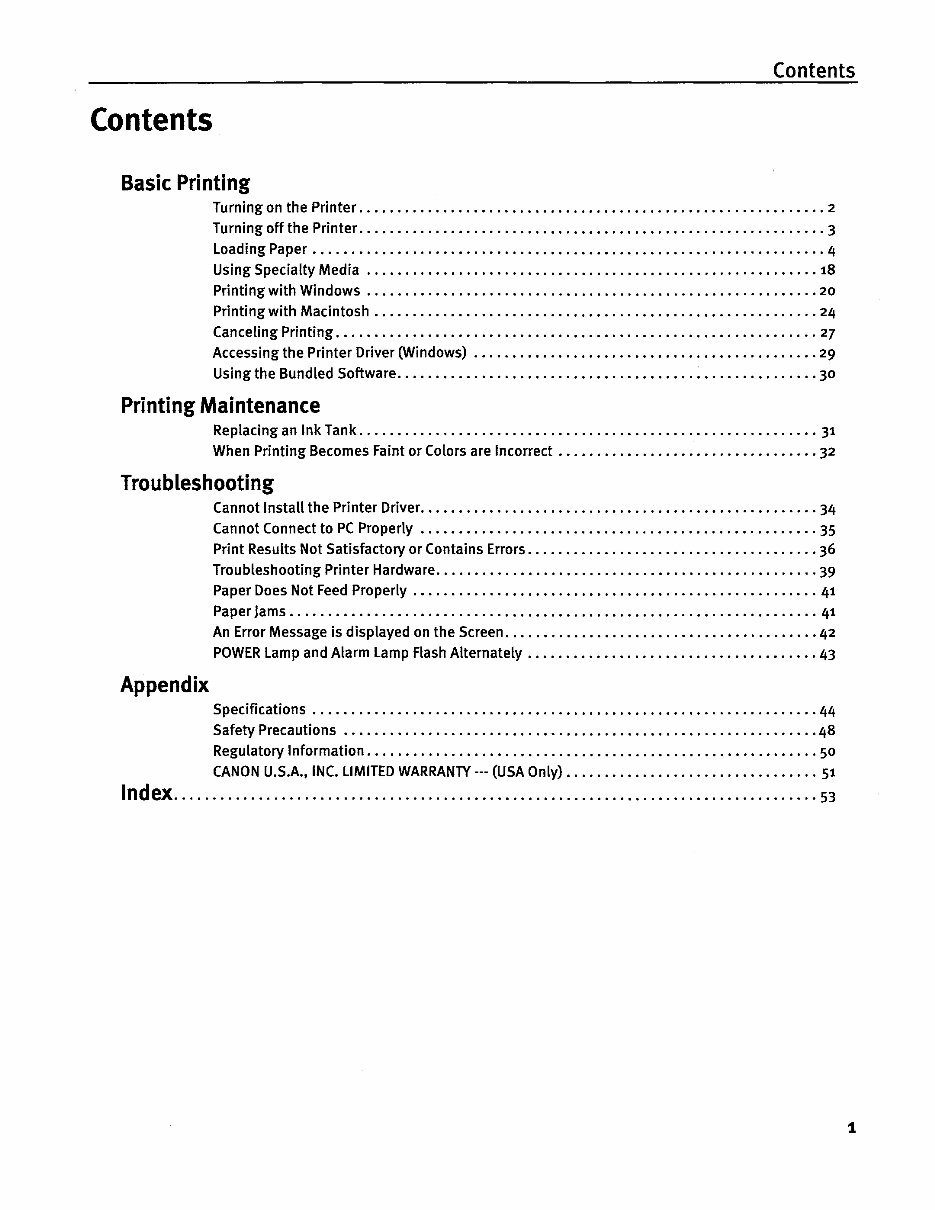
Contents Contents Basic Printing Turning on the Printer .... • ............... •.•.•.•• ...... •.•..• ................... •. 2 Turning off the Printer ...•.•••...•••..••...•..••...•••..•...• .... •...•• .... •• ...... 3 loading Paper ••••••.•••.•••••.•••.•••.•••••••••.•••.•••..••••..••.••.•.••••.•... 4 Using Specialty Media ..••• ..... • .... ••..•••...•..•...•• .... ••...•.•• .... •..••... 18 Printing with Windows .... •..•..•...••..••..• ...................... ••...•...••... 20 Printing with Macintosh •...••.•..••..••..•...•• ...................... •.••..• .... • 24 Canceling Printing .•• .......................... •..•• ........ ••...••..•...• ....... 27 Accessing the Printer Driver (Windows) .• ........................................ •.• 29 Using the Bundled Software ................ • ....... •.• ...... •••..•• ....... •.• ..... 30 Printing Maintenance Replacing an Ink Tank ..•••••• .... ••...•...•••..• ........ •...••...•...•...••• .... • 31 When Printing Becomes Faint or Colors are Incorrect ....................... • ........ •• 32 Troubleshooti ng Cannot Install the Printer Driver••.•••.•••.•.•••..•..•...•••..•••.•••.•••.••••••••.• 34 Cannot Connect to PC Properly •..•••...•...•..•• ..... •..• .... •.•..••...•...••..•.. 35 Print Results Not Satisfactory or Contains Errors ..•• ..... •...•...•• ....... •.•..••.•... 36 Troubleshooting Printer Hardware 39 Paper Does Not Feed Properly .• .......... •••.•••..•••.•••..••• ........... • ..... •.• 41 Paper Jams ............................ ••..••.• ...... •••...• .... • ............... 41 An Error Message is displayed on the Screen ..•.••...•••.• .... •••...•..• ............. 42 POWER lamp and Alarm lamp Flash Alternately ..••.•..••..•...• ......... •..•...•••.• 43 Appendix Specifications ••••••..•••••••...•...•..••..• ......... •.•...••...• ..... ••.•••••.• 44 Safety Precautions ..................... ••...• .... •.•..••...• .... • ................ 48 Regulatory Information ••...••...•..•...•..••• .... ••..•...•.••.• .... •..•••.••••... 50 CANON U.S.A., INC. LIMITED WARRANlY --- (USA Only) ...•..•••...• .... • ..... ••.••••..• 51 Index 53 1
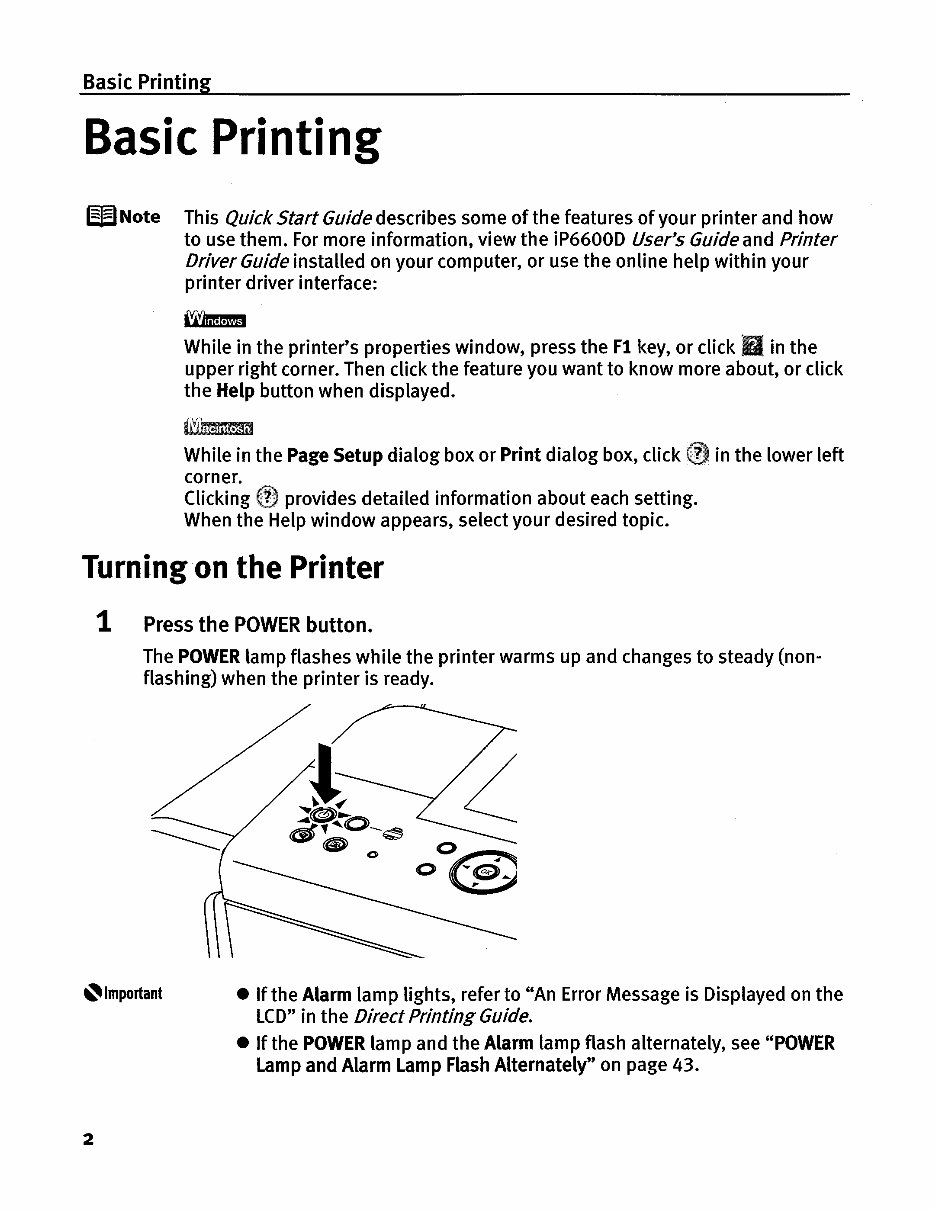
Basic Printing Basic Printing WNote This Quick Start Guide describes some of the features of your printer and how to use them. For more information, view the iP6600D User's Guide and Printer Driver Guide installed on your computer, or use the online help within your printer driver interface: While in the printer's properties window, press the F1 key, or click B in the upper right corner. Then click the feature you want to know more about, or click the Help button when displayed. tiimmm While in the Page Setup dialog box or Print dialog box, click in the lower left corner. Clicking provides detailed information about each setting. When the Help window appears, select your desired topic. Turning on the Printer 1 Press the POWER button. The POWER lamp flashes while the printer warms up and changes to steady (non- flashing) when the printer is ready. 2 • If the Alarm lamp lights, refer to "An Error Message is Displayed on the LCD" in the DirectPrinting Guide. • If the POWER lamp and the Alarm lamp flash alternately, see "POWER Lamp and Alarm Lamp Flash Alternately" on page 43.
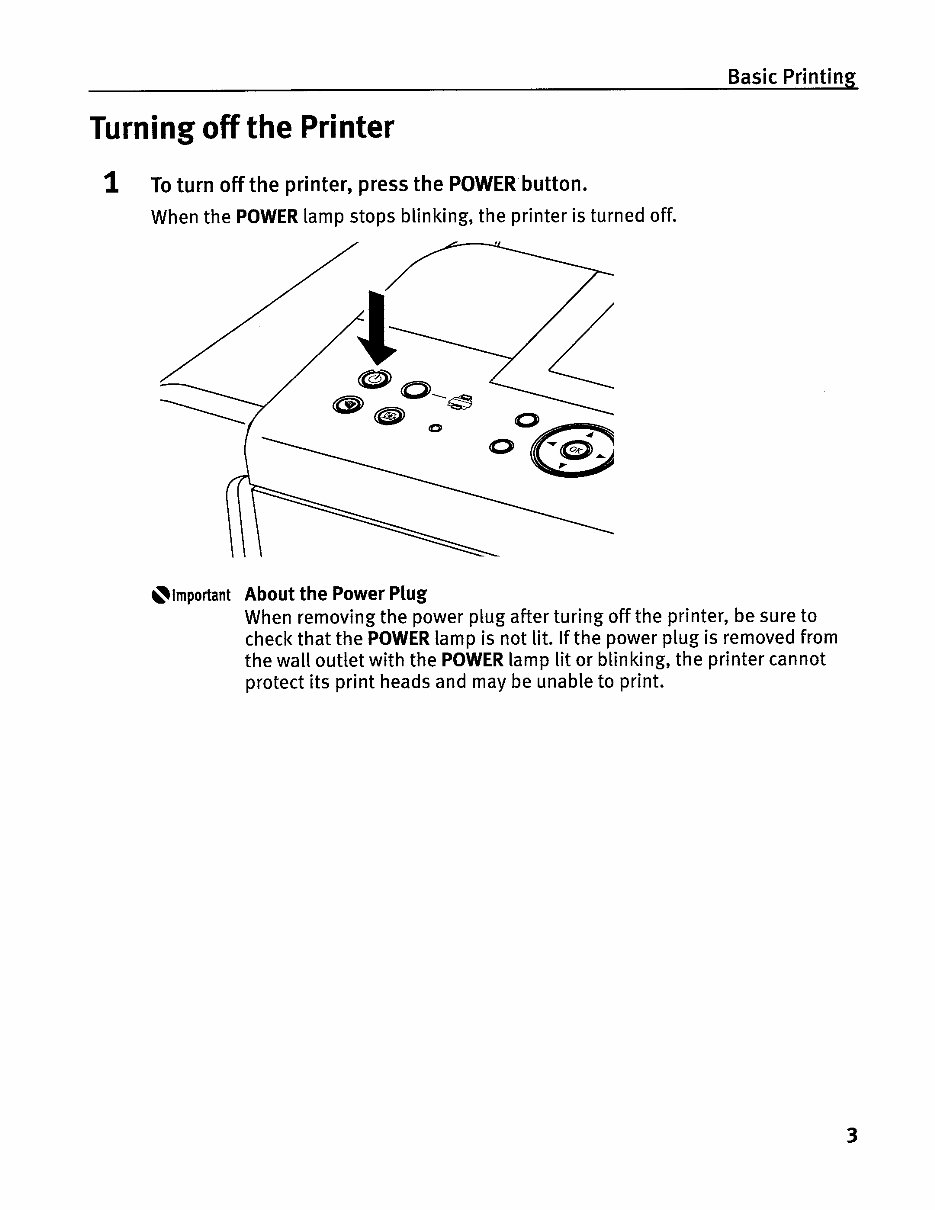
Basic Printing Turning off the Printer 1 To turn off the printer, press the POWER button. When the POWER lamp stops blinking, the printer is turned off. Important About the Power Plug When removing the power plug after turing off the printer, be sure to check that the POWER lamp is not lit. If the power plug is removed from the wall outlet with the POWER lamp lit or blinking, the printer cannot protect its print heads and may be unable to print. 3
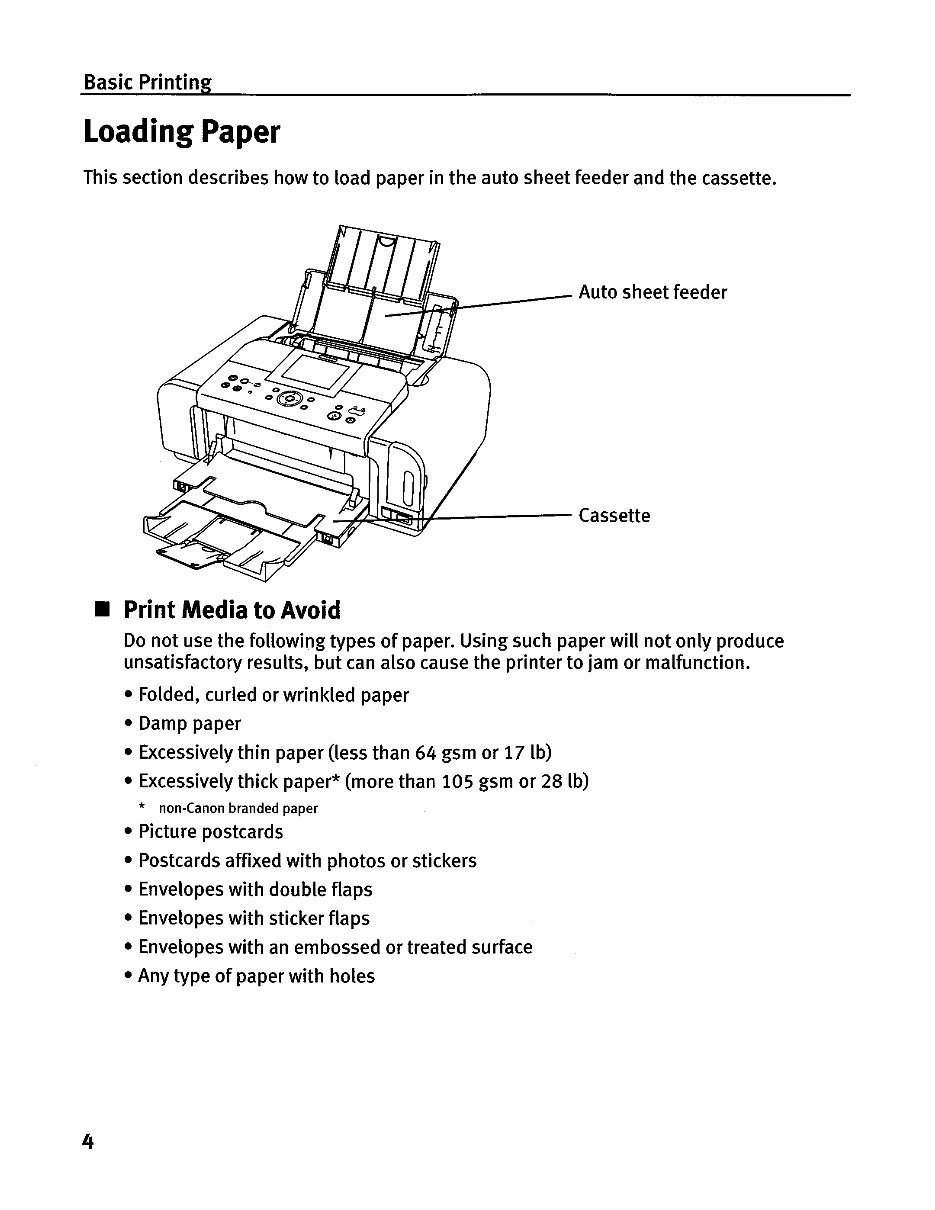
Basic Printing Loading Paper This section describes how to load paper in the auto sheet feeder and the cassette. Auto sheet feeder Cassette • Print Media to Avoid Do not use the following types of paper. Using such paper will not only produce unsatisfactory results, but can also cause the printer to jam or malfunction. • Folded, curled or wrinkled paper • Damp paper • Excessively thin paper (less than 64 gsm or 17lb) • Excessively thick paper* (more than 105 gsm or 28 lb) * non-Canon branded paper • Picture postcards • Postcards affixed with photos or stickers • Envelopes with double flaps • Envelopes with sticker flaps • Envelopes with an embossed or treated surface • Any type of paper with holes 4
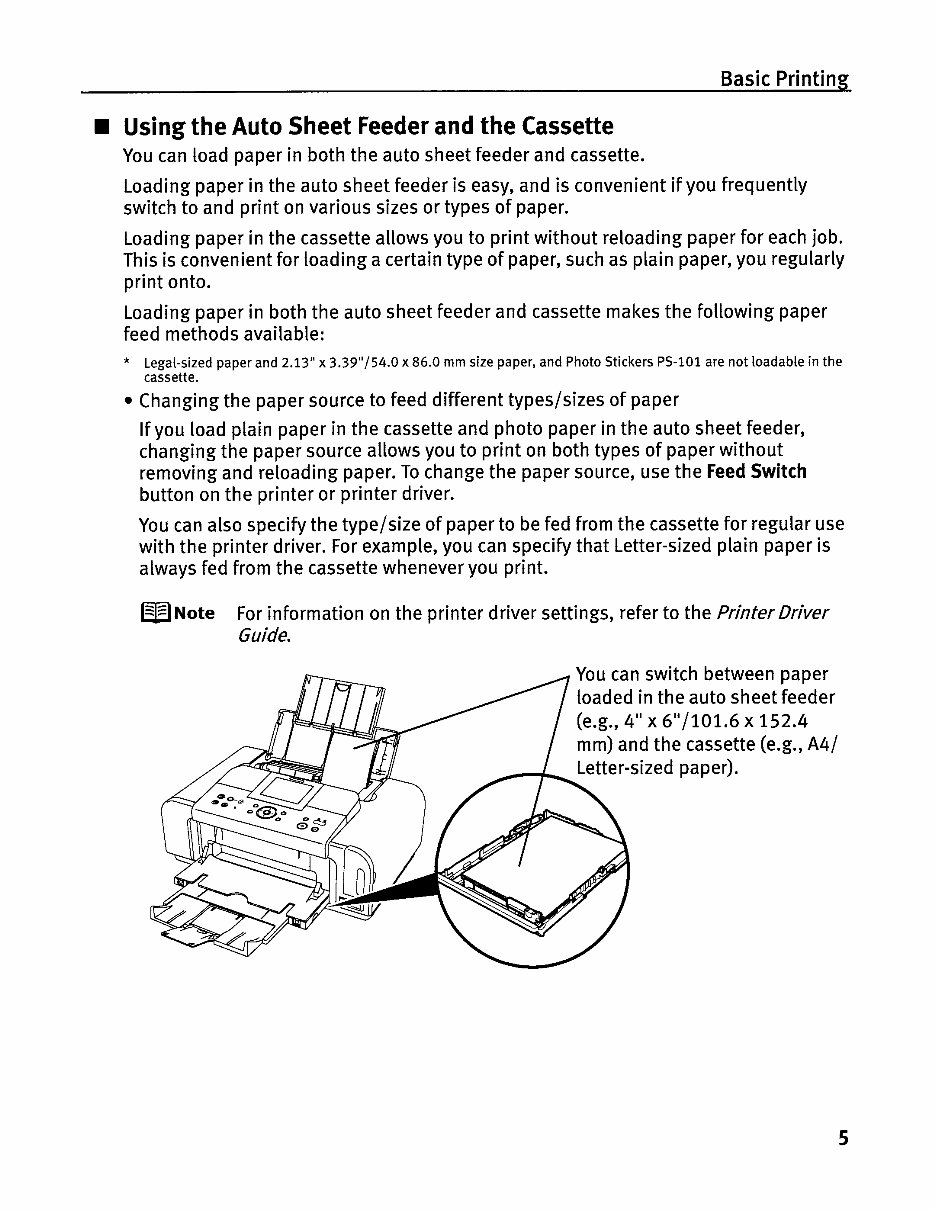
Basic Printing • Using the Auto Sheet Feeder and the Cassette You can load paper in both the auto sheet feeder and cassette. Loading paper in the auto sheet feeder is easy, and is convenient if you frequently switch to and print on various sizes or types of paper. Loading paper in the cassette allows you to print without reloading paper for each job. This is convenient for loading a certain type of paper, such as plain paper, you regularly print onto. Loading paper in both the auto sheet feeder and cassette makes the following paper feed methods available: * Legal-sized paper and 2.13" x 3.39"/54.0 x 86.0 mm size paper, and Photo Stickers PS-10l are not loadable in the cassette. • Changing the paper source to feed different types/sizes of paper If you load plain paper in the cassette and photo paper in the auto sheet feeder, changing the paper source allows you to print on both types of paper without removing and reloading paper. To change the paper source, use the Feed Switch button on the printer or printer driver. You can also specify the type/size of paper to be fed from the cassette for regular use with the printer driver. For example, you can specify that Letter-sized plain paper is always fed from the cassette whenever you print. FJ?l Note For information on the printer driver settings, refer to the Printer Driver Guide. You can switch between paper loaded in the auto sheet feeder (e.g., 4" x 6"/101.6 x 152.4 mm) and the cassette (e.g., A4/ .......... Letter-sized paper). 5
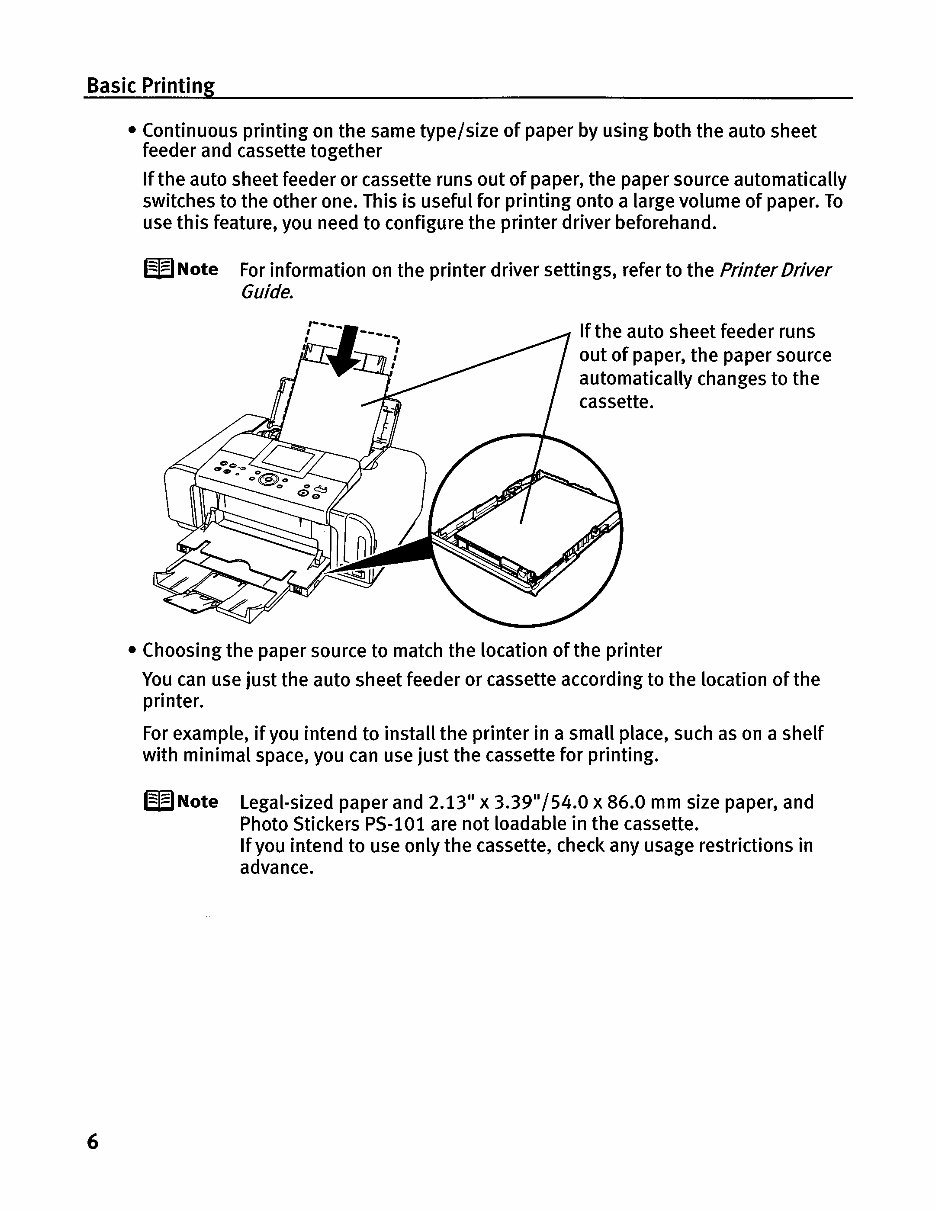
Basic Printing • Continuous printing on the same type/size of paper by using both the auto sheet feeder and cassette together If the auto sheet feeder or cassette runs out of paper, the paper source automatically switches to the other one. This is useful for printing onto a large volume of paper. To use this feature, you need to configure the printer driver beforehand. W Note For information on the printer driver settings, refer to the Printer Driver Guide. If the auto sheet feeder runs out of paper, the paper source automatically changes to the cassette. • Choosing the paper source to match the location of the printer You can use just the auto sheet feeder or cassette according to the location of the printer. For example, if you intend to install the printer in a small place, such as on a shelf with minimal space, you can use just the cassette for printing. l=flNote Legal-sized paper and 2.13" x 3.39"/54.0 x 86.0 mm size paper, and Photo Stickers PS-101 are not loadable in the cassette. If you intend to use only the cassette, check any usage restrictions in advance. 6
This is the complete factory Service Repair Manual for the Canon PIXMA iP6600D Printer. The manual contains easy-to-read text sections with high-quality diagrams and step-by-step instructions for repairing your Canon machine. It covers technical theory, installation, maintenance, troubleshooting, disassembly, assembly, and repair of Canon products.
Model Specification: Canon PIXMA iP6600D Printer
File Format: PDF
Requirements: Adobe Reader
Language: English
Compatibility: All Versions of Windows & Mac, APP ISO, iPhone, iPad, Android, etc.
This manual is in PDF format and is fully indexed and bookmarked by topic. It is an original Adobe document, ensuring perfect quality and printing. The PDF can be quickly searched to find information in every chapter. You have the option to print the entire manual or select specific pages. Additionally, you can zoom in on any diagram or picture for a detailed view of every part.
By using this manual, you can save time and money by performing your own repairs. The step-by-step instructions and pictures make every repair job easy to follow.
All Service Repair Manuals are instant PDF downloads, eliminating shipping costs and the wait for a CD or paper manual to arrive. Upon payment completion through our secure processor, you will receive this manual instantly. We accept all major credit/debit cards and PayPal.



 Lifetime Access