New Holland Intelliview III, IntelliView IV Task Controller Software Operating Guide Software Version Operators Manual
What's Included?
Lifetime Access
Fast Download Speeds
Online & Offline Access
Access PDF Contents & Bookmarks
Full Search Facility
Print one or all pages of your manual
SOFTWARE OPERATING GUIDE Software Version 28.* Part number 47424369 1 st edition English December 2012 IntelliView IV Display Framework Precision Farming E-Notes Printer 3rd Party Manager Telematics
Contents 1 GENERAL Introduction ................................................................................. 1-1 Manual scope............................................................................... 1-3 Display ...................................................................................... 1-4 Desktop software ........................................................................... 1-8 2 ICONS AND WINDOWS TOUCH CONTROLS Introduction ............................................................................. 2-1 Windows ................................................................................ 2-2 Keypads ................................................................................ 2-7 Buttons ................................................................................ 2-11 "HOME" SCREEN Introduction ............................................................................ 2-12 "Home" screen area ................................................................... 2-14 Status and warning icon area ......................................................... 2-18 Left-hand area ......................................................................... 2-22 "TOOLBOX" SCREENS Introduction ............................................................................ 2-23 "Display Setup" screen ................................................................ 2-23 "Operator Setup" screen............................................................... 2-30 "Run Layout" screen ("Run" screen customization) ................................... 2-37 "Vehicle Name" window ............................................................... 2-50 "Precision Farming Setup" screen ..................................................... 2-55 "Software Activation" screen .......................................................... 2-60 3 SETUP "PRECISION FARMING" APPLICATION: BUILDING BLOCKS Introduction ............................................................................. 3-1 "Profile Setup" screen .................................................................. 3-1 Additional windows .................................................................... 3-15 "PRECISION FARMING" APPLICATION: MAPS AND MAP TOOLS Introduction ............................................................................ 3-21 Work maps ............................................................................ 3-21 Swath map ............................................................................ 3-39 "PRECISION FARMING" APPLICATION: FIELD BOUNDARIES, OB- STACLES, AND MARKS Introduction ............................................................................ 3-46 Field boundaries ....................................................................... 3-46
Field obstacles ........................................................................ 3-62 Field marks ............................................................................ 3-74 "PRECISION FARMING" APPLICATION: GPS RECEIVER SETUP "GPS Setup" screen ................................................................... 3-79 "DGPS Alarm" and "DGPS Type" windows ........................................... 3-90 Real Time Kinematic (RTK) setup ..................................................... 3-92 RTK setup - AgGPS 450/900 radio .................................................... 3-93 RTK setup - Ag3000 or DCM-300 modem ........................................... 3-103 OmniSTAR® subscription service setup ............................................. 3-107 Autonomous (raw GPS) setup ........................................................ 3-124 "PRECISION FARMING" APPLICATION: GPS AND RESOURCE STATUS Introduction ........................................................................... 3-125 "GPS Status" screen ................................................................. 3-125 "Constellation Map" screen ........................................................... 3-135 "GPS Receiver" screen ............................................................... 3-137 "Resource Status" screen ............................................................ 3-138 SATELLITE AVAILABILITY Planning software .................................................................... 3-139 Planning online ....................................................................... 3-148 "PRECISION FARMING" APPLICATION: RADAR, DISTANCE, AND AREA CALIBRATION Introduction ........................................................................... 3-151 Radar and distance calibration ....................................................... 3-151 Area calibration ....................................................................... 3-158 "E-NOTES" APPLICATION Introduction ........................................................................... 3-163 "Field Notes" screen .................................................................. 3-164 "Weather Notes" screen .............................................................. 3-166 "Xtra Notes" screen................................................................... 3-169 4 OPERATION DATA MANAGEMENT Introduction ............................................................................. 4-1 "Import" screen ......................................................................... 4-3 "Filter List" screen (crop type filter) ..................................................... 4-6 "Delete" screen ......................................................................... 4-8 "Map Management" screen............................................................ 4-26 MEMORY STICK MANAGEMENT Introduction ............................................................................ 4-35
Multiple vehicle practices .............................................................. 4-36 Rotating memory stick practices ...................................................... 4-37 5 DIAGNOSTICS Introduction ................................................................................. 5-1 "Version" screen ............................................................................ 5-2 "CAN Status" screen ....................................................................... 5-3 "Fault Archive" screen ...................................................................... 5-4 6 "PRINTER" APPLICATION Introduction ................................................................................. 6-1 "Printer Settings" screen.................................................................... 6-2 Print to a file ................................................................................ 6-4 Connect to a printer ........................................................................ 6-5 Print to a printer ............................................................................ 6-7 7 THIRD PARTY SYSTEMS Introduction ................................................................................. 7-1 Rawson Accu-Rate system ................................................................. 7-1 Raven variable rate system ................................................................ 7-2 HARDI control system ...................................................................... 7-3 Flexi-Coil control system ................................................................... 7-4 8 "TELEMATICS" APPLICATION "Telematics" screen......................................................................... 8-1 "Text Messages Received" screen ......................................................... 8-8
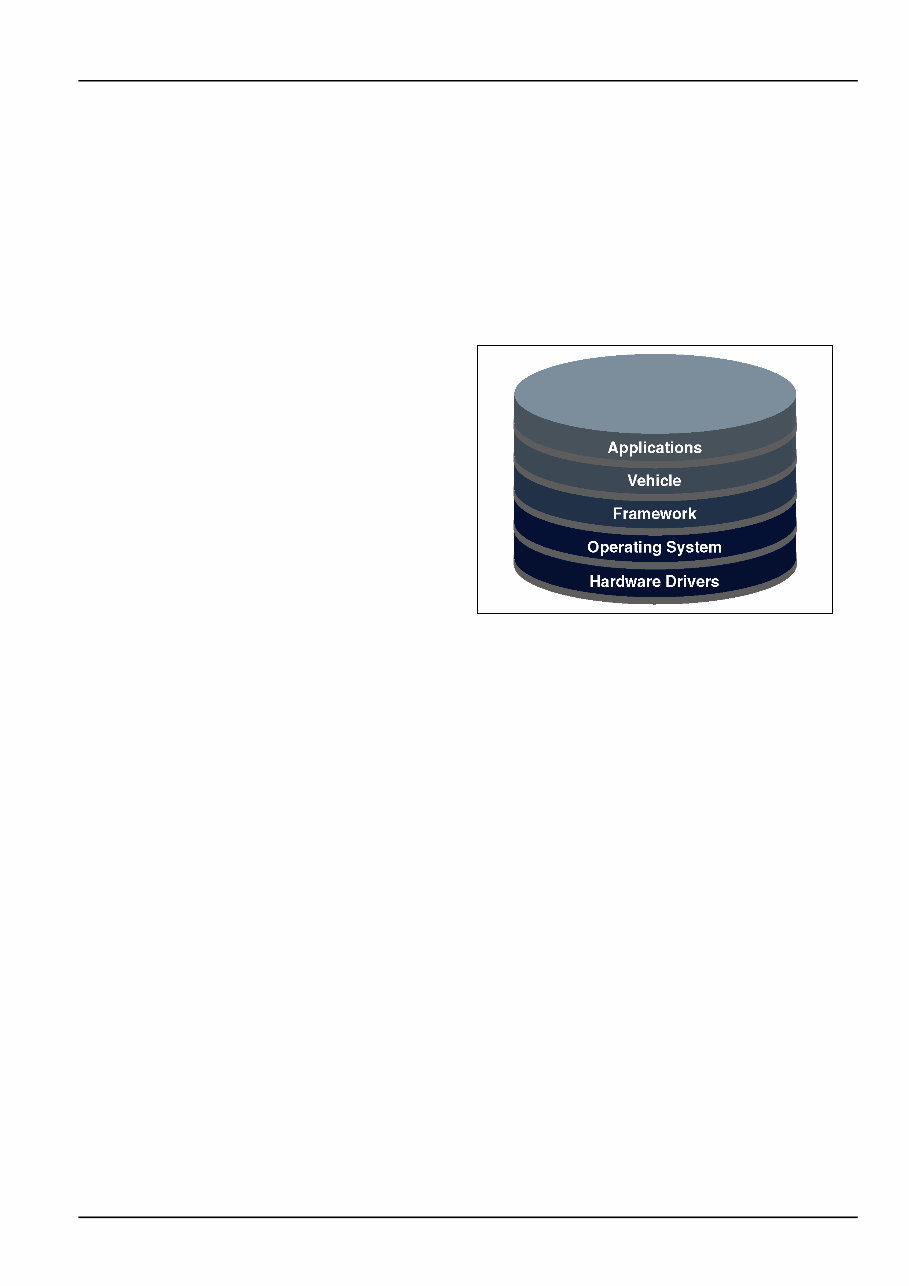
1 - GENERAL 1 - GENERAL Introduction The IntelliView IV display can serve as the operator interface for: • Precision planting, harvesting, and spraying • Vehicle-specific applications – for example, yield monitoring, “as applied” or prescription planting, performance monitoring • PLM IntelliSteer™ • The virtual terminal for vehicles, implements, and systems that conform to the ISO 11783 standard Layered architecture The display uses a layered software architecture to greatly simplify the learning curve for any operator. Each layer inherits the capabilities of the previous layer. This creates standard resources, tools, and screens for all applications on the display. Framework Shared resources, tools, and screens – the “Framework” layer in the illustration – mean that the operator can spend less time learning and more time using the applications on the display. Shared resources may be operator preferences, imple- ment descriptions, crop types, grower-farm-field-task structure, etc. The operator enters this information once. The information is then available in any application on the display, even if the operator moves the display to a different vehicle. Standard pop-up keypads and options windows are ex- amples of shared tools. The same tools are used to create lists, select options, and enter names or values. The op- erator only needs to learn these tools once because they are the same in every application on the display. Common icons and "Home" screen organization simplify navigation through all applications on the display. RCIL11DSP074BBG 1 Vehicle Increasingly, the IntelliView IV display will be an opera- tor’s primary tool for interfacing with the vehicle, whether a tractor, combine, or sprayer. On many vehicles, the op- erator controls automated steering with the display. On some combines today, the operator not only monitors har- vest operations, but also controls them directly from the display. The vehicle uses the display to communicate its unique control and monitoring needs to the operator, while offer- ing greater performance control and feedback. 1-1
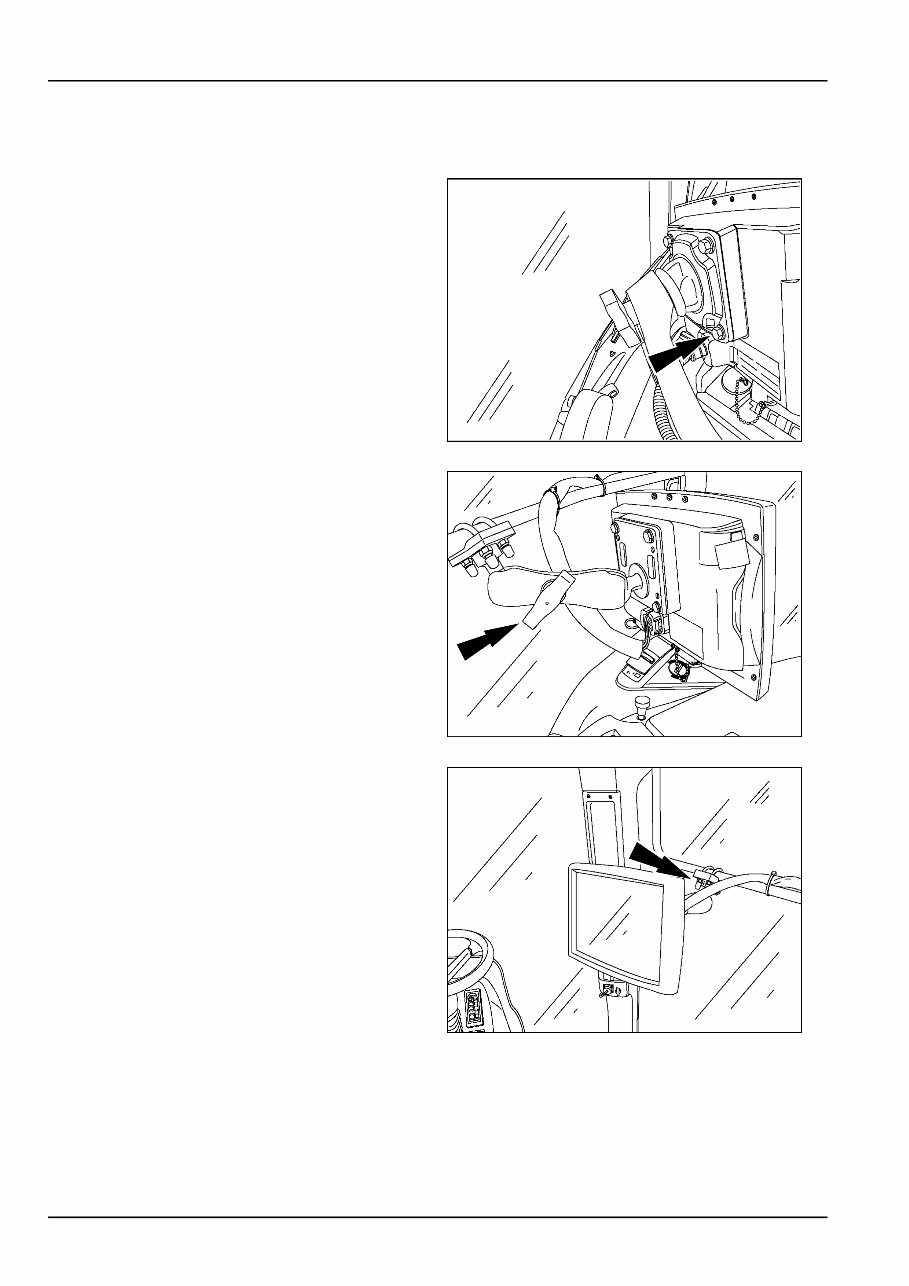
1 - GENERAL ISO 11783 Created by the International Organization for Standard- izations (ISO), ISO 11783 is an electronic standard for agricultural equipment. The goal of ISO 11783 is to increase farmers’ equipment options. The standard accomplishes this goal by standardizing and simplifying control and communication in: • Agricultural vehicles • Displays • Implements • Software • Data storage • Cables • Connectors When used as the virtual terminal for an ISO 11783 im- plement, the display receives its implement control and reporting functions for the implement from the implement itself. These functions and windows are the responsibility of the implement manufacturer. Read the operator’s manual from the implement manu- facturer before using the implement. Obey all safety mes- sages in the manual and on the implement decals when using the implement. RAIL12DSP1041BA 2 RAIL12DSP1007BA 3 1-2
1 - GENERAL Manual scope The New Holland software applications that are available for the IntelliView IV display takes full advantage of its layered architecture. There is vehicle software, farming software (for example, harvesting, planting, etc.), and ex- tended feature software (for example, “Precision Farm- ing,” “Trip Computer,” etc.) that can be layered together in your display. This display manual is the base manual for all software applications. A software operating guide is then available for any vehicle-specific or farming function application. The purpose of this display manual is to explain: • The standard tools that are used by all applications on the display • Navigation through the various screens in any applica- tion • “Toolbox” screens that are used by all applications • Components of the “Precision Farming” application • Generic calibrations • Common “Data Management” screens • Common “Diagnostics” screens By reading this manual, an operator will gain the basic knowledge and skills that are required to learn any appli- cation that is available for the IntelliView IV display. 1-3
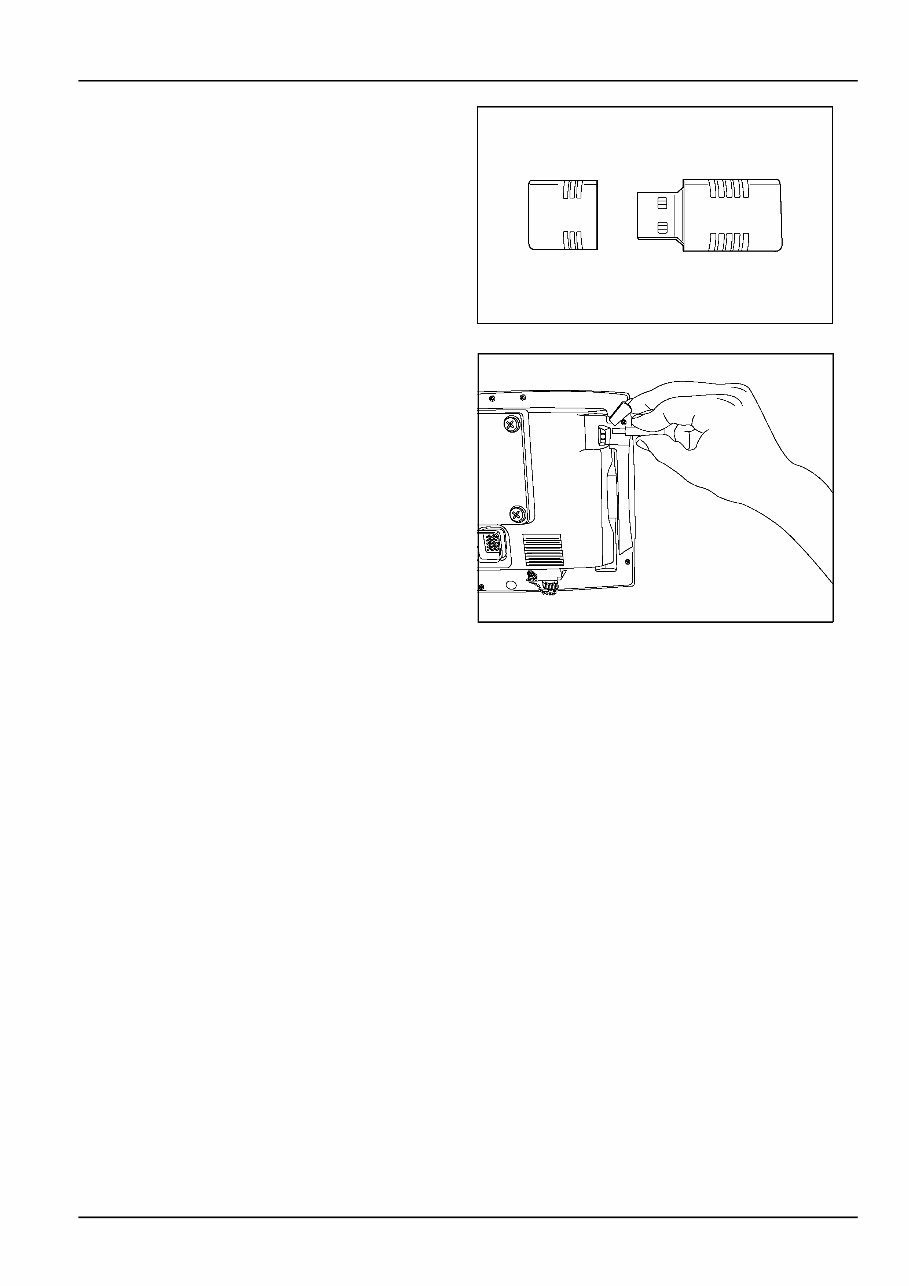
1 - GENERAL Display Installation and removal The IntelliView IV display can be easily moved from one vehicle to another. First, disconnect the electrical connector from the display. Then: • Remove the four screws that connect the display to the support. Transfer only the display to another vehicle. RAIL12DSP1045BA 1 OR • Loosen the knob on the supporting arm and move the display to another vehicle that already has an available supporting arm. RAIL12DSP1048BA 2 OR • Remove the display with its support from the vehicle mounting. Transfer both the display and all mounting hardware another vehicle. RAIL12DSP1046BA 3 1-4
1 - GENERAL Memory stick The IntelliView IV display uses a 4 GB Universal Serial Bus (USB) memory stick, part number 84398840, to store and retrieve information during farming operations. RAIL12DSP1042AA 4 Insert the memory stick in the slot located on the back of the IntelliView IV. Push the stick in until it is fully seated. The memory stick must be inserted before the display is powered for the system to detect the presence of the stick. NOTE: To avoid data corruption, never remove the mem- ory stick until the display is powered down completely. RCIL11DSP073BBG 5 1-5
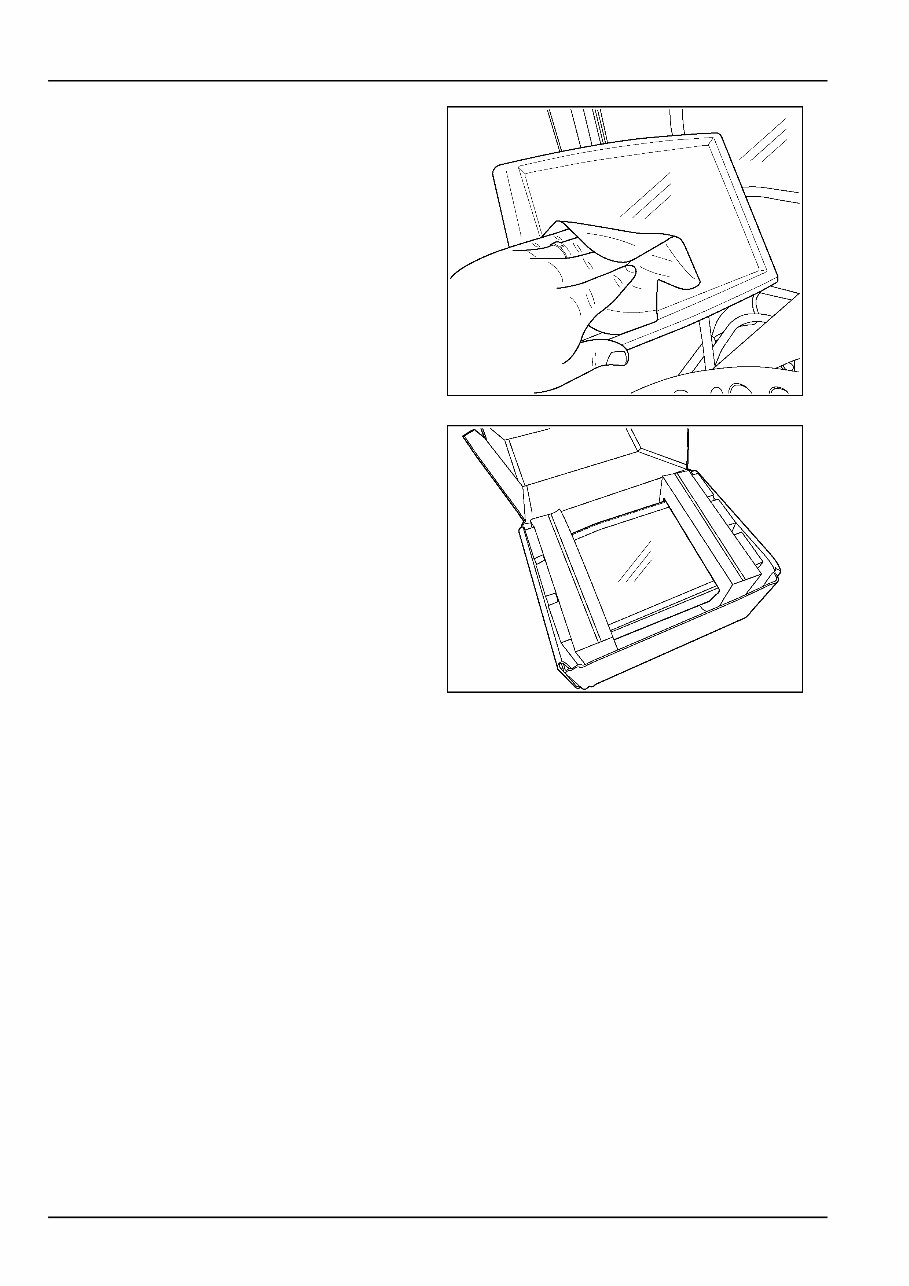
1 - GENERAL Screen care Clean the screen area of the display with a soft nonabra- sive cloth and window cleaner. NOTICE: Do not use solvent cleaners, which can damage the screen area. RAIL12DSP1043BA 6 Storage case A case may be provided to protect the display: • During transport between vehicles OR • For storage During the winter months, place the display in the case and store it in a controlled environment. RAIL12DSP1044BA 7 1-6
The New Holland Intelliview Farming Systems Operator's Manual is a comprehensive guide designed to assist both professional mechanics and DIY enthusiasts in effectively operating and maintaining their farming system. It provides detailed information on the IntelliView III and IntelliView IV Task Controller Software, enabling users to optimize productivity and efficiency.
This manual encompasses a wide range of topics, from fundamental operations to advanced functionalities, ensuring users can fully utilize the New Holland IntelliView system. Whether you are an experienced farmer or a novice, this manual equips you with the necessary knowledge and skills for success.
Key features of the New Holland Intelliview Farming Systems Operator's Manual:
Comprehensive coverage of New Holland IntelliView III
Detailed information on New Holland IntelliView IV Task Controller Software
By adhering to the instructions provided in this manual, users can safely and efficiently operate their farming system. Additionally, it includes crucial maintenance and service details to uphold the smooth operation of the system over an extended period.
Recently Viewed
5,521,897Happy Clients
2,594,462eManuals
1,120,453Trusted Sellers
15Years in Business
Price:
Actual Price:
New Holland Intelliview III, IntelliView IV Task Controller Software Operating Guide Software Version Operators Manual



 Lifetime Access